
Free dictation
for Windows
Hold a key, talk, and the words land in whatever you’re typing in. No account, no word limit.
Windows 10 and 11, 64-bit · What Windows shows on the first install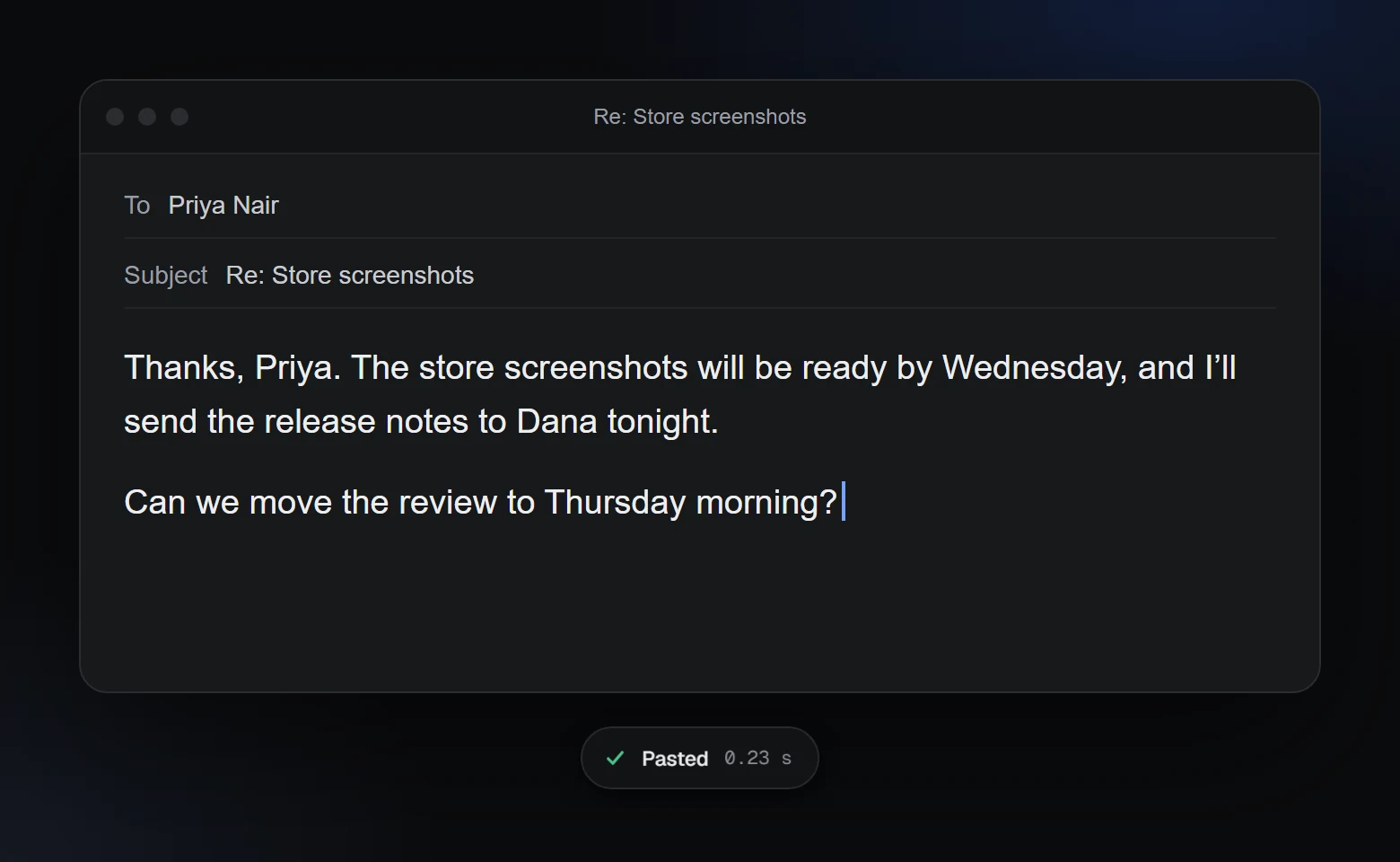
Install, hold a key, talk.
- Install A9 Voice. Setup takes five short steps and asks how you want your voice turned into text. It installs for your Windows user only and needs no administrator rights.
- Hold Ctrl+Space and talk. A small pill at the bottom of the screen shows you it’s listening, and it never takes focus from the app you’re in. If you’d rather not hold a key, turn on hands-free mode in Settings › Dictation.
- Let go. Your words appear where the cursor is, and the pill says Pasted.
Any app with a text box.
There’s no list of supported apps. If you can put the cursor in it, you can dictate into it.
Answer a message out loud instead of typing it.
Chat
Reply in a chat window without leaving it.
Documents
Talk your first draft into a document, a note or a form.
Code editors
Dictate a comment or a commit message where your cursor is.
AI chat boxes
Say your question instead of typing it into the box.
Dictation is free, with no word limit.
The part that usually costs money is the speech recognition. With A9 Voice you choose who does it, and one choice costs nothing.
A free model on your PC
Download a speech model once, and dictation works with no internet. Nothing you say leaves your PC. Setup marks it Recommended: free, private, works offline, and one click downloads it. A9 Voice picks the English model or the multilingual one from your Windows display language.
Or a cloud service, with your key
Groq, Deepgram, OpenAI and ElevenLabs are on the setup list. You paste your own key and pay the service directly, and Groq has a free plan. The key is kept in Windows Credential Manager, never in a file.
No account
There’s nothing to sign up for. Setup asks what to call you and fills in your Windows name.
Speak your language, get your language.
A new install on a Windows set to another language starts in that language, and you can change it under Settings › Dictation › Language you speak, or choose Detect automatically. If the speech engine you picked can’t do your language, A9 Voice says so and shows one that can.
Your words stay yours.
History on your PC
Every dictation is a row with its text, the time and the app it went into, in a list you can search. It lives on your PC.
Your recordings, your choice
By default A9 Voice keeps a small copy of each dictation’s audio for 7 days, so one that failed can be tried again. Turn it off, or change how long, in Settings › Dictation audio.
A dictionary for names and terms
Add the names and jargon you use, and the spellings you want instead of what was heard. How the Dictionary works.
Compared with Windows voice typing.
Windows already has voice typing: click in a text box and press Win + H. If that does the job, keep using it. Here is where A9 Voice differs.
- Win+H is built in, with nothing to install. A9 Voice is one small installer.
- Microsoft says Win+H needs an internet connection. A9 Voice works with no internet once you’ve downloaded a speech model.
- A9 Voice has a Dictionary for names and terms, and a searchable history on your PC.
- A9 Voice can take out the “um” and “uh” and fix punctuation with Enhance with AI. It’s off until you turn it on, and it sends each dictation’s text to the language model you choose.
Questions
Is it really free?
Yes. Dictation in A9 Voice has no word limit and no account. You pay nothing for a speech model that runs on your PC. If you choose a cloud speech service instead, you use your own key and that service bills you directly; Groq has a free plan.
Do I need an account?
No. There’s nothing to sign up for. Setup asks what to call you and fills in your Windows name. If you add a cloud service’s key, it’s kept in Windows Credential Manager on your PC.
Does it work offline?
Yes, once you’ve downloaded a speech model to your PC. The download itself needs internet; after that, dictation needs none. If you use a cloud service and your connection drops, A9 Voice uses a downloaded model instead, when you have one.
Which Windows versions does it run on?
Windows 10 and Windows 11, 64-bit. It installs for your Windows user and doesn’t ask for administrator rights.
Which apps does it type into?
Any app where you can put the cursor in a text box: email, chat, documents, code editors and AI chat boxes. A9 Voice pastes your words with Ctrl+V and puts back whatever you had copied. One exception: Windows doesn’t let a normal app send keystrokes to a program running as administrator, so there A9 Voice copies the text and you paste it yourself.
Is my voice saved anywhere?
On your PC, yes: the text of your dictations, and by default a small copy of each one’s audio for 7 days, which you can turn off. With a speech model on your PC, nothing you say leaves it. With a cloud service, the audio of each dictation goes to the one service you chose, with your key. A9 Voice sends no crash reports and no content-based analytics; it counts installs anonymously, and Settings › Privacy has a switch for that.
Why does Windows warn me when I install it?
A9 Voice is from a new publisher, Atlas9 LLC, and the installer isn’t code-signed yet, so browsers and Windows haven’t seen it often. Edge may say the file isn’t commonly downloaded, and Windows SmartScreen may show a note naming the publisher. The download page shows each screen and what to choose on it, and gives the file’s SHA-256 and a VirusTotal link so you can check it before you open it.

Start dictating.
Free, with no word limit and no account. One small installer, no admin rights needed.
Download free for Windows Windows 10/11, 64-bit · What Windows shows on the first install · ManualThe same app also takes meeting notes with no bot in the call. See everything it does →