

Manual · Reference
Privacy and data
What leaves your PC and where it goes, how to keep everything on your PC, where your files live, how long they are kept and how to delete them.
Last updated for A9 Voice 1.0.30
A9 Voice keeps your data on your PC. It calls speech and language services with your own keys, and only the ones you set up. There is no A9 Voice server in between, no account and no sign-in. This page lists every place data can go. Where something is a promise about how the app is built rather than a setting you can change, it says so.
The short version#
- Audio and text go only to the services you choose, with your keys. If you use models on this PC, nothing you say leaves it.
- One anonymous count, which you can turn off. The update check carries a random ID, the version, your channel, your Windows version and your country, so we can count installs, and five one-time messages (setup finished, first dictation, first note, Notes trial started, Notes bought) say how far people get. No crash reports, never what you said or recorded. See Anonymous usage counts.
- Problem reports are sent only when you press Send, and you can read the exact text first. They hold your words and a scrubbed block of diagnostics, never keys, audio, transcripts or names. See Reporting a problem.
- Your keys live in Windows Credential Manager and nowhere else: not in settings, logs, the repository or the app's own storage.
- Logs hold timings, lengths and status codes, never your words or your keys. This is also a rule of how the app is built.
- Voiceprints stay on this PC, are opt-in, and you can delete any of them or all of them at any time.
- Notes are plain files in a folder you pick.
- Recording consent is up to you. Some places require everyone's permission to record a conversation. A9 Voice shows a short notice about it when Notes starts. See Recording consent.
What leaves your PC, feature by feature#
The table says what is sent, to whom, and what happens when you use a model on this PC instead.
| What you do | With a cloud service | With a model on this PC |
|---|---|---|
| Dictate (hold the key) | The audio of that dictation, the language, and your Dictionary words as spelling hints go to the speech service chosen for dictation. If it fails or takes longer than 4 seconds, the same audio goes once to your fallback service. | Nothing leaves. |
| Enhance with AI | The dictated text, your Dictionary spellings and your custom instructions go to the one language model you chose for Enhance. | Nothing leaves if that model is a server on your own PC. |
| Live transcript during a meeting | While the Live window is open (and a minute after), your microphone and the computer audio stream live, as two channels, to the service you chose under Live transcript by (Deepgram or AssemblyAI). | If a speech model on this PC keeps up, the live transcript is made on this PC. |
| Meeting transcript after a recording | The audio of each channel (your microphone, and what your speakers played) goes to the speech service chosen for notes. | Nothing leaves. |
| Summary, title and tags | The transcript with speaker names and times, any notes you typed or marked during the meeting, your name, the template, your Dictionary spellings, your existing tags and the times and captions of your images go to a language model. Images and audio are not sent. | Nothing leaves if the model is a server on your own PC. |
| Ask (on a note, or in the Live window) | The question goes to the summary model with the note's summary, its image times and captions, and its transcript (in the Live window: the transcript so far). | Same as above. |
| Ask page and Ask your notes (Ctrl+K) | The question and only the best matching passages (about 10 for Quick, up to 120 for Deep) go to the language model. Deep and the wider templates first send the question alone so the model can suggest more search words. A follow-up also carries the question and answer it follows. Recognizing times and names in your question happens on your PC. | Same as above. |
| Search by meaning (optional) | The model is downloaded once from Hugging Face, the way the speech models are. After that nothing leaves: your notes are turned into numbers and compared on this PC, and the numbers stay in meaning.db. | Nothing leaves. |
| Recent questions on the Ask page | Nothing. The last 50 questions and their answers are kept in a small file in A9 Voice's data folder, on this PC. | Nothing. |
| Search (Ctrl+K) | Nothing. The search index is a file on your PC. | Nothing. |
| Recognize people by voice | Nothing, once the speaker model is downloaded. Voiceprints, and the short samples (numbers, not audio) a tune-up rebuilds them from, stay in voices.db on this PC, as do the scorecard's counts and times (no names). None of it is exported, sent or put in a note. | Nothing. |
| Export (Markdown, PDF, Word, email file, captions, audio) | Nothing. Files are made on your PC. | Nothing. |
| Test button on a provider | A 2-second test clip (speech) or a short test phrase (language model) goes to that provider. | Nothing. |
| Webhooks | Only the parts of a note you ticked go to the address you saved. | n/a |
| The connector for AI apps | Notes and action items you search for go to the AI app you connected, on this PC. What that app does with them is up to that app and its service. | n/a |
| Updates | A request for the list of builds, then the update file. Unless you turn it off in Settings › Privacy, the request also carries the anonymous count: a random ID, the version, the channel, your Windows version and your country. | n/a |
| Notes trial and license | When you open Notes, press Try Notes free or buy, a code made from your PC (a one-way hash of its Windows machine ID; the ID itself never leaves) so the 30 days survive a reinstall and a purchase can unlock this PC by itself. Your email only if you ask for the 14 extra days. One number, the version of the recording-consent notice you saw, goes with the trial start and the next check (see Recording consent). A purchase goes through Stripe's checkout in your browser; A9 Voice and a9voice.com never see card details. An activated key is checked with a9voice.com about once a week. Nothing you said, wrote or recorded. | Transcribe never asks. Notes needs this to run. |
A few details that matter:
- Fallback. If the service you use for dictation fails or is slow, A9 Voice sends the same audio to your fallback service. If you do not want audio to reach a second company, set Use as fallback to a model on this PC, or to none.
- Summaries try more than one model. Summaries, Ask and Deep answers try the model you chose first and, if it fails or is rate limited, the next language model you have set up. If you want text to go to only one place, set up only one language model.
- OpenRouter is a routing service: your text goes to OpenRouter, which passes it to the model you picked. The same is true of any custom server you point at a remote service.
- A first Deepgram key asks before meeting audio goes there. When you save your first Deepgram key while Meeting notes use a model that can't tell speakers apart, the key window shows Also use Deepgram for Meeting notes, checked. Meeting audio goes to Deepgram only if you leave it checked. Unchecked, the key is saved and Meeting notes stay where they were. The setup step asks the same way and moves nothing until you click Continue.
- Deepgram or AssemblyAI live. With a key saved, both sides of the call stream live only while the Live window is open (and for a minute after you close it), and only to the service that writes your notes or the one you chose under Live transcript by. With another engine writing the notes and no choice made, nothing streams to a second service. Your Dictionary's words are sent to a live stream only if you turn on Use Dictionary words in the live transcript. To stop it altogether, set Live transcript to Off, or disconnect the key.
- Keeping the dictation connection ready. While A9 Voice runs and a cloud service is set for dictation, it sends that service a small request every few minutes, so the next dictation starts without delay. The request carries your key and no audio or text. With a model on this PC set for dictation, there is no such request.
- Dictation uses the clipboard briefly. It puts the text on the clipboard to paste it, keeps it out of Windows clipboard history and the cloud clipboard, and puts back what you had copied. When you ask for a copy yourself (tray Copy last transcription), that copy is allowed into clipboard history.
What each service receives#
The services A9 Voice can call are the ones in Settings › Models and Settings › Models. Each one only receives data when you set up its key (or address) and use it.
- Speech: Groq, Deepgram, OpenAI, ElevenLabs, and any server you add with Add custom API.
- Language models: OpenRouter, OpenAI, Anthropic, Groq, Google, and any server you add with Add custom API.
Each service's own terms say what it does with data it receives, and you pay it directly. A9 Voice has no copy of what you send. Where a service's terms say something you would want to know before pasting a key (DeepSeek processes requests on servers in China; Google's free tier and Mistral's free plan may use requests for training or to improve their products; AssemblyAI may train on requests unless a paid account opts out), the window and the tile say so in one line.
Keeping everything on this PC#
To see the choice between a cloud service and a model on your PC:
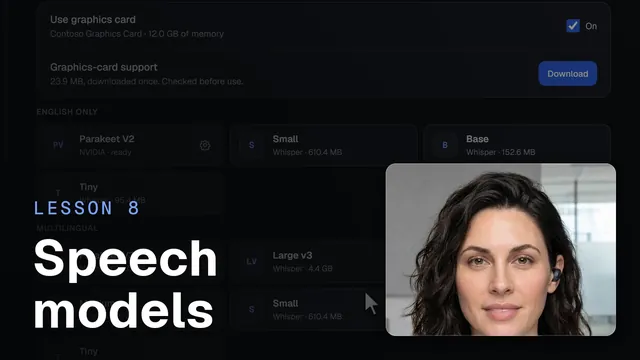 Speech models and your graphics cardWatch the 43-second video
You can use A9 Voice with no cloud service at all:
- In Settings › Models, download a model under On this PC (Parakeet V2 for English, or a multilingual model). Under What each job uses, click Change on Dictation and Meeting notes and pick it. Set Fallback for dictation to another model on this PC, or none.
- In the same page, Disconnect any cloud speech keys you no longer want. With no key saved, nothing can be sent there.
- For summaries, Enhance and Ask, run a language-model server on your own PC and add it in Settings › Models with Add custom API. The page shows
http://localhost:11434/v1as an example address. Under What each job uses, click Change on Summaries and pick it; Ask and Enhance follow it. Disconnect any cloud language models, because summaries fall back to them. - Leave Settings › Integrations empty, and leave Connector for AI apps off if you do not want notes to reach another app.
- For Live transcript, use a speech model on this PC that keeps up (its window says whether it does), or turn Live transcript off.
What still uses the network in this setup:
- The update check. A9 Voice checks a9voice.com and the project's release files on GitHub a few seconds after it starts and then every 6 hours. There is no switch to turn the check off; the anonymous count that rides on it has one (Settings › Privacy), and with it off the check sends nothing extra. If the PC is offline the check simply fails and tries again later.
- The Notes trial and license. Notes asks a9voice.com about its trial or key when you open it, press Try Notes free or buy (while you finish paying it asks every few seconds, for up to 15 minutes, whether the payment has gone through), a few seconds after A9 Voice starts and then about once a day while it runs (on the update check's timer), and when a recording starts and the last answer is a day old. A refunded or revoked key stops working within a day of the next check. When it can't reach a9voice.com it holds for 14 days (a trial) or 30 days (a key). Nothing waits for it: a recording in progress is never cut. Transcribe never does.
- Downloads you start. Speech models come from Hugging Face. Graphics-card support (about 25 MB, once) comes from files.pythonhosted.org. The speaker model for voice recognition comes from the project's release page on GitHub. All are fixed to one version and checked against a known checksum before use. After they are downloaded you can work with no internet at all.
- Web pages you open. The Get your key buttons open the provider's own page in your browser. That is your browser, not A9 Voice.
Problem reports#
Report a problem sends one report when you press Send: what you typed, an optional email address for the reply, and (if you leave Include diagnostics on) the text that Show what's sent displays. That text is Copy diagnostics with the names of people, note titles, recent dictations, email addresses, the Windows user folder and the microphone's name taken out, plus a summary of switches and engine names. It goes to a9voice.com (or its mirror) and is mailed to [email protected]. See Reporting a problem and Problem reports.
Anonymous usage counts#
A9 Voice sends no crash reports and no content-based analytics. The one thing it counts is installs and how far they get: with the update check it sends a random ID, the app version, the channel, your Windows version and processor type, and a9voice.com adds the country; and once each, with the same fields, a message when you finish setup, make your first dictation, record your first note, start the Notes trial and buy Notes. Installers downloaded from a9voice.com carry a random code in the file name. The app sends it once with the first-launch count so we know which link the download came from. It isn't tied to you. If you ask us to email you the download link from your phone, we send that one email and don't keep your address. It is on by default and has a switch in Settings › Privacy. With it off, nothing extra is sent and nothing is recorded. The page Anonymous usage counts says exactly what is counted and what never is. The only network calls are to the speech and language services you set up, to the update locations above, to a9voice.com for the Notes trial and license (see the table), to the download locations above, and to webhook addresses you add.
Where your files live#
To see the folders and what Export offers:
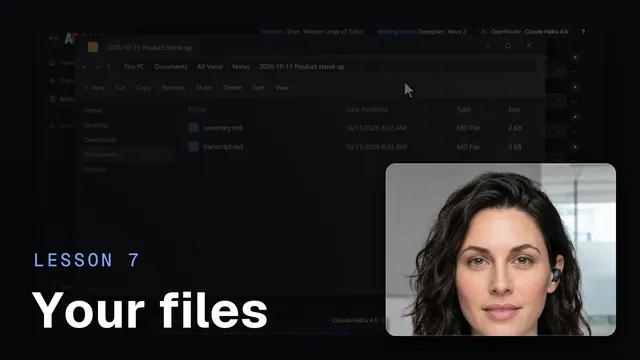 Your notes, your filesWatch the 45-second video
| What | Where |
|---|---|
| Settings, history, notes database, search index, voice database | %APPDATA%\ai.atlas9.a9voice (the folder is named after the app's identifier): settings.json, history.db, notes.db, search.db, meaning.db (the numbers search by meaning makes of your notes, if you turned it on), voices.db, ask-recent.json (your last 50 Ask questions and their answers) and window.json (the main window's size and place) |
| Template logos | %APPDATA%\ai.atlas9.a9voice\templates |
| Logs | %APPDATA%\ai.atlas9.a9voice\logs, the current one a9voice.log (Open logs folder in Settings › General › About) |
| Notes (summary, transcript, images) | Documents\A9 Voice\Notes, or the folder you pick in Settings › Storage |
| Audio (dictation and meetings) | Documents\A9 Voice\Audio, or the folder you pick in Settings › Dictation audio. Dictation audio is in Transcribe, meeting audio in Notes |
| Speech models, the search-by-meaning model and graphics-card support | %LOCALAPPDATA%\A9 Voice\models (the search model is in its search folder) |
| API keys, webhook addresses and secrets | Windows Credential Manager, under names that start with ai.atlas9.a9voice/ |
A copy of a recording is also kept briefly while it is being recorded and written up, in a temporary notes-spool folder in the app's data folder. It is removed afterwards.
Settings, the databases and the logs stay in the app's data folder on purpose: Documents may be synced by a cloud-storage service you use, and a synced database file can be damaged. The notes and audio folders are in Documents by default, so if your Documents folder is synced, they are too. That is your choice of folder, not something A9 Voice does.
If a hard crash damages the settings file or a database, A9 Voice keeps the damaged file beside the new one and tells you with a notice in the pill. Settings come back from the last good copy (or start from the defaults if there is none); a damaged history or notes database is rebuilt with the rows that could be read.
Your keys#
API keys are stored in Windows Credential Manager as generic credentials, on this PC. A9 Voice never writes them to settings.json, the logs, the exported settings zip or the app's own storage. The windows in the app only ever learn whether a key is set. Webhook addresses are stored the same way, because many contain a secret. Disconnect on a provider removes its key.
Copy diagnostics removes anything that looks like a key before it copies the last 200 log lines.
What the logs hold#
The log files record timings, lengths ("90 characters"), status codes, provider and model names, and the name of the app a dictation went into. They never hold API keys or what you said. The files are kept to about 2 MB each, with a few older ones; the oldest are removed.
One more file is local and worth knowing about: meeting-titles.jsonl in the logs folder. When Name notes after the meeting is on (or logging), A9 Voice reads the call app's window titles for the first 90 seconds of a call to find the meeting's name. This file keeps the titles it saw and the name it chose, for the last 200 calls, so you can check a wrong pick. It stays on your PC.
Voiceprints#
Speakers on this PC (the Live window's free speaker separation, see Speakers on this PC) makes voice fingerprints of the other people's side of a call, in memory, while it records. When the recording stops, each note keeps who talked when and one set of numbers per speaker in notes.db: no audio, and not in the note's folder, exports, webhooks or the connector. Deleting the note deletes them. They are matched against saved voices only when Recognize people by voice is on.
Recognize people by voice is off until you turn it on, after an explainer. When on, A9 Voice keeps a voiceprint for a person you tag in the Live window or name in a note: numbers that describe how they sound, not a recording. Voiceprints:
- are stored only in
voices.dbin the app's data folder, and the database is set up to overwrite deleted data; - are never in your notes and never sent anywhere, including to the speech and language services, webhooks and the connector;
- are learned only from names you give, never from a guess;
- are deleted for good with Forget (one person) or Delete all voices in Settings › Voices.
Turning the feature on downloads the speaker model once. See Voices.
How long things are kept#
| What | How long |
|---|---|
| Dictation history | The last 1,000 dictations, or the number you choose in Settings › General › History kept. Clear all in the Transcribe history deletes the rest. |
| Home counts | Daily totals of words, dictations and speaking time, with no text. History kept and Clear all leave them; Settings › General › Reset counts empties them. They never leave your PC. |
| Dictation audio | Saved by default and kept 7 days, or the time you choose in Keep dictation audio. Audio for a failed dictation is kept until you retry or delete it. |
| Notes | Until you delete the note. |
| Notes audio | 30 days, or the time you choose in Keep notes audio. Only the audio goes; the summary, transcript and images stay. Audio of a note that failed is kept. |
| Voiceprints | Until you forget them. The Voices page can show people not recognized in 60 days or more. |
| Logs | A few files of about 2 MB. |
| Problem reports | 180 days on our server. One that could not be sent is kept on your PC for up to 14 days, then dropped. |
| Meeting-title log | The last 200 calls. |
Exporting and importing your setup#
Export… in Settings › Account writes a zip with your settings, Dictionary, templates (with logos) and tag names. It does not contain API keys, webhook addresses or secrets, your license, this PC's install ID, your history or any audio. Two checkboxes add more, and you choose them each time: Include my notes (on by default) adds your notes' summaries, transcripts and images and their details, never audio; Include learned voices (off by default) adds the voiceprints themselves, so keep that file private. The settings do contain folder paths, custom server addresses and your profile, so treat the file as personal. Import… reads such a zip and keeps what belongs to this PC (devices, folders, window places, setup and update state, and the voice-recognition switch). Keys are not carried over; add them again on the new PC. Notes are merged into the ones already there and nothing is deleted. To bring back notes without an export, see Moving your notes to a new PC.
The connector and webhooks#
Both let something outside A9 Voice receive your notes, and both are off until you set them up.
- The connector for AI apps lets an AI app on this PC search and read your notes. It is read only. It can see titles, summaries, transcripts, typed notes, image captions and action items (and your dictation history if Search dictations too is on). It never gets audio, images or voiceprints. Each request is logged on the Connectors page. See Connector for AI apps.
- Webhooks send a note to an address you add, when it is ready. The receiver gets exactly the parts you ticked, nothing else. Audio, image files and voiceprints are never sent. Whoever can read that service can read what you send, so add only places you trust. See Webhooks.
Recording consent#
You are responsible for getting the consent the law requires before you record other people. Some places, including several US states, require everyone's consent, not just yours. What applies depends on where you and the other people are, so check the rules that cover you. This page can't tell you what they are.
A9 Voice records what your microphone hears and what your computer plays. No bot joins the call and the app does not announce itself, so A9 Voice tells nobody on the call. Telling them is up to you.
The notice#
When Notes starts, A9 Voice shows one sentence and a Learn more link to this section:
By starting Notes, you agree to get any consent the law requires before you record other people. Some places, including several US states, require everyone's consent.
- Where. Under Try Notes free on the Notes page, and under Start trial on the "Want notes for this call?" card. Pressing the button is the agreement. There is no checkbox.
- If Notes started without it. A trial that A9 Voice started for you when you updated, or a license you already had, never showed the notice. A small card with the same sentence appears once on the Notes page and the first time the recording bar appears. Got it closes it.
- Always there. Settings › Notes › Recording shows the same sentence and link as plain text.
- It never stops a recording. The notice doesn't block, delay or interrupt anything. Telling the people you record, and getting their consent, is up to you.
What is recorded about it#
- On your PC: the time you accepted and the version number of the notice, in the settings file. An exported settings file doesn't contain it.
- With a9voice.com: one number, the notice's version (
consent_v). It goes with the Notes trial start, and with the next trial or license check if you pressed Got it later, so it needs no extra request. a9voice.com stores it with the time it arrived. It carries no name, email or content, and a9voice.com never sends it back. Transcribe never sends it.
Delete your data#
Pick what you want gone. Everything below is on your PC only.
Dictation history: open Transcribe and use Clear all, or delete single dictations. Set Save audio recordings off in Settings › Dictation audio to stop keeping new audio.
Notes: in Notes, open the ⋯ menu of a note and choose Delete…, then Delete audio, files and note.
Voiceprints: Settings › Voices › Delete all voices.
Keys: Disconnect on each provider in Speech models and Language models. This removes the key from Credential Manager.
Webhooks: Delete… on each one in Integrations removes its address and secrets.
Models: open a model under On this PC and choose Delete.
Everything else: uninstall A9 Voice in Windows Settings › Apps. To also remove the files it leaves, delete the app's data folder,
%APPDATA%\ai.atlas9.a9voice, the models folder in%LOCALAPPDATA%\A9 Voice, and your notes and audio folders inDocuments\A9 Voice. Then open Windows Credential Manager, choose Windows Credentials, and remove any entries whose names start withai.atlas9.a9voice/.If you used a version before 1.0.4, there is an older copy of the same things to remove too: A9 Voice copied your data to its own folder on the first start of 1.0.4 and left the originals where they were, so the previous version still works if you go back. They are the other folder in
%APPDATA%that holds the same files (its name starts withcom.; the one to keep isai.atlas9.a9voice), the matching folder in%LOCALAPPDATA%, and the Credential Manager entries whose names start with that older folder's name and a/.
Related#
- Settings reference for every option.
- Speech models and Language models.
- Troubleshooting.
Something missing or wrong? Report an issue, or use Copy diagnostics in Settings › General when asking for help.