
Manual · Speech and AI
Language models
Add the AI models that write your meeting summaries, answer Ask, and tidy your dictation with Enhance with AI. Use a cloud key or a model on your own PC.
Last updated for A9 Voice 0.7.1
A language model reads text and writes text. Speech models turn your voice into words; language models do things with the words:
- Summaries: after a meeting, one request writes the summary, a title and tags for the note.
- Ask: answers your questions about one note, about the call you are in right now, or across all your notes.
- Enhance with AI: tidies each dictation before it is typed: removes “um” and “uh”, fixes punctuation and capitals.
None of this is required. Dictation and recording work without a language model; you just don't get summaries, Ask or Enhance.
Keys live in Settings › Models, under Providers and keys › LANGUAGE MODELS. Which model does which job is chosen at the top, under What each job uses (see Models).
The speech engines are on that page too. To see how to choose them for dictation and notes:
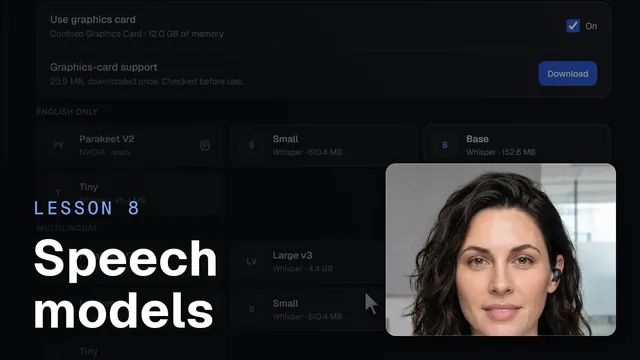 Speech models and your graphics cardWatch the 43-second video
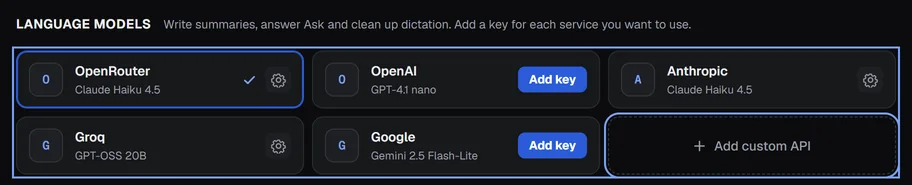
A tile with a blue Add key button has no key yet; a gear means it is set up.
Set up a provider#
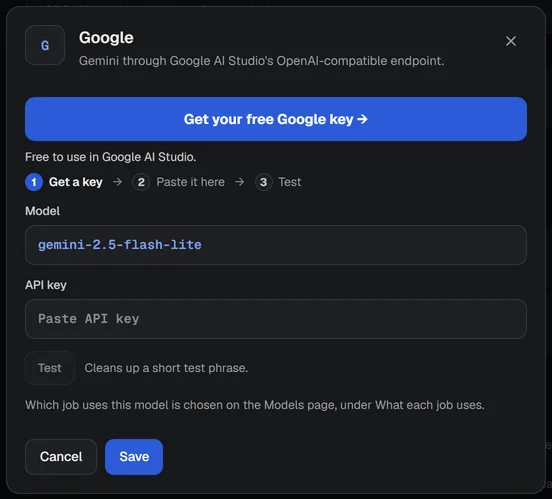
The app offers five: OpenRouter, OpenAI, Anthropic, Groq and Google. The steps are the same for each. Your key goes into Windows Credential Manager, never into a file, a log or the app's storage.
- Open Settings › Models, scroll to Providers and keys and click the provider's tile.
- Click the big blue Get your OpenRouter key → button (the name changes with the provider). Your browser opens the provider's key page.
- There, sign in, create an API key, and copy it. Back in A9 Voice the cursor is already in the key box.
- Paste it into API key.
- Check the Model. It is the provider's default for jobs that don't name one. It is a box you can type in; the list offers the provider's usual choices, and you can enter any model name the provider knows.
- Click Test. A9 Voice sends a short phrase full of fillers (“um so uh the release is on uh Thursday you know”) and shows the cleaned-up answer and the time, for example “So the release is on Thursday.” · 0.64 s. Nothing is saved yet.
- Click Save. Then choose where to use it with Change on a job under What each job uses.
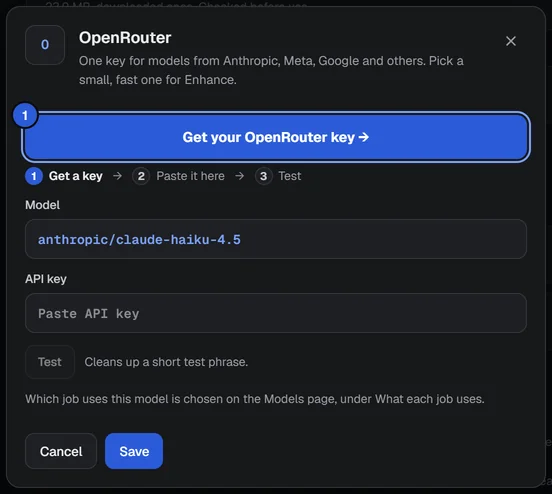
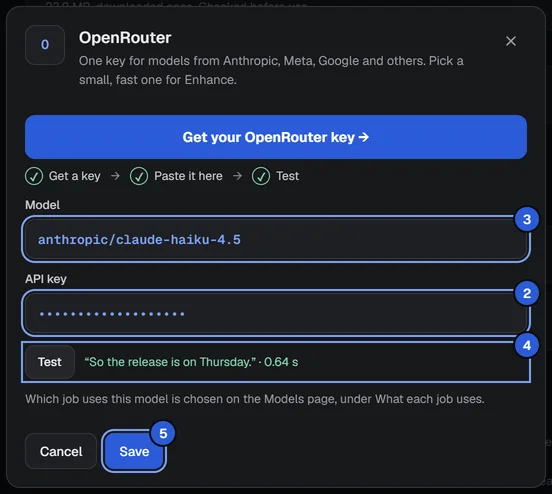
The strip under the big button, Get a key, Paste it here, Test, ticks as you go.
Providers and key pages#
| Provider | Key page | Models it suggests | Good to know |
|---|---|---|---|
| OpenRouter | openrouter.ai/settings/keys | Claude Haiku 5.5, Claude Haiku 4.5, Llama 3.1 8B, Gemini 2.5 Flash-Lite, GPT-4.1 nano | One key for models from Anthropic, Meta, Google and others. |
| OpenAI | platform.openai.com/api-keys | GPT-4.1 nano, GPT-4.1 mini, GPT-4o mini | Shares its key with OpenAI speech. |
| Anthropic | console.anthropic.com/settings/keys | Claude Haiku 5.5, Claude Haiku 4.5 | The app describes it as careful about leaving your words alone. |
| Groq | console.groq.com/keys | GPT-OSS 20B, Qwen 3.8 27B, GPT-OSS 120B | Open models. Shares its key with Groq speech. |
| aistudio.google.com/apikey | Gemini 2.5 Flash-Lite, Gemini 2.5 Flash | Uses Google AI Studio's OpenAI-compatible endpoint. |
Two of the key buttons say free, because the provider's own pages say so: Get your free Groq key → (Free tier, no card needed.) and Get your free Google key → (Free to use in Google AI Studio.). The others don't promise anything.
OpenRouter is the easiest way to try several models with one key. For Enhance, pick a small, fast model; the app says a small, fast model keeps dictation quick.
A key you already added#
Groq and OpenAI use the same key for speech and for language models. If you set one up under the speech services, its tile here already shows the gear instead of Add key, and its window shows Key saved.
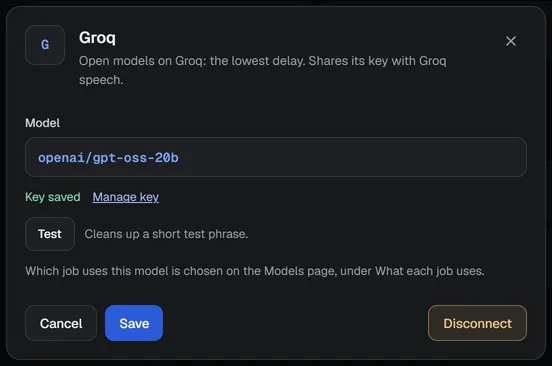
To change a key, open the tile, click Manage key, paste the new one and Save. Disconnect deletes the saved key (for Groq and OpenAI that removes it for speech too); a job that used that provider goes back to Same as Summaries, and Summaries to Automatic.
Choose which model does what#
Each job has its own row under What each job uses in Models: Summaries, Ask: Quick, Ask: Deep and Enhance. Change opens a searchable list of every model your providers offer, with its context window and price. Ask: Deep also shows what one answer costs.
Summaries and titles#
Summaries picks the model that writes the summary, title and tags. The other three follow it unless you give them their own. Leave it on Automatic and A9 Voice uses the first one you have set up, in this order: OpenRouter (the newest Claude Haiku, Claude Haiku 5.5 today), Anthropic (the same), OpenAI (GPT-4.1 mini), Groq. Groq comes last because a long meeting can be more than a free Groq key allows per minute. Any other model you set up, including your own server, is tried after those.
The Summary model row in Settings › Transcript & summary is the same choice.

Ask#
Ask: Quick and Ask: Deep each take their own model, or Same as Summaries. Deep reads more passages, so a stronger model is worth it; the list marks models that are Good for Deep. Ask: Quick also thinks of the extra search words for a Deep answer.
Enhance#
Enhance follows Summaries until you pick a model for it, here or under Settings › Dictation › Enhance with AI › Model. A small, fast model keeps dictation quick.
The AI chip#
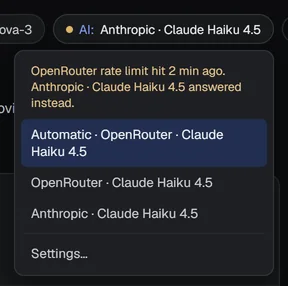
The AI: chip at the top of every window shows the model Summaries use now. Click it to switch: Automatic (with the model it would pick) or one of your set-up models. When Enhance or Ask uses a different model, the chip says +1 override. Settings… opens the Models page.
When a model recently failed or hit a limit, the chip shows an amber dot for 10 minutes. The menu says what happened and who answered instead, for example OpenRouter rate limit (429) 2 min ago. Anthropic · Claude Haiku 4.5 answered instead.
When a model fails#
For summaries and Ask, if the chosen model is rate-limited, takes too long, can't take a request that big, or the provider has an error or rejects the key, A9 Voice tries the next model you have set up, one per provider, in the order above. The footer says why: after: Groq rate limit (429) or after: request too large for Groq's per-minute token cap on this model. A request known not to fit is skipped without being sent. With no internet it stops, because the next one would fail the same way.
So the most reliable setup is two providers with keys. Enhance is different: it uses only its own model and has a short time limit. If it can't answer in time, you get the text as heard (see below).
Enhance with AI#
Enhance tidies each dictation before it is typed. It is off until you turn it on, in Settings › Dictation, under Enhance with AI.
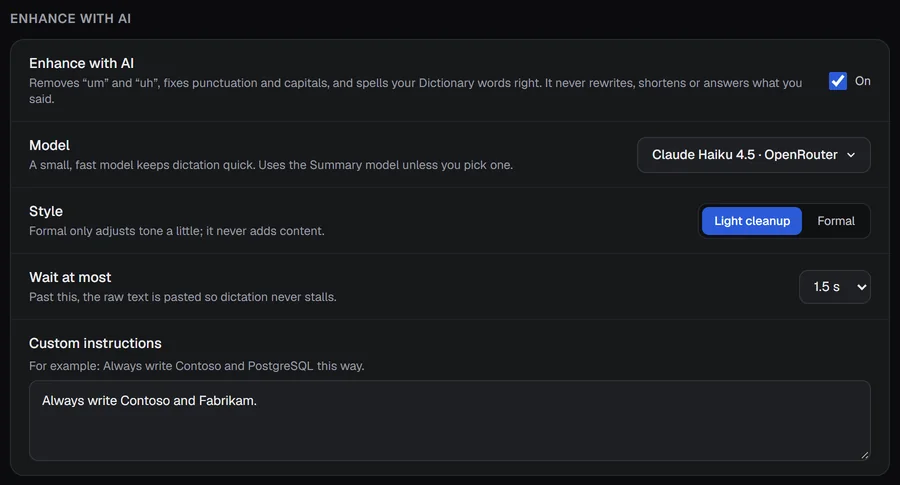
- Enhance with AI: the switch. It removes “um” and “uh”, fixes punctuation and capitals, and spells your Dictionary words right.
- Model: the model that does it. Same as Summaries is the default. If no model is set up, the row says Add a key in Settings › Models first. Until then, text is pasted as heard.
- Style: Light cleanup or Formal. Formal only adjusts the tone a little: it can expand contractions and swap very casual words for neutral ones. It never adds content.
- Wait at most: 1.0 s, 1.5 s (the starting value), 2.0 s or 3.0 s. Past this, the raw text is pasted so dictation never stalls.
- Custom instructions: your own rules, for example how a name should be spelled. They can't override the rules below.
What it never does#
It never rewrites, shortens, reorders, summarizes, translates or answers what you said. If you dictate a question, you get the question, tidied, not an answer. What you dictated is treated as text to edit, never as instructions.
When it is skipped#
Dictation never fails because of Enhance. When Enhance is too slow, fails, or returns something that doesn't look like a cleanup (much longer or shorter than what you said), the text is pasted as heard. In Transcribe, the item shows AI too slow · as heard, AI failed · as heard or AI reply skipped · as heard, and a good one shows AI with the time. A link on each item switches between Show original and Show enhanced.
Enhance sends the text of each dictation to the model's provider. Pick a model on your own PC if that matters; see below.
Use a model on your own PC#
Some programs run language models on your own computer and speak the OpenAI chat format, for example Ollama and LM Studio (the app itself suggests both). Add custom API connects to any of them.
- Start the program and make sure it is serving a model.
- In Settings › Models, under Providers and keys, click Add custom API next to the language models.
- Name: anything, for example
Local model. - Base URL: the server's address, as the program shows it, for example
http://localhost:8000/v1. - Model: the exact model name your server has.
- API key (optional): leave empty unless your server wants one.
- Extra header (optional) and Header value: only if your server needs one; the value is stored like a key.
- Click Test. It stays off until Model is filled in. Then Save, and pick it with Change on the jobs you want it for.
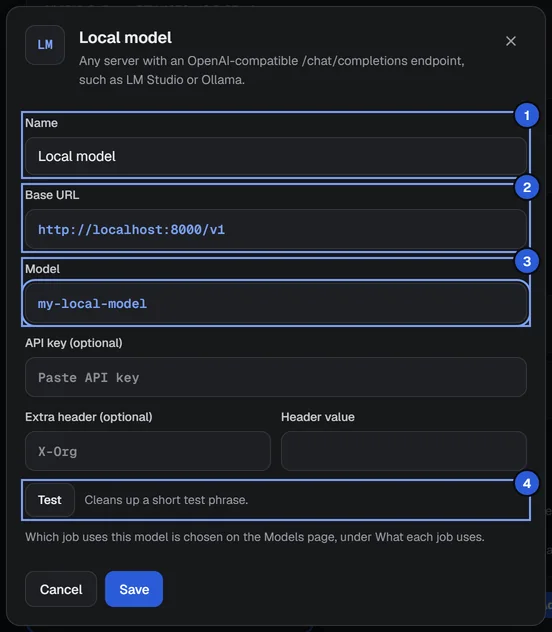
A9 Voice sends an ordinary chat request to your Base URL plus /chat/completions: the model name, the instructions and the text, with the key and header if you set them. Nothing else is sent, and with a server on localhost nothing leaves your PC. Your custom model also joins the Summaries order after the built-in providers. If your model is slow, remember Enhance's Wait at most limit; Test waits at least 5 seconds.
Disconnect on a custom server removes it and its saved key and header.
What it costs#
A9 Voice doesn't charge for language models; you pay each provider directly with your own key. Settings › Usage & cost shows an estimate for the month, priced with a table of prices you can edit. See the settings reference.
If something goes wrong#
- OpenRouter key rejected (or another name): the key is wrong or expired. Open the tile, Manage key, paste a new one, Test, Save.
- … key missing: add a key for that provider.
- … rate limit (429) or … took too long: the provider is busy. Summaries and Ask move to the next model; Enhance pastes the text as heard.
- request too large for … on this model: the request is bigger than that model takes (its context window, or Groq's per-minute token cap). It never counts as usage. The next model answers.
- No internet: language models need a connection unless they run on your PC.
- Add your OpenRouter key in Settings › Models to get summaries: no model is set up. Add a key for any provider above.
- Test is greyed out on a custom server: fill in Model.
More in Troubleshooting.
Related#
- Models: what each job uses.
- Speech models: keys for turning speech into text.
- Transcribe: where Enhance with AI works.
- Note page: summaries, Ask and tags on a note.
- Asking your notes: Ask across all your notes, and Deep answers.
- Search and Ask: find words in your notes.
- Privacy and data: what is sent to a provider and when.
Something missing or wrong? Report an issue, or use Copy diagnostics in Settings › General when asking for help.