
Manual · Reference
Settings reference
Every page in Settings and every option on it, in the order the app shows them, with what it does and what a new install starts with.
Last updated for A9 Voice 0.7.9
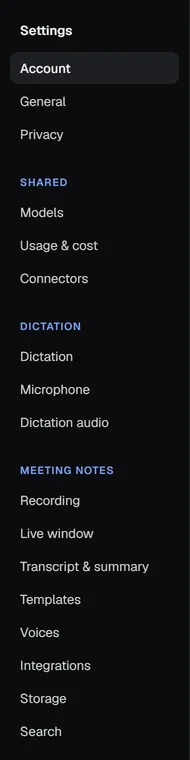
Open Settings at the bottom of the sidebar. The list on the left has four parts: Account, General and Privacy at the top, then Shared, Transcribe and Notes. In a narrow window the list turns into a drop-down called Settings page.
This page follows that list. Each option is one line: its name exactly as the app shows it, what it does, and its default for a new install. A copy that was updated from an older version keeps the choices it already had. Changes save as you make them; there is no Save button except where a page says so.
Account#
Account is the first page in Settings, above the groups. It holds your plan, your profile (the "You" that meetings use) and the backup of your setup.
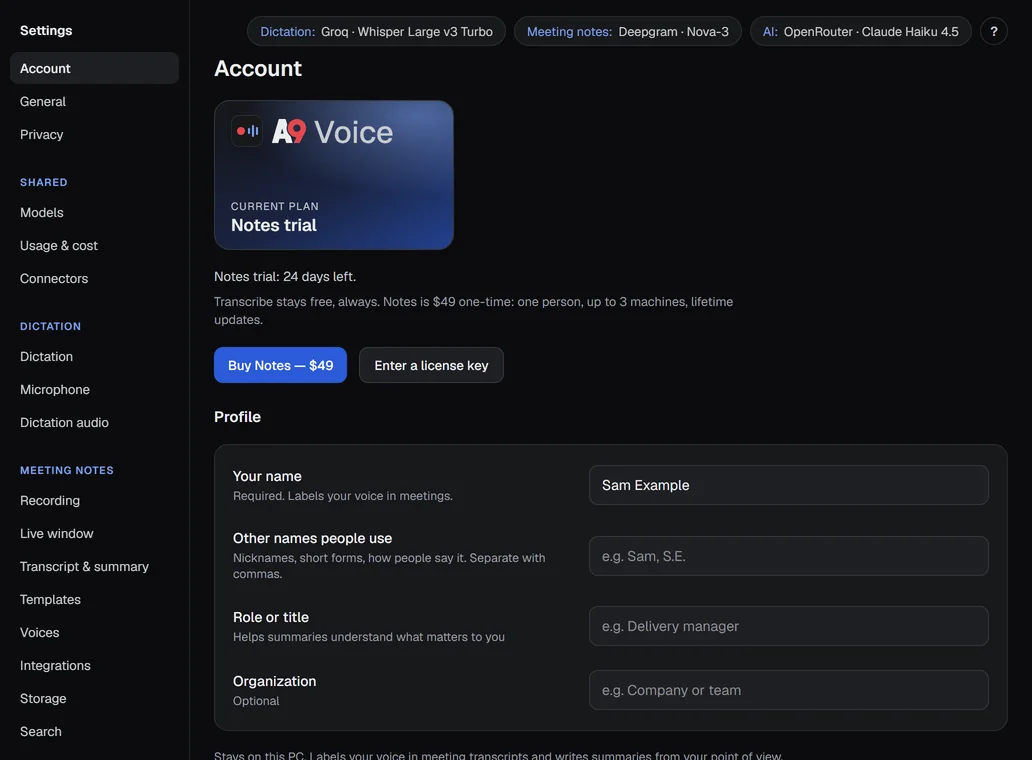
- Plan: the card and the line under it say where Notes stands. Transcribe is free, always. Notes (meetings, voices, search) has a 30-day free trial that starts when you press Try Notes free, then costs $49 once for one person on up to 3 machines, with every update. The card reads Free — Transcribe until you start the trial, then Notes trial · N days left; the line under it says Notes: 30-day free trial, then $49 once, Your Notes trial ended on a date, Notes: licensed to your email with how many of your 3 machines are used, or Notes: licensed (complimentary). Once Notes is licensed, the card gets a green Licensed badge and the line gets a green check. The small chip by the version in the sidebar shows only when something may need you: the trial countdown, Notes trial ended, or Notes · check license (amber) when A9 Voice needs to go online once to check. A licensed Notes shows no chip. Recordings, transcripts and summaries you already made stay readable, searchable and exportable whatever the plan says; only starting a new recording waits for a license.
- Try Notes free: starts the 30 days now. Nothing in Notes records before you press it: not a call, not the Record button. (A profile that was already using Notes when it updated to 0.7.4 has its 30 days started for it once, with a banner saying so.)
- Buy Notes — $49: opens the secure checkout in your browser and a small sheet, Finish paying in your browser. When the payment goes through, Notes unlocks on this PC by itself, with nothing to paste. Your card statement will show LINK.COM* ATLAS9 LLC. The key is also on the page you land on after paying, for a purchase made on another PC.
- Enter a license key: the key box says where a key comes from (Don't have a key? Buy Notes for $49). Paste the key and press Activate. It is checked with a9voice.com and Notes unlocks on this PC. A 4th machine is refused until you deactivate one.
- Extend: shown in the last 5 days of the trial and after it ends, once per PC, and only while a9voice.com can send the code (when it can't, nothing about it shows). Enter your email, then the 6-digit code we send, and the trial gets 14 more days. Tick Send me occasional product updates only if you want them.
- Deactivate this machine: frees this PC's seat so the key can be used on another PC. Manage shows how many of your machines use the key.
- Your name: the name your own lines carry in meeting transcripts and the name summaries use for you. It is required. If you empty the box, A9 Voice goes back to your Windows account name. Setup asks for it in step 1.
- Other names people use: nicknames and short forms, separated by commas. Saved with your profile on this PC.
- Role or title: optional, saved with your profile on this PC.
- Organization: optional, saved with your profile on this PC.
- Back up or move your setup: two buttons, Import… and Export…. Export writes one zip file with your settings, your Dictionary, your summary templates (with their logos) and the names of your tags. It never contains API keys, webhook addresses, signing secrets, your history, your notes, any audio or your voiceprints. The settings in it do include folder paths, custom server addresses and your profile, so treat the file as personal. Import reads such a zip and keeps what belongs to this PC: your microphone and speaker choices, your notes folder and Audio folder, where the windows sit, whether setup is finished, your update channel and the voice-recognition switch.
Your profile never leaves this PC except for your name, which goes into the instructions for summaries (see Privacy and data).
General#
General has no group heading. It is the second page in Settings and it also holds the update controls and the About card, further down the same page.
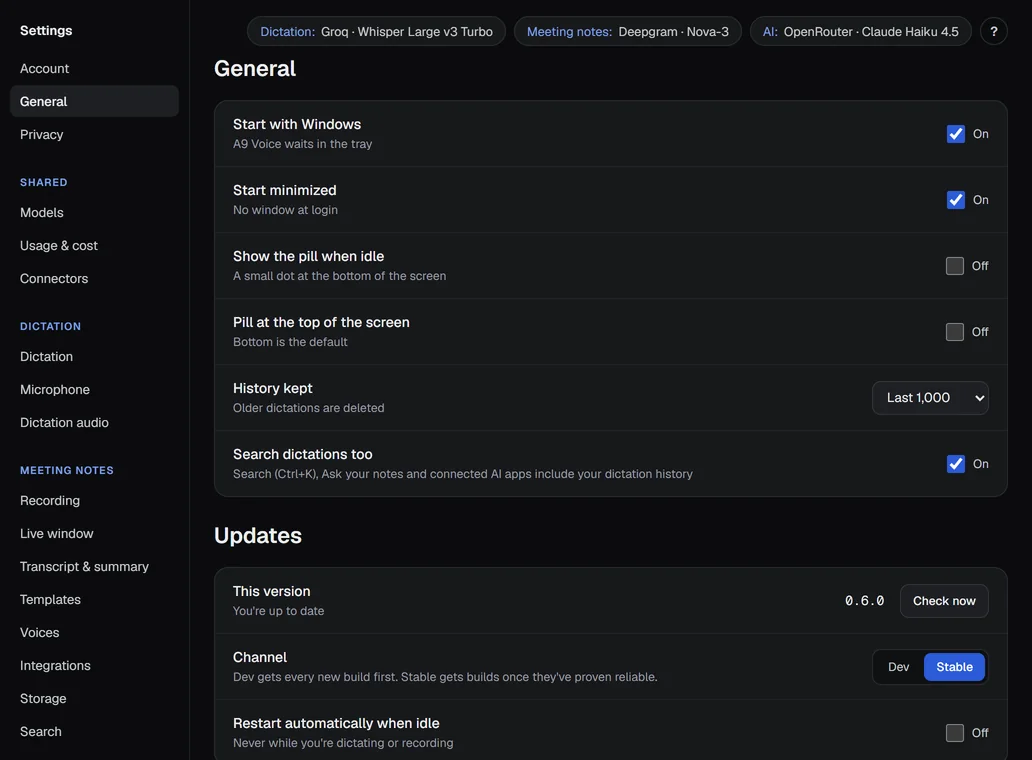
- Start with Windows: starts A9 Voice when you sign in, waiting in the tray. On for a new install.
- Start minimized: no window opens at sign-in; only the tray icon. On for a new install. After an automatic update the app also comes back quietly when this is on.
- Show the pill when idle: keeps a small dot of the dictation pill on screen when nothing is happening. Off for a new install.
- Pill at the top of the screen: moves the pill from the bottom of the screen to the top. Off for a new install, so the pill sits at the bottom.
- History kept: how many dictations the Transcribe history keeps; older ones are deleted. Choices: Last 100, 500, 1,000, 5,000 or 20,000. Default Last 1,000.
- Home counts: Reset counts starts Home's dictation totals again from zero, after asking. Your Transcribe history is not touched. Without it the totals keep counting after History kept deletes old dictations.
- Search dictations too: lets Ctrl+K search, Ask your notes and connected AI apps include your dictation history. On for a new install.
More: Transcribe and Privacy and data.
Updates#
The Updates card is on the General page, under the options above. The version line at the bottom of the sidebar opens it.
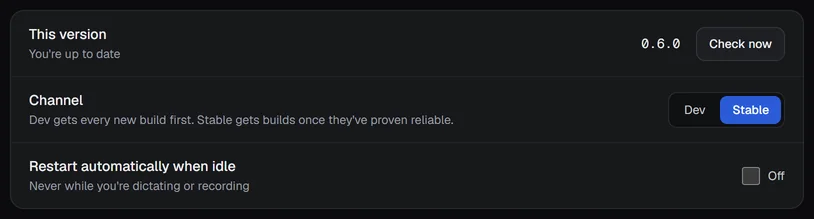
- This version: the version you run, with Check now. The line under it says what the last check found: "Checking…", "You're up to date", "Downloading" with the version, an error, or when it last checked.
- Channel: Stable or Dev. Stable is the default for a new install. Dev gets every new build first; Stable gets builds once they have proven reliable. Picking a channel checks for updates at once.
- Restart automatically when idle: when an update is downloaded and checked, restart into it after 2 minutes without dictation. Never while you are dictating or recording. If you never set it, it is off on Stable and on for Dev.
Details: Updates and channels.
About#
The About card is at the bottom of the General page. It shows the version and the copyright line, Atlas9 LLC, and says "Proprietary. Transcribe is free; Notes is a one-time license after its 30-day trial."
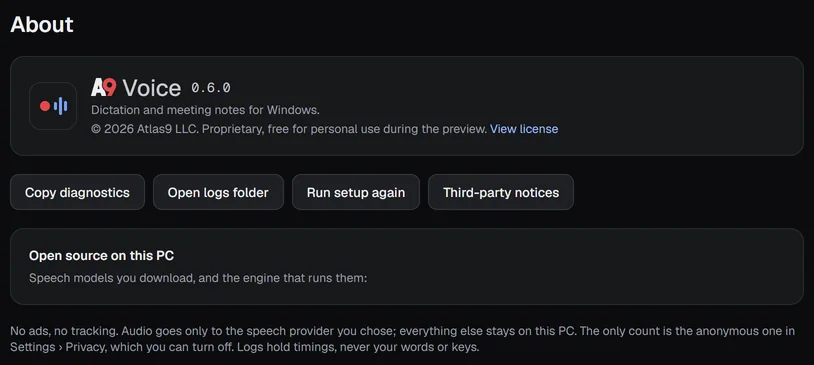
- View license: shows the license text on the page. The link then reads Hide license.
- Copy diagnostics: copies a block of text to the clipboard for an email to [email protected]. It holds the version, Windows, microphone, the speech and language providers you set up (names only), your dictation shortcuts and whether they registered, the update channel, graphics-card and display details, and the last 200 log lines with anything key-like removed. It never holds API keys or transcript text. The same command is in the tray menu under Help.
- Open logs folder: opens the folder with the log files.
- Run setup again: opens the first-run setup from step 1. The tray menu does the same under Help › Restart setup; Skip setup is there too.
- Third-party notices: shows the notices for the open-source parts of A9 Voice. The button then reads Hide notices.
- Open source on this PC: a list of the speech models you can download and the engine that runs them, each with its license.
More: Troubleshooting and Privacy and data.
Privacy#
Privacy is the third page in Settings, under General. It holds the one switch for the anonymous install count. Details: Anonymous usage counts.
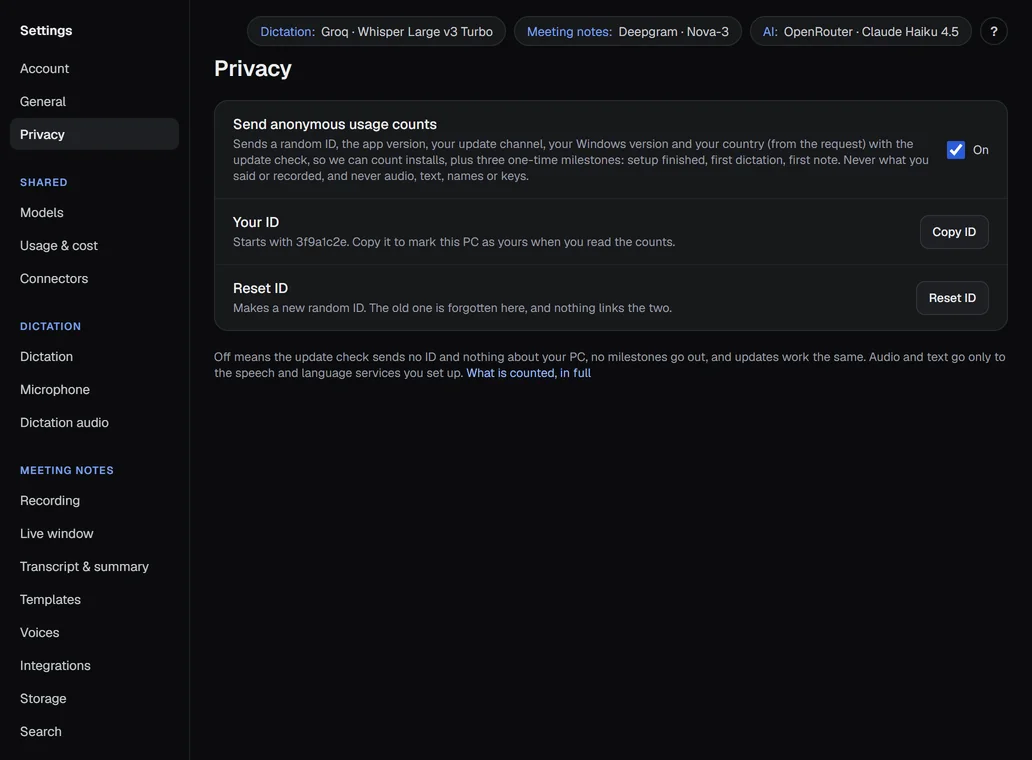
- Send anonymous usage counts: on for a new install. When on, the update check carries a random ID, the app version, your channel, your Windows version and your country (worked out from the request) so installs can be counted. Five one-time messages go with the same fields: setup finished, first dictation, first note, Notes trial started, Notes bought. An installer from a9voice.com has a random code in its file name, which the app sends once with the first-launch count so we know which link the download came from; it isn't tied to you. It never carries what you said or recorded, and never audio, text, names or keys. Off sends no ID and nothing about your PC, no messages, and updates work the same.
- Your ID: the first 8 characters of this PC's random ID. Copy ID puts the whole ID on the clipboard, so you can mark this PC as yours when you read the counts.
- Reset ID: makes a new random ID. The old one is forgotten on this PC and nothing links the two.
Models#
Part of the Shared group. One page for every model, job first: what each job uses with a Change button, then Providers and keys. Your keys are kept in Windows Credential Manager and nowhere else.
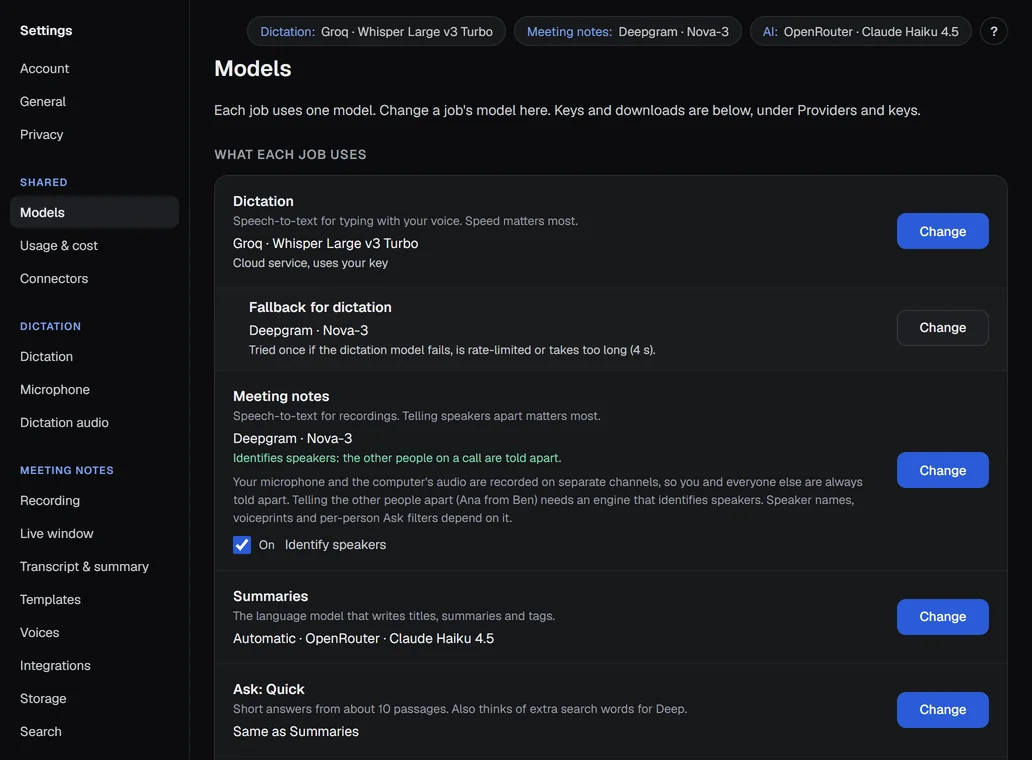
- Dictation: the speech model that hears you when you hold the dictation key. Default Groq.
- Fallback for dictation: the model tried once if the dictation model fails, is rate limited or takes longer than 4 seconds. Default Deepgram. It has to be a different model from the one used for dictation.
- Meeting notes: the speech model that transcribes meetings. Default Deepgram. It gets an amber border and a Fix this button when it can't tell the other people on a call apart.
- Identify speakers: separates the other people into Speaker 2, 3, … Needs Deepgram, ElevenLabs or a model on this PC.
- Summaries: the language model for titles, summaries and tags. Automatic is the default.
- Ask: Quick and Ask: Deep: the language models for short and for long answers. Each defaults to Same as Summaries.
- Enhance: the language model for dictation clean-up. Defaults to Same as Summaries.
- Change: opens the list for a job. For language models it is searchable and shows each model's context, price and Good for Deep badge; Refresh lists asks the providers again. The lists are kept for 24 hours.
- Newer: a line that offers a newer Claude Haiku for Summaries once. Switch takes it; Not now closes it.
- Providers and keys: the cards for each service. Groq, Deepgram, OpenAI and ElevenLabs do speech; OpenRouter, OpenAI, Anthropic, Groq and Google do language models; your own servers do either.
- Add custom API: adds a server of your own with an OpenAI-compatible endpoint, for speech or for chat, such as one running on this PC. Needs a Base URL; give it a Name and a Model too. The API key and an Extra header are optional.
- API key: the key for a provider. It is saved to Windows Credential Manager when you press Save. Get your key opens the provider's own page in your browser.
- Test: sends a 2-second test clip, or a short phrase for a language model, and shows the answer.
- Also use Deepgram for Meeting notes: a box in the Deepgram key window (and on the setup step), shown only when you save your first Deepgram key while Meeting notes use a model that can't tell the other people apart (Groq, OpenAI or a custom server). It starts checked: Save then moves Meeting notes to Deepgram, and meeting audio is sent to Deepgram. Unchecked, the key is saved and Meeting notes stay as they were. Your dictation model never changes. Not shown for a second key, or when Meeting notes already use Deepgram, ElevenLabs or a model on this PC.
- Disconnect: removes the saved key (and, for a custom server, the server). It is greyed out for the model used for dictation; choose another first.
- Use graphics card: lets the Whisper models that support it run on a DirectX 12 graphics card. On for a new install, and it does nothing on a PC without a supported card. The line under it names the card and its memory, or says why none can be used. Integrated graphics have only memory they borrow from the PC, so the line says "shared memory" and models that need a graphics card do not run on it.
- Graphics card: appears only when the PC has more than one usable card. Models run on the one you pick; the best one is the default.
- Graphics-card support: a one-time download of about 25 MB that lets models use the card. It is checked before use. Download, Cancel and Remove manage it.
- Graphics card gave a bad result, used the processor: the same kind of notice, for a card that answered with text that did not pass A9 Voice's checks. The text from the card is thrown away, the processor does the job again, and only that result is used.
- English only: models that run on this PC and only understand English: Parakeet V2, Whisper Small, Base and Tiny (English).
- Multilingual: models that run on this PC and understand many languages: Parakeet V3 and Whisper Tiny, Base and Small, plus Medium, Large v3 and Large v3 Turbo, which run on a graphics card.
- The models folder: the link under the models opens the folder where they are saved,
%LOCALAPPDATA%\A9 Voice\models. Without internet, dictation and notes use a downloaded model automatically.
Details: Models, Speech models and Language models.
Usage & cost#
Part of the Shared group. It estimates what dictation and notes cost this month from the prices below. You pay each provider directly with your own keys, and the provider's bill is the final word.
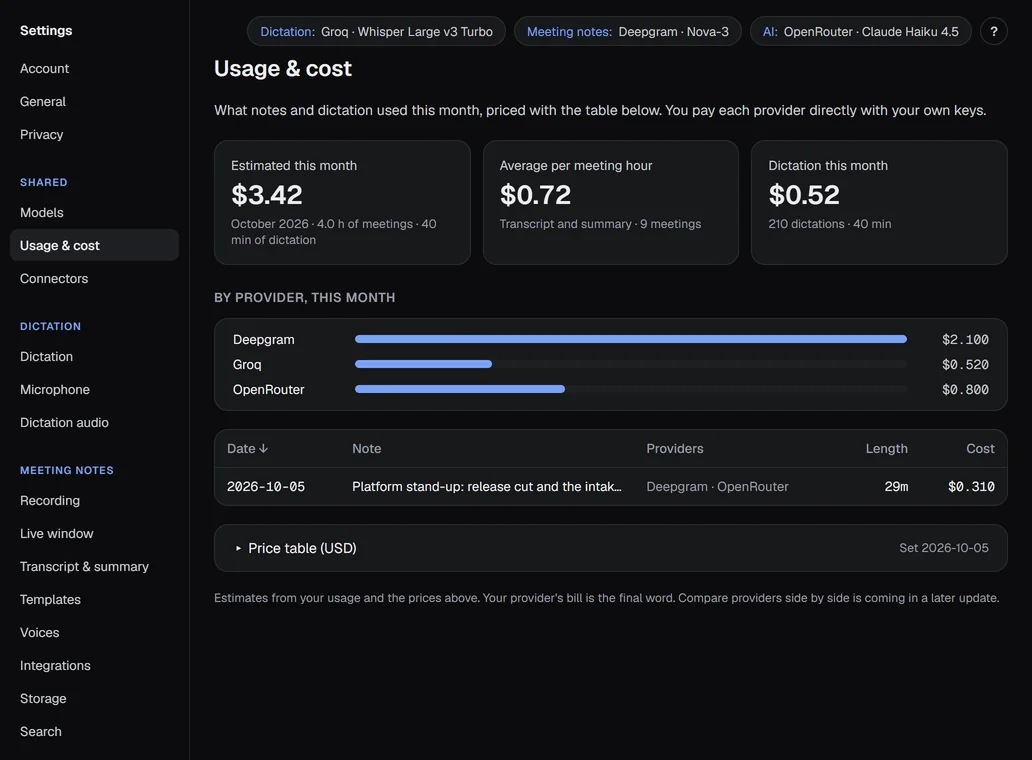
- Estimated this month: the total for the month, with hours of meetings and minutes of dictation.
- Average per meeting hour: transcript and summary cost per hour of meeting. Shows a dash until there is a meeting.
- Dictation this month: cost, number and minutes of dictations.
- By provider, this month: a bar for each provider.
- The table: one row per note and day with Date, Note, Providers, Length and Cost. Click a heading to sort. A row for a note opens that note.
- Price table (USD): opens an editable table: price per audio hour (speech), and per million tokens in and out (language models). Speech is counted per channel, so a meeting sends your side and the other side separately. Reset to defaults puts the list prices back.
The defaults are the providers' public list prices for each one's usual model, checked on 2026-10-05. The line Set and a date beside the table's name shows when the table was last set or edited.
| Provider | Per audio hour | Per 1M tokens in | Per 1M tokens out |
|---|---|---|---|
| Groq | $0.04 | $0.075 | $0.30 |
| Deepgram | $0.258 | none | none |
| ElevenLabs | $0.22 | none | none |
| OpenAI | $0.36 | $0.40 | $1.60 |
| OpenRouter | none | $1.00 | $5.00 |
| Anthropic | none | $1.00 | $5.00 |
| none | $0.10 | $0.40 |
Models that run on this PC cost nothing per use. Details: Models.
Connectors#
Part of the Shared group. Connectors let AI apps on this PC search and read your notes. It is read only, and nothing is shared until you turn it on and connect an app.
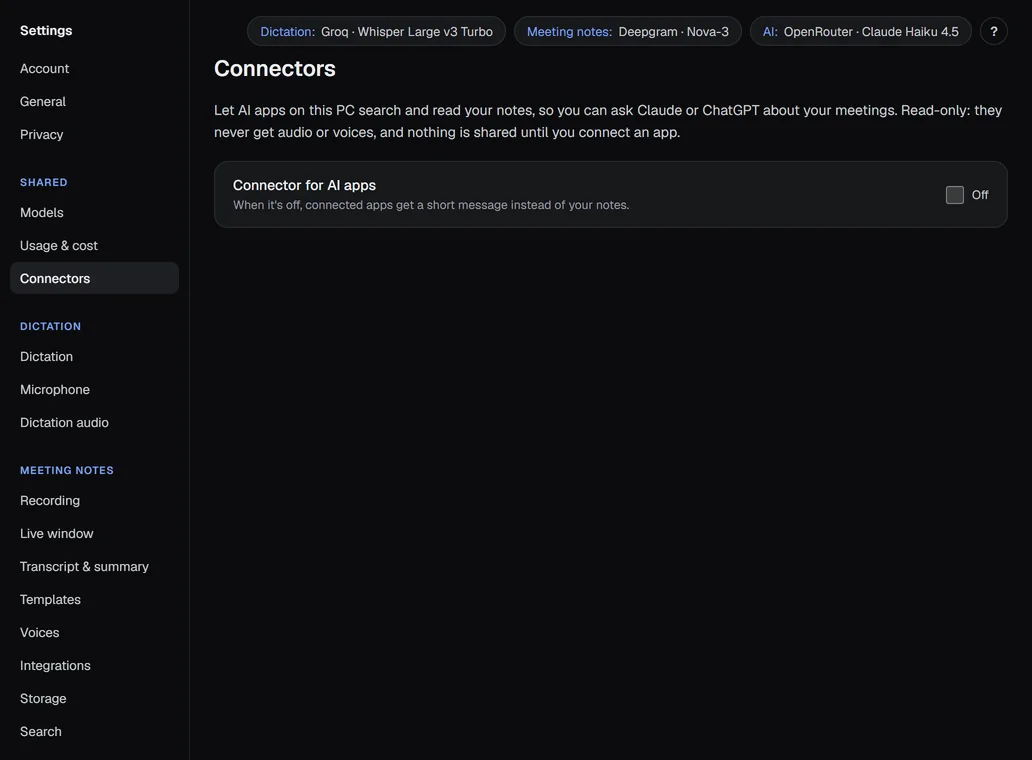
- Connector for AI apps: the master switch. Off for a new install. When it is off, a connected app gets a short message instead of your notes.
- Connect to Claude Desktop…: under Claude Desktop, a one-click connect for the one app A9 Voice can set up itself. It shows the change it will make to that app's settings file first and makes a backup copy before changing an existing file. If the connector is off, the button reads Turn on & connect to Claude Desktop… and also turns the connector on.
- Other apps: Copy command and Copy settings (JSON) copy what another app needs to start the connector. The app's own settings page is where you paste it.
- Recent requests: the log, kept on this PC, of what connected apps asked for and when.
Details: Connector for AI apps.
Dictation#
Part of the Transcribe group. These are the keys and the way text goes into the app you are typing in.
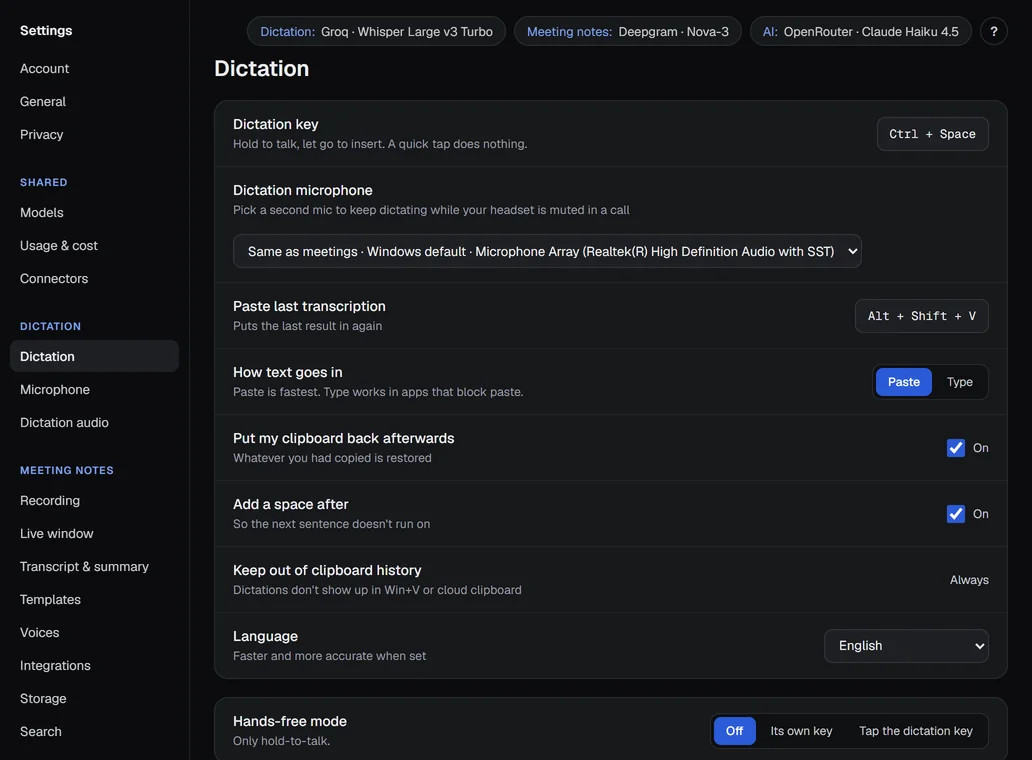
- Dictation key: hold to talk, let go to insert. A quick tap does nothing. Default Ctrl+Space. Click it and press the new shortcut. If another app has it, the sidebar says Key in use · fix.
- Dictation microphone: the microphone for dictation. The first choice is Windows default, which follows Windows if you change it. Pick a second microphone to keep dictating while your headset is muted in a call. It is the same setting as Microphone on the Microphone page.
- Paste last transcription: puts the last result in again. Default Alt+Shift+V. You can clear it to turn it off.
- How text goes in: Paste (fastest, the default) or Type (for apps that block paste).
- Put my clipboard back afterwards: restores whatever you had copied once the text is in. On for a new install.
- Add a space after: adds a space after the text so the next sentence does not run on. On for a new install.
- Keep out of clipboard history: shows Always. Dictations never appear in Win+V or the cloud clipboard.
- Language: the language you speak. Choices: English (the default), Detect automatically, Spanish, French, German, Portuguese, Italian, Dutch, Japanese, Chinese. Setting it is faster and more accurate than detecting.
- Hands-free mode: Off (the default for a new install), Its own key (press once to start, again to stop and insert; Esc cancels) or Tap the dictation key (a quick tap starts it and the next tap stops).
- Hands-free key: appears with Its own key. Default Ctrl+Shift+Space. You can clear it.
- Hands-free limit: appears when hands-free is on. Stops and pastes after this long, with a warning a minute before. Choices: 1, 2, 5, 10, 15 or 30 minutes. Default 10 minutes.
- Enhance with AI: a language model tidies each dictation before it is inserted: removes "um" and "uh", fixes punctuation and capitals, and spells your Dictionary words right. It never rewrites, shortens or answers what you said. Off for a new install. The text of the dictation goes to the language model you choose.
- Model: the language model Enhance uses. Same as Summaries is the default; Change opens the searchable list. Until you add a key, text is inserted as heard. A small, fast model keeps dictation quick.
- Style: Light cleanup (the default) or Formal, which only adjusts tone a little and never adds content.
- Wait at most: how long Enhance may take: 1.0, 1.5, 2.0 or 3.0 seconds. Default 1.5. Past that, the raw text is inserted so dictation never stalls.
- Custom instructions: your own rules for Enhance, for example how to write a name. They cannot override its built-in rules.
- Paste keys: under Show advanced. Ctrl+V (the default) or Shift+Insert, which some terminals and remote desktops prefer.
- Clipboard restore delay: under Show advanced. How long the app gets to read the text before your clipboard comes back: 200, 400, 800, 1500 or 3000 ms. Default 400 ms.
Details: Transcribe, Dictionary and Keyboard shortcuts.
Microphone#
Part of the Transcribe group. The page's own heading in the app reads Audio.
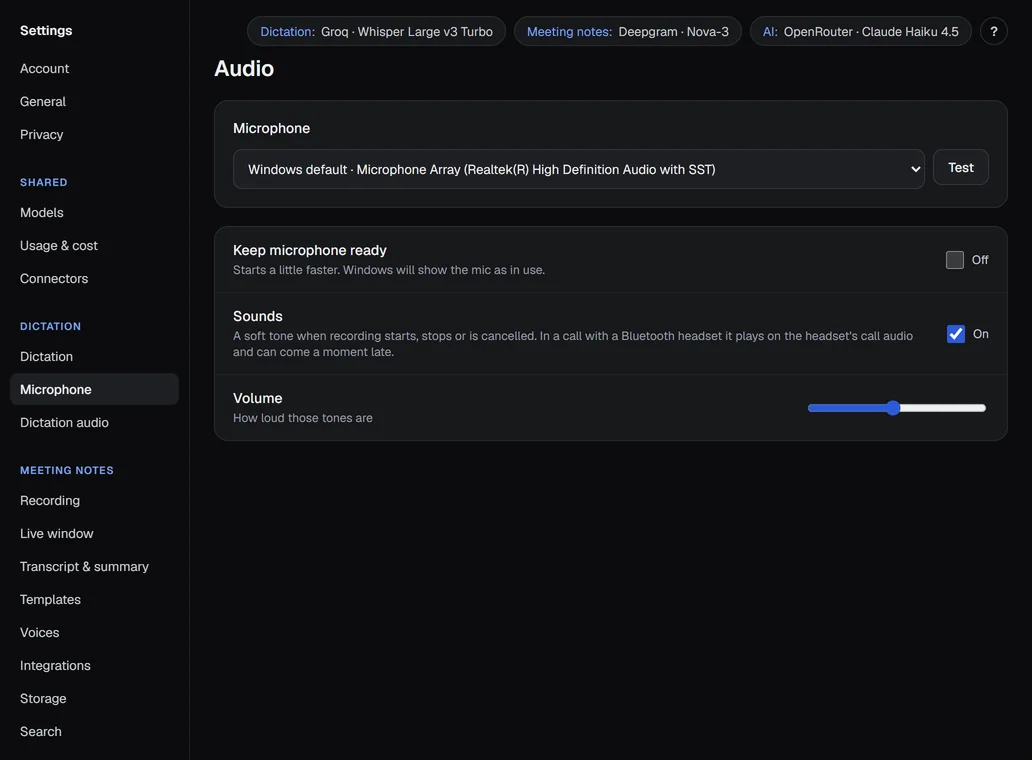
- Microphone: the input device for dictation. Windows default follows Windows; or pick one. Test shows a live level meter: say a few words and the bar should move when you talk and rest when you do not.
- Keep microphone ready: starts a little faster, because the microphone is already open. Windows shows the microphone as in use. Off for a new install.
- Sounds: a soft tone when recording starts, stops or is cancelled. On for a new install. In a call with a Bluetooth headset the tone plays on the headset's call audio and can come a moment late.
- Volume: how loud those tones are. Default is half.
Details: Transcribe and Troubleshooting.
Dictation audio#
Part of the Transcribe group. A9 Voice can keep the audio of each dictation for a few days, so one that failed can be transcribed again. Settings, history and logs stay in the app's data folder; only audio goes in the Audio folder.
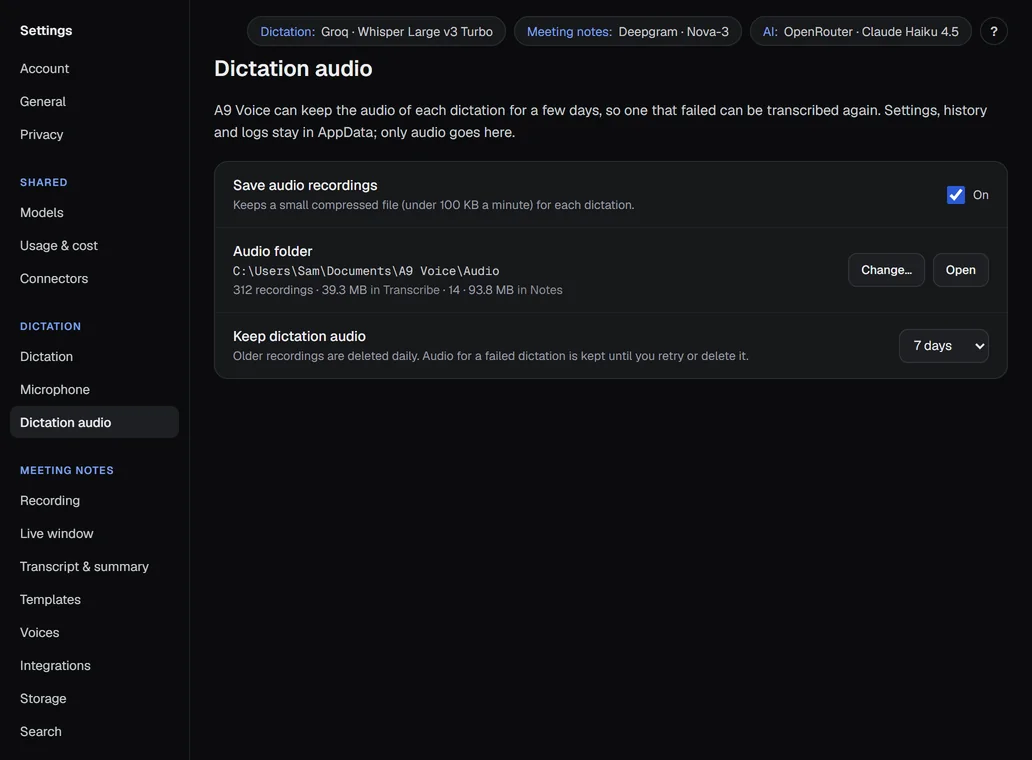
- Save audio recordings: keeps a small compressed file (under 100 KB a minute) for each dictation. On for a new install.
- Audio folder: where audio goes,
Documents\A9 Voice\Audiounless you change it. Dictation audio is in its Transcribe folder and meeting audio in its Notes folder. Change… asks whether to move the existing recordings or start fresh; Open opens the folder. A9 Voice only counts, moves or deletes files it made itself. - Keep dictation audio: how long audio is kept; older recordings are deleted daily. Choices: 1 day, 7 days, 30 days, 90 days or Forever. Default 7 days. Audio for a failed dictation is kept until you retry or delete it.
Details: Transcribe and Privacy and data.
Recording#
Part of the Notes group. When a meeting app you pick uses your microphone, A9 Voice starts recording by itself, with an 8-second Discard notice. It stops when the app lets go of the microphone. Dictation never starts a recording.
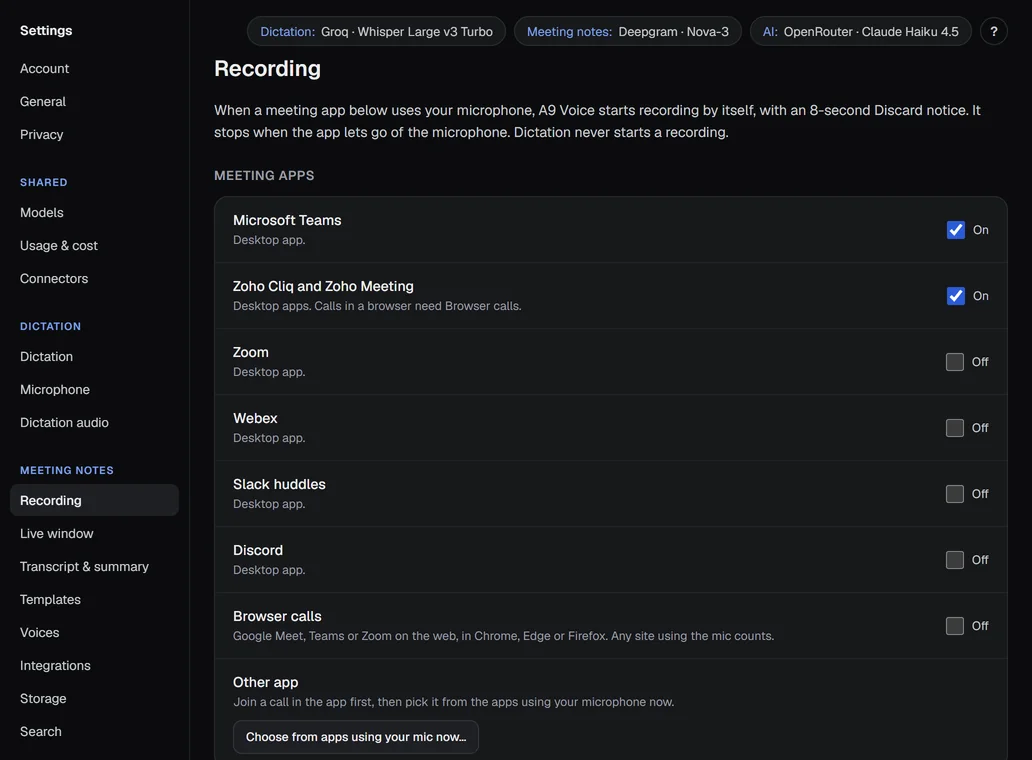
- Microsoft Teams: the desktop app starts a recording. On for a new install.
- Zoho Cliq and Zoho Meeting: the desktop apps. Calls in a browser need Browser calls. On for a new install.
- Zoom: the desktop app. Off for a new install.
- Webex: the desktop app. Off for a new install.
- Slack huddles: the desktop app. Off for a new install.
- Discord: the desktop app. Off for a new install.
- Browser calls: Google Meet, Teams or Zoom on the web, in Chrome, Edge or Firefox. Any site using the microphone counts. Off for a new install.
- Other app: join a call in the app first, then pick it with Choose from apps using your mic now…. Add puts it on the list and Remove takes it off.
- Record key: starts and stops a recording from anywhere. During the Meeting ended countdown it saves that meeting and starts the next one. Default Ctrl+Alt+N. You can clear it.
- Snip key: opens the snipping overlay while recording. None by default; Win+Shift+S always works too.
- Show recording bar: brings the recording bar back from the mini pill or the tray, or hides it. Default Ctrl+Alt+B. The tray icon does the same.
- "Still recording?": a recording you started yourself asks after this much silence, and stops 2 minutes later if nobody answers. Choices: 5, 10, 15, 30 or 60 minutes. Default 15.
- Meeting ended countdown: how long the Meeting ended card waits before the recording stops, so you can press Next meeting or Keep recording. Choices: Off, 5, 10 or 30 seconds. Default 10 seconds. Off stops as soon as the call is seen to have ended, 4 seconds after hang-up, with no card.
- Wait while another recording app runs: A9 Voice does not start by itself while another recording app is capturing the same call, so the two never both record. The recording bar says so and offers Record now. Record always works. On for a new install.
- Fade the minimized bar: the mini pill fades to 60% after 5 seconds and comes back when the mouse is on it. Off for a new install.
- Microphone (Me): your side of the call. The default is Same as Transcribe. Shared with the meeting app; nothing is muted or changed.
- Computer audio (Them): records what your speakers or headset play, which is the other people in a call. On for a new install.
- Output device: appears when computer audio is on. Follows the Windows default unless you pick one.
Details: Recording a meeting and Keyboard shortcuts.
Live window#
Part of the Notes group. See who said what while the meeting is still going, tag a voice with a name, mark moments and ask questions.
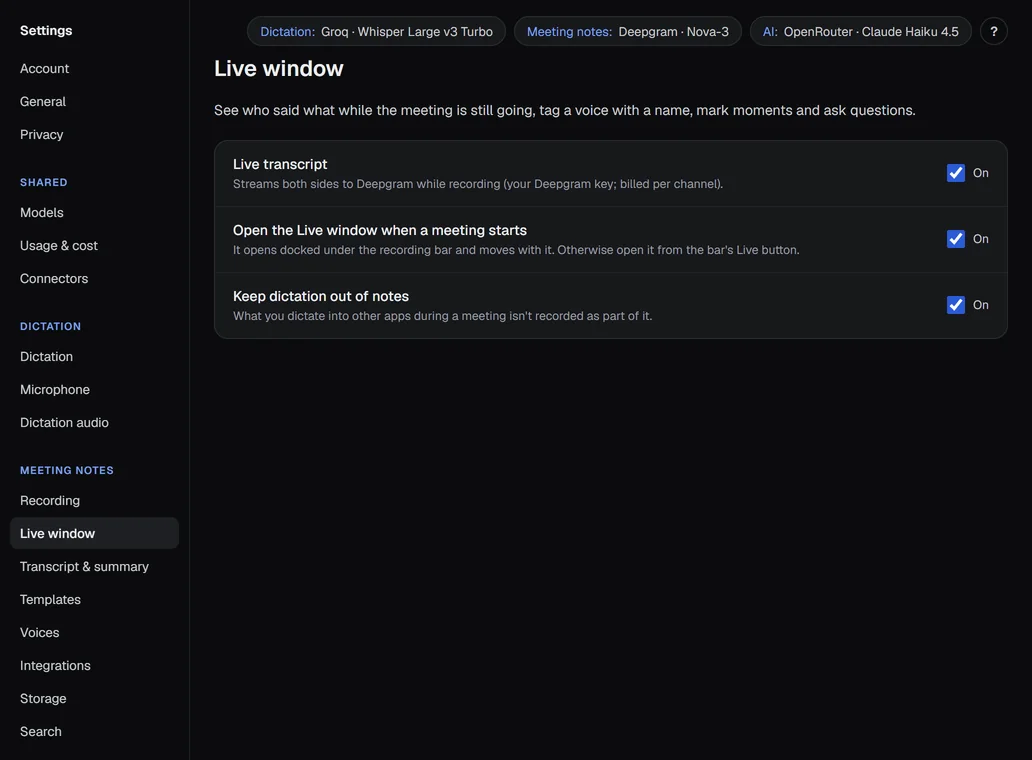
- Live transcript: shows a live transcript while you record. If Notes use a speech model on this PC that keeps up, the live transcript is made on this PC. Otherwise, with a Deepgram key saved, both sides stream to Deepgram (billed per channel). With no Deepgram key it uses a downloaded model that keeps up, and if there is none the note is still recorded without a live transcript. On for a new install.
- Open the Live window when a meeting starts: the window opens docked under the recording bar and moves with it. Otherwise open it from the bar's Live button. On for a new install.
- Keep dictation out of notes: what you dictate into other apps during a meeting is not recorded as part of it. On for a new install.
Details: Live window.
Transcript & summary#
Part of the Notes group. These options decide how a recording becomes a transcript and a summary.
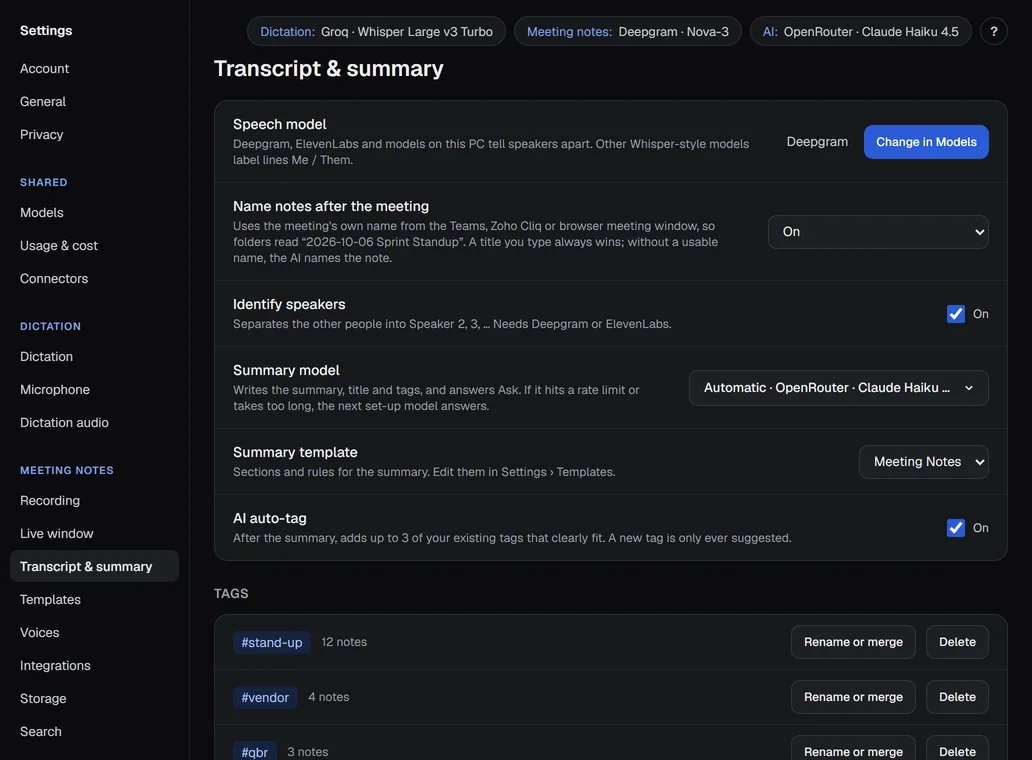
- Speech model: the model that transcribes notes. Default Deepgram. Deepgram, ElevenLabs and models on this PC tell speakers apart; other models label lines Me and Them. The row shows the engine and Change in Models opens the list; a model without a key needs its key under Providers and keys first.
- Name notes after the meeting: uses the meeting's own name from the call app's window, so folders read like "2026-10-06 Sprint Standup". On (the default), Only log what it would choose or Off. A title you type always wins; without a usable name the AI names the note.
- Identify speakers: separates the other people into Speaker 2, 3 and so on. On for a new install. It needs a speech model that can do it.
- Summary model: the language model that writes the summary, title and tags, and answers Ask. Automatic is the default. If it hits a rate limit or takes too long, the next set-up model answers.
- Summary template: the sections and rules used unless a note picks another. Default Meeting Notes. Edit them in Templates.
- AI auto-tag: after the summary, adds up to 3 of your existing tags that clearly fit. A new tag is only ever suggested. On for a new install.
Details: Note page and Templates and export.
Templates#
Part of the Notes group. The page has two tabs: Summary templates and Ask templates. A summary template says how the AI writes each note's summary. The starred one is the default.
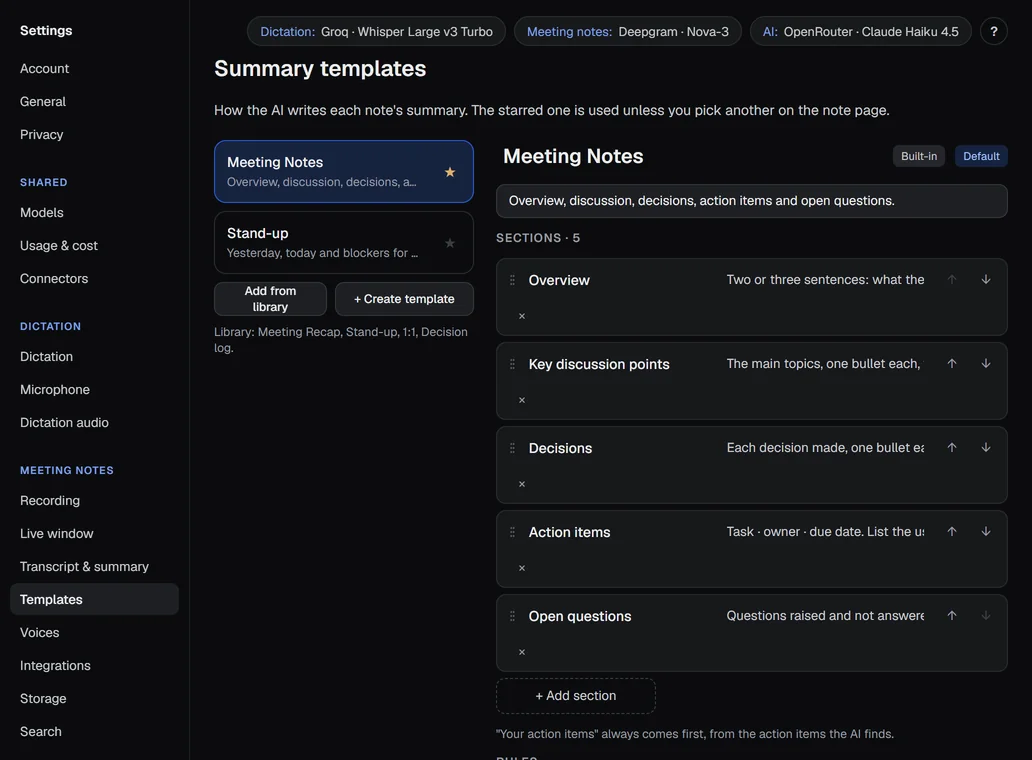
- Default (star): the star on a template makes it the default. Default Meeting Notes. The default one cannot be deleted.
- Add from library: adds a copy of Meeting Recap, Stand-up, 1:1 or Decision log.
- + Create template: a new template with a Summary and an Action items section.
- Template name and Description: what the list shows.
- Sections: the headings of the summary, each with an instruction for what the AI writes under it. Drag to reorder, or use the arrows; the cross removes one; + Add section adds one. "Your action items" always comes first.
- Rules: the rules the AI follows for every section.
- Capture system audio: record the other people, not just your mic. On in new templates.
- Generate AI summary: off means transcript, title and tags only. On in new templates.
- Summary language: the language the summary is written in: Same as the meeting (the default), English, Spanish, French, German, Portuguese, Italian, Dutch, Japanese or Chinese.
- Logo: Upload logo… (PNG, SVG or JPG, up to 2 MB), with an optional version for dark backgrounds. It shows on PDF, Word and email exports and on Copy for email; the note's summary.md stays plain.
- Placement: Left (the default), Center or Right.
- Logo height: 32, 48 or 64 px at most. Default 48.
- Header text: a company or team name above the note.
- Second line: for example "Confidential: internal".
- Accent color: the color of headings and dividers. Use neutral clears it.
- Ask templates: the other tab. Eight built-in templates (Quick answer, Deep, Briefing, Latest on…, Who owes what, Decision log, Meeting prep, Exec status) that decide how Ask your notes answers, and your own. Quick answer and Deep are the two buttons next to Ask; the rest are in its Template menu. Duplicate, + Create template, Delete… and Reset to built-in manage them.
- What to do: an Ask template's instructions, in plain words.
- Passages to read: about 10 (a short answer) to about 60 (the widest). Default 10 for Quick answer, 120 for Deep and 50 for Briefing.
- Look back: Any time, The last 30 days or The last 90 days, unless the question's own filter is narrower.
- Newest first: reads the newest matching passages first and lists them with their dates. Questions that say "last", "latest", "most recent", "current" or "now" do this anyway.
- Model (Ask template): Same as Ask: Quick, Same as Ask: Deep or A specific model.
- Also search for: words searched with every question that uses the template.
- Custom instructions: extra instructions for the AI, for example "Keep it under 200 words".
- View full prompt: shows the full instructions the AI will get for this template.
- Save, Cancel and Delete…: Save and Cancel are available once you change something. Delete… asks again before it removes a template.
Details: Templates and export and Edit the templates.
Voices#
Part of the Notes group. Recognize people in meetings by their voice. Voices stay on this PC.
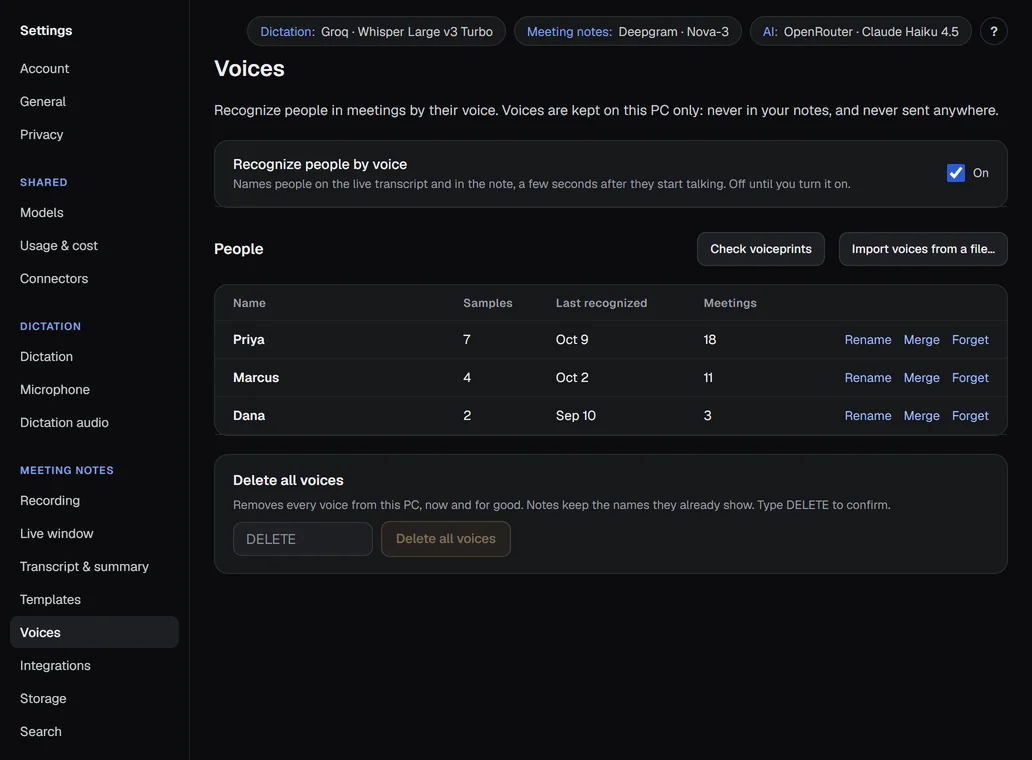
- Recognize people by voice: names people on the live transcript and in the note, a few seconds after they start talking. Off until you turn it on; turning it on shows an explainer first and downloads the speaker model once.
- Speaker model: appears while the speaker model is not ready. Shows its download progress, or Download (Try again after a problem).
- People: a list with Name, Samples, Last recognized and Meetings. Click a name for its history. Rename, Merge and Forget work on one person; Forget removes that voice from this PC for good.
- Not heard in 60+ days: a filter that shows voices not recognized for 60 days or more, with Forget all to remove the ones shown.
- Check voiceprints: lists voices that sound suspiciously alike. It never changes or deletes anything.
- Import voices from a file…: adds voices from a file you pick. Voices already here are left as they are.
- Delete all voices: removes every voice from this PC now and for good. You type DELETE to confirm. Notes keep the names they already show.
Details: Voices.
Integrations#
Part of the Notes group. Send notes to another service when they are ready: a "second brain", an automation service or a chat channel. Your receiver gets what you tick, nothing else. Audio and voiceprints are never sent.
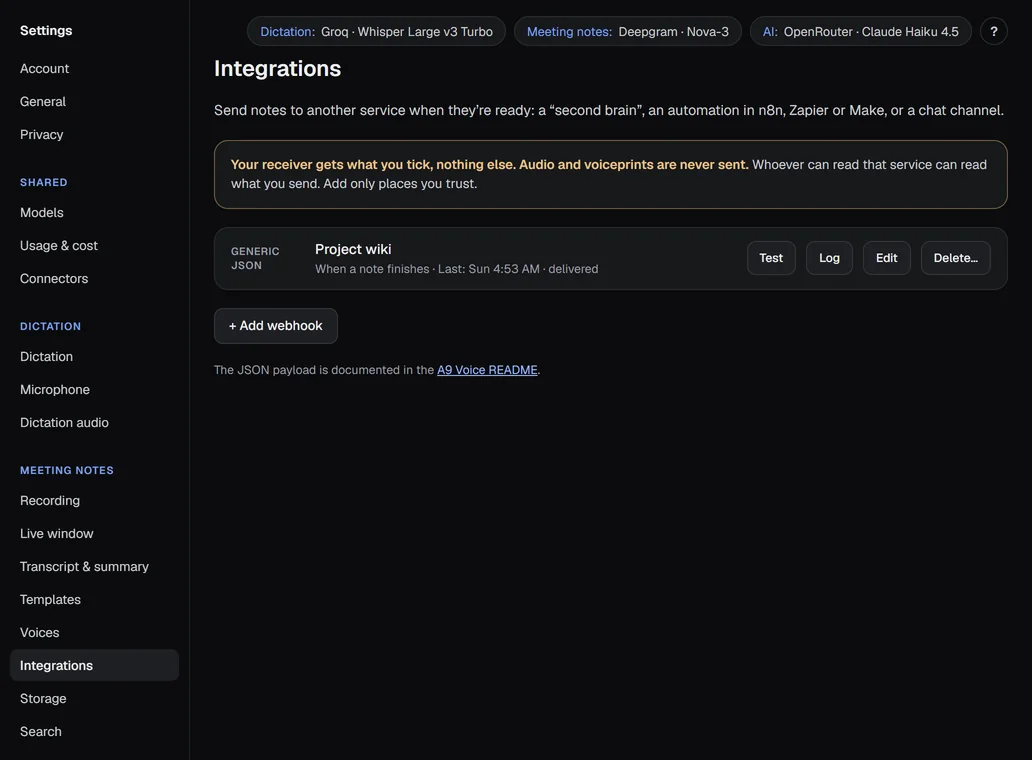
- + Add webhook: opens the form below. Each webhook then has Test, Log, Edit and Delete….
- Type: Generic JSON sends the documented payload to any receiver; the other types are ready-made for automation services (JSON payload) and chat channels (the summary as text). The form explains each one.
- Name: how the webhook is listed. Defaults to the type's name.
- URL: the address to send to. It must start with https:// (an address on your own PC, such as localhost, also works). It is kept in Windows Credential Manager, like an API key.
- What to send: for JSON types: Summary and Action items (structured) are on for a new webhook; Decisions, Transcript, Typed notes and markers, and Image captions (never the image files) are off. Chat types always send the summary only.
- When: When a note finishes (the default), When a note finishes, and again when it changes (JSON types only; 60 seconds after the last change) or Manual only.
- Only: limit to notes with certain tags, or notes from certain templates. Empty means every note.
- Signing secret: optional, JSON types only. Each request then carries a signature header so the receiver can check it came from you.
- Header: an optional header name and value, for example
Authorization. The value is kept in Windows Credential Manager. - Send a test: posts a made-up note and shows the reply.
- Log: shows each send with its time, event, status and size, and Resend. Failed sends are retried after 10 seconds, 1 minute and 5 minutes; sends made while offline wait until you are back online, up to 24 hours.
Details: Webhooks.
Storage#
Part of the Notes group. Each note is one folder with summary.md, transcript.md and its images, always up to date. Audio is kept separately.
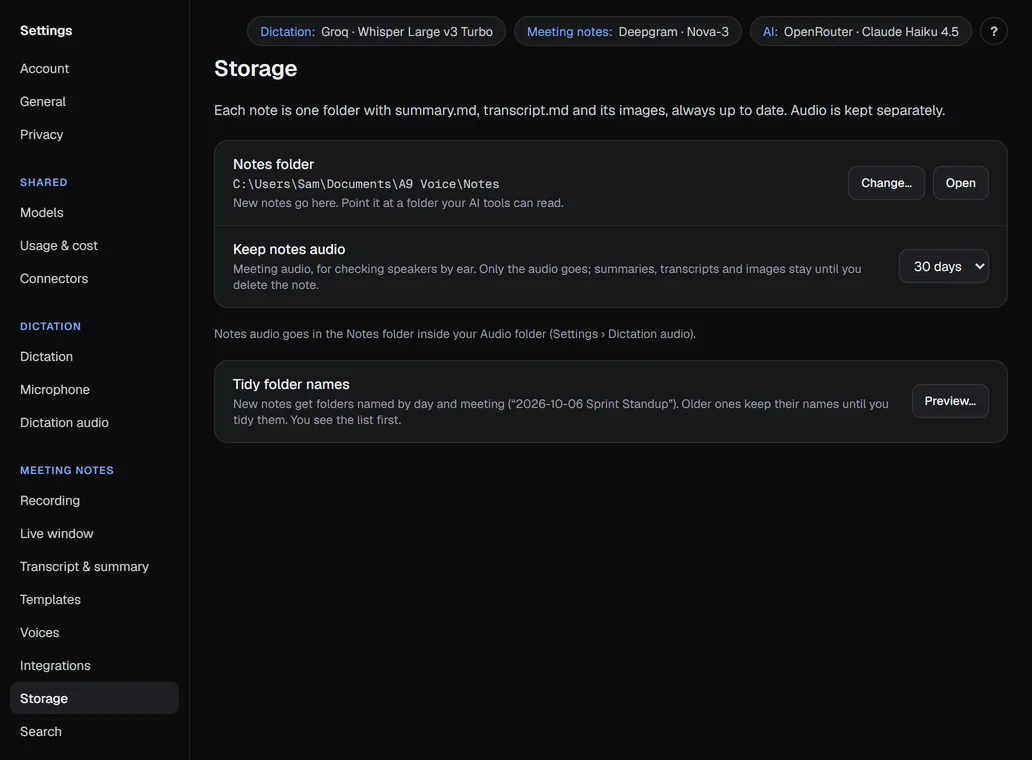
- Notes folder: where new notes go,
Documents\A9 Voice\Notesunless you change it. Change… and Open manage it. Point it at a folder your AI tools can read. - Keep notes audio: how long meeting audio is kept, for checking speakers by ear. Choices: 1 day, 7 days, 30 days, 90 days or Forever. Default 30 days. Only the audio goes; summaries, transcripts and images stay until you delete the note. Audio of a note that failed or is still being written up is kept.
- Tidy folder names: new notes get folders named by day and meeting, like "2026-10-06 Sprint Standup". Older ones keep their names until you press Preview…, check the list and press Rename. A9 Voice only renames folders it made itself.
Notes audio goes in the Notes folder inside your Audio folder (see Dictation audio). Details: Note page and Privacy and data.
Search#
Part of the Notes group. Search (Ctrl+K), Ask your notes and connected AI apps cover your A9 Voice notes. They can also cover notes that another app keeps in a folder.
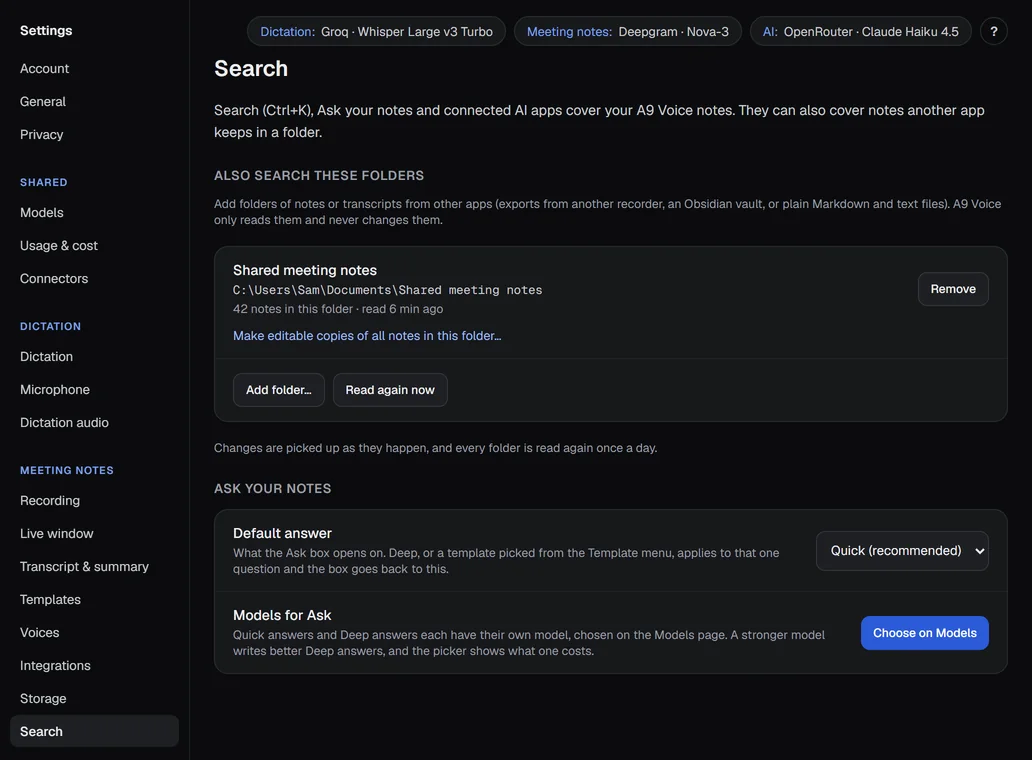
- Also search these folders: add folders of notes or transcripts from other apps (Markdown and text files, or an exported vault). A9 Voice only reads them and never changes them. Add folder… adds one, Read again now re-reads, Remove takes one out and Make editable copies of all notes in this folder… copies a folder's notes into A9 Voice so you can regenerate summaries and fix speakers. Each row says how many notes are in the folder, how many already have an editable copy in A9 Voice, and how many files couldn't be read. A folder that holds your Notes folder, or sits inside it, can't be added. Changes are picked up as they happen, and every folder is read again once a day.
- Default answer: what the question box on the Ask page and in Ctrl+K opens on: Quick (recommended) or Deep. A Deep or Template you pick applies to that one question, then the box goes back to this. Default Quick.
- Models for Ask: Choose on Models opens the Models page, where Ask: Quick and Ask: Deep each have their own model. Default Same as Summaries. Deep reads many more passages than Quick and writes a dated answer with quotes; a stronger model writes better ones.
Details: Search and Ask and Asking your notes.
Something missing or wrong? Report an issue, or use Copy diagnostics in Settings › General when asking for help.