
Manual · Notes
Live window
The Live window shows the transcript as people talk, so you can name each speaker, mark moments, ask questions and add screenshots while the meeting is still going.
Last updated for A9 Voice 0.7.1
What it is#
The Live window sits beside your call while a note records. It is a working copy of the transcript: each person has their own color, and you can tell A9 Voice who is who as you go. When the call ends, the finished note is made from the whole recording, and the names you gave are carried into it.
You do not need it. A9 Voice records without it. Use it when you want names on the note, or answers and markers during the call. For starting and stopping, see Recording a meeting.
To see it open beside a call, with the first lines coming in:
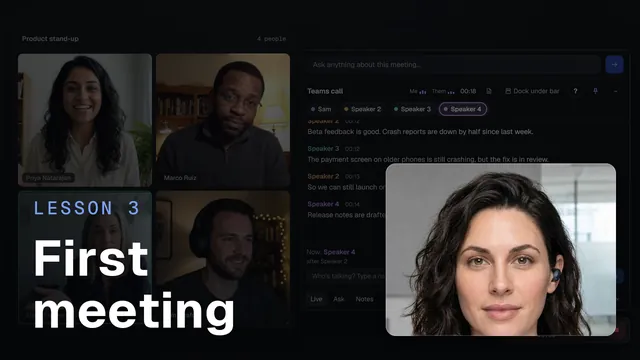 Your first meetingWatch the 1-minute video
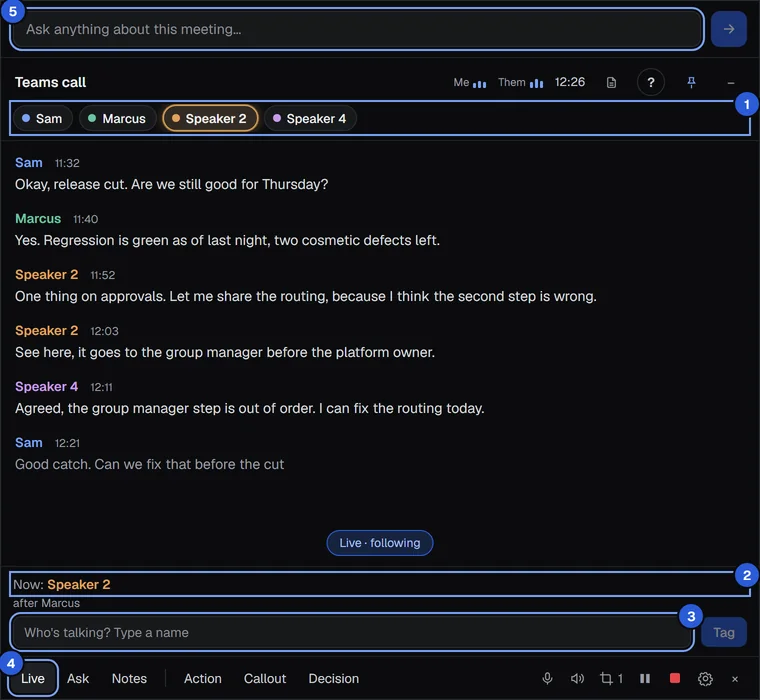
Top to bottom the window has:
- The Ask anything about this meeting… field.
- A header with what is recording (Teams call, or Manual recording when you started it), a level meter for Me and for Them, and the time.
- The speaker strip: one chip per person.
- The transcript. Each line has a name, the time since the recording began, and the text. A grey line is not finished yet.
- Now (who is talking) and the Who's talking? field.
- The footer: the tabs Live, Ask and Notes, the markers Action, Callout and Decision, then the microphone and computer-audio pickers, Snip, pause and stop buttons, a gear and a close button.
When you scroll up to read, the Live · following button changes to Jump to live. Press it to catch up.
Open it#
By default the window opens by itself when a recording starts, whether a call started it or you did. Otherwise:
- Rest the mouse on the recording bar.
- Press the Live window button. It stays lit while the window is open.


If the bar is minimized or hidden, a Live window button elsewhere (for example on the note page while it records) brings the bar back first, then opens the window under it.
The window closes by itself when the recording stops. The × in the footer and the – in the header only hide it; the recording goes on, and the bar's button opens it again.
Where it sits#
Docked is the normal state. The window sits directly under the recording bar, lined up with the bar's fixed edge. Near the bottom of the screen it goes above the bar instead. It moves when you move the bar, hides when the bar becomes a mini pill, and comes back with the bar. Resize it from its edges; A9 Voice remembers that size.
To put it somewhere else, drag its header (the title row). It undocks and keeps its own place and size for each screen. A button appears in the header:

- Press Dock under bar in the header. Or right-click the tray icon and choose Reset bar position, which also resets the bar.
Pin on top (the pin button in the header) keeps the window above other windows. It is on to begin with. The setting is remembered.
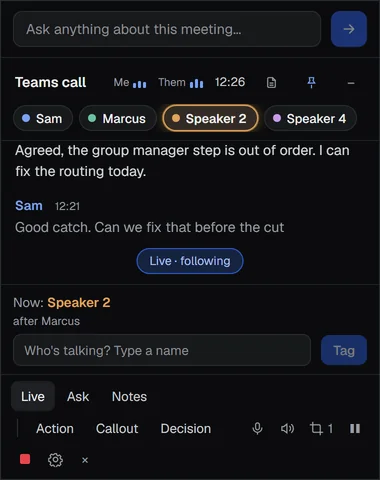
The smallest size is 380 by 320 pixels. At narrow sizes the markers and pickers wrap onto a second line.
The Live transcript needs a speech source#
The live lines come from a live speech service, separate from the transcript of the finished note:
- With a Deepgram key the two sides stream to Deepgram while you record. Deepgram bills it per channel.
- When Notes use a model on this PC, or when you have no Deepgram key but a model on this PC is installed, the live lines are made on this PC, but only if that model keeps up with real time on your PC.
- With neither, the window says Live transcript needs a cloud speech key or a faster PC. The note is still recorded.
Settings › Notes › Live window › Live transcript turns it off. See Speech models.
If you hear the call from speakers instead of a headset, your microphone also hears them. A9 Voice does not show those repeats as lines from you.
Name the people#
New to naming people? Watch Sara name a speaker live, then on the note page.
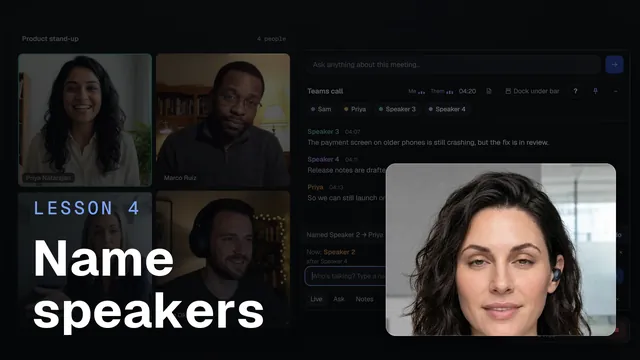 Naming speakersWatch the 49-second video
The speaker strip and Now#
The strip lists people in the order they first spoke, except that you come first once you have said something, under your own name from Settings › Account. Everyone else starts as Speaker 2, Speaker 3 and so on. Each has a color; the first seven are different, then the colors repeat.
- The chip of whoever is speaking glows, and stays lit for a few seconds after they stop.
- Now shows only who is speaking now, for example Now: Speaker 2, or Now: — before anyone has spoken. Under it, small and grey, after Marcus says who spoke before them. A new speaker only shows after about 1.5 seconds of continuous speech, so a short "yes" does not make it flicker.
- Your own chip is not clickable. It is you.
With many people on the call the strip wraps and scrolls:
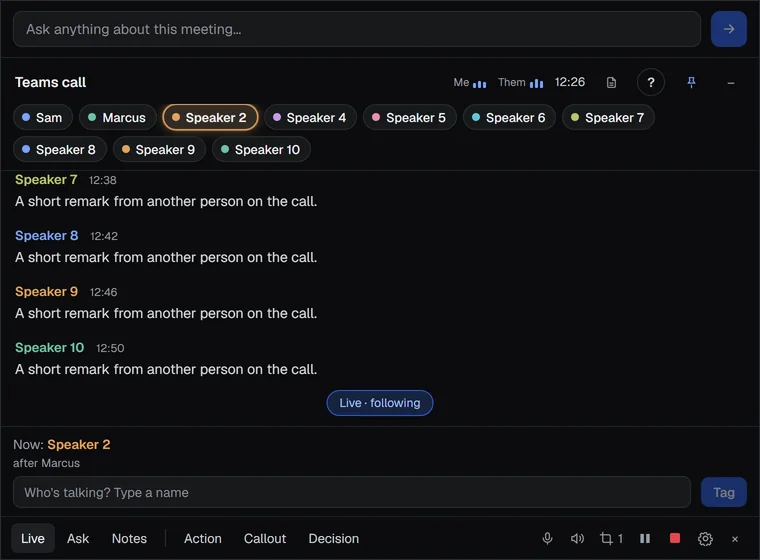
Name a speaker from their chip#
- Click the chip of the person you want to name.
- The box asks Who is Speaker 2? (or Rename Speaker 2 if they already have a name). Type a name, or pick one from the list. The list has names you used in this call first, then people from your other notes (and from your saved voices, if you use Voices). Typing narrows it down by first or last name. A name already used on this call shows whose it is. A new name appears as + Add "name" as a new person at the top. Use ↑ and ↓ to move, Enter to choose and Esc to cancel. The note page uses this same picker when you name speakers there.
- Press Enter or Name. The name goes on every line from that person, past and future, and into the finished note.
- Press Not sure to close the box without naming anyone.
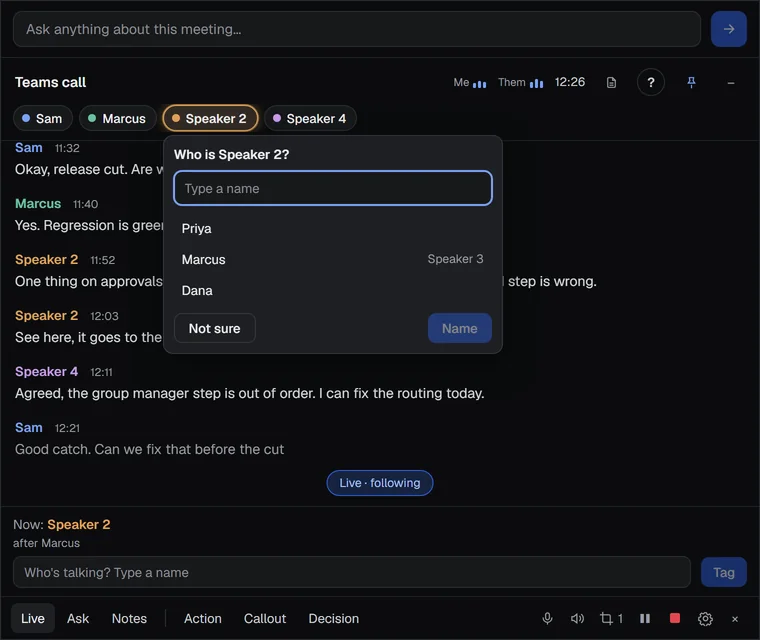
A9 Voice will not let you give a speaker your own name: That's your own name. Pick the person you mean.
Name whoever is talking: Who's talking?#
Use this when someone is talking right now and you want to name them without hunting for their chip.
Click the Who's talking? Type a name field and start typing a name. On the first letter, A9 Voice locks on to the person the window shows as talking (not you), or if nobody is, the last other person who spoke. The line above the field changes to Naming Speaker 2 (locked).
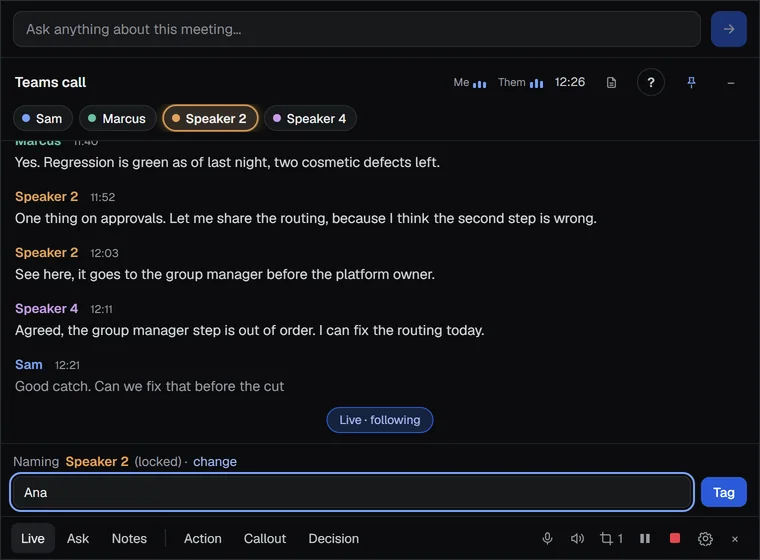
The target stays locked, even if someone else starts talking before you press Enter. Press Enter (or Tag) to apply the name. Press Esc to cancel.
If it locked on the wrong person, press change and choose who you meant.
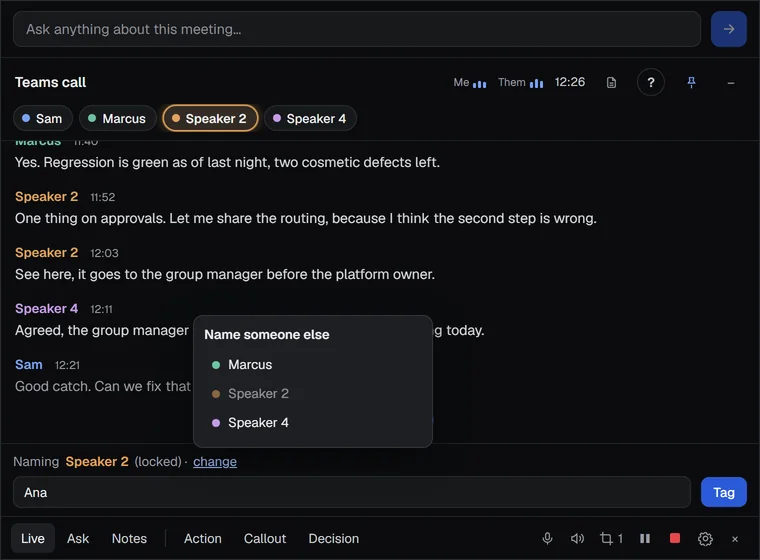
change lists the other people on the call.
After a name is applied, the bar says Tagged Ana ✓ for a few seconds (the × closes it sooner; in a very short window it stays until the next change). The field goes back to Who's talking? Type a name.
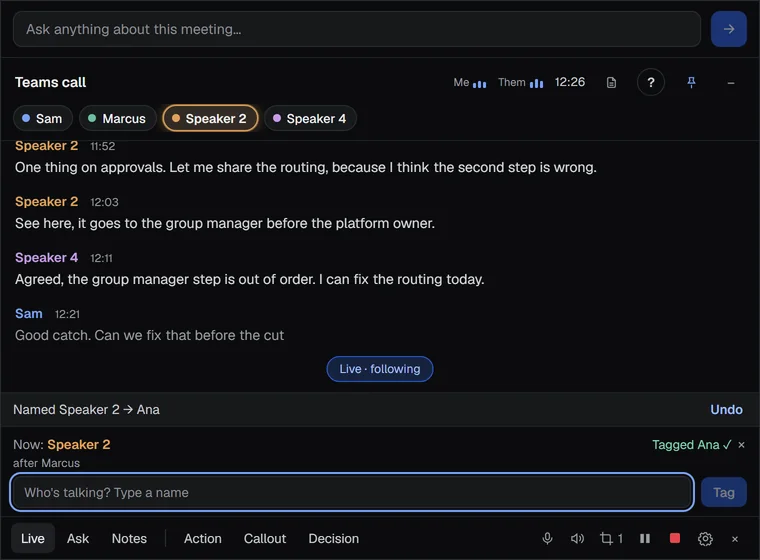
If nobody else has spoken yet, it says Nobody else has talked yet. Click a speaker's chip to name them.
Fix one line, or everything from a speaker#
Sometimes the person is right but one line is wrong, or a speaker is really two people.
- Click the name above a line. Lines that are not finished are greyed and cannot be clicked yet.
- The box asks This is →. Do one of:
- Type a name, then press Enter or Name.
- Pick a person from People.
- Pick one of the Speakers chips to move the line to that speaker.
- Under Apply to, choose Just this line or Everything from that speaker. A speaker who has no name yet starts on Everything from, since you most likely mean "this is Ana". A speaker who already has a name starts on Just this line, since you are correcting one mistake.
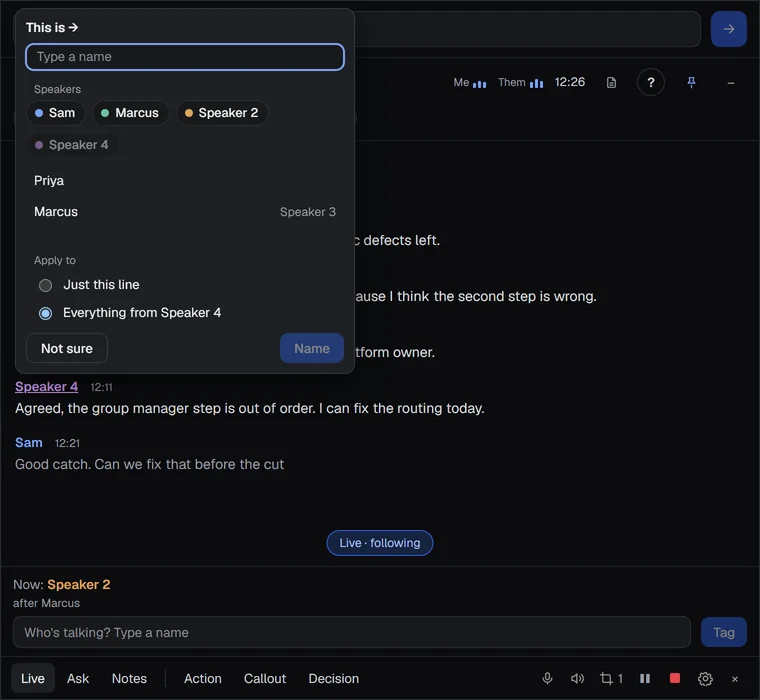
- A line named on its own shows its name with a dotted underline. Click it again to correct it.
- Typing the name of someone already on the call moves the line to that person. Typing your own name moves it to you.
- Everything from you cannot be renamed or turned into someone else; fix those lines one at a time.
- With Everything from and a speaker chosen, the two speakers are joined into one (see the next section).
One name, one person#
A name can belong to only one speaker. If you give a name that someone on the call already has, A9 Voice asks instead of deciding:
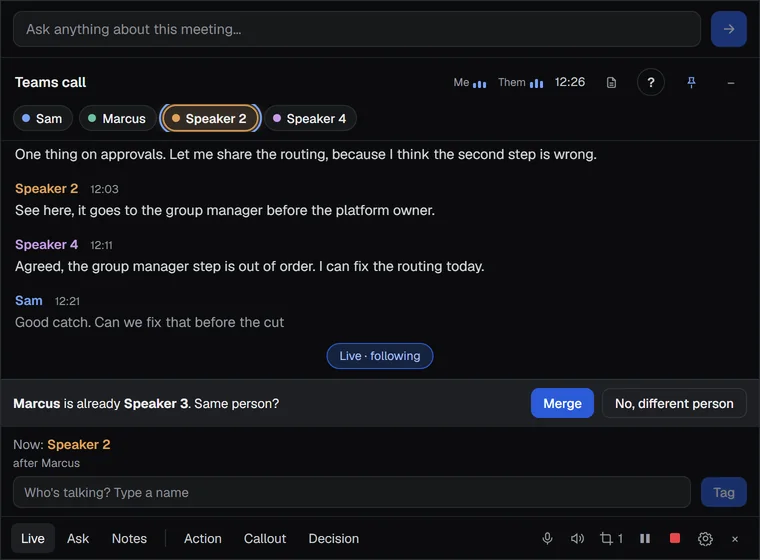
- Read Marcus is already Speaker 3. Same person?
- Press Merge if it is the same person. This speaker's lines, and everything they say from now on, join the other speaker, who keeps their name.
- Press No, different person if two people share a name. This one becomes Marcus (2). A name made this way is never used to learn a voice.
- Press Esc to close the question and do nothing.
Undo#
Every naming action, including a merge, shows a line with what changed and an Undo button for 10 seconds.
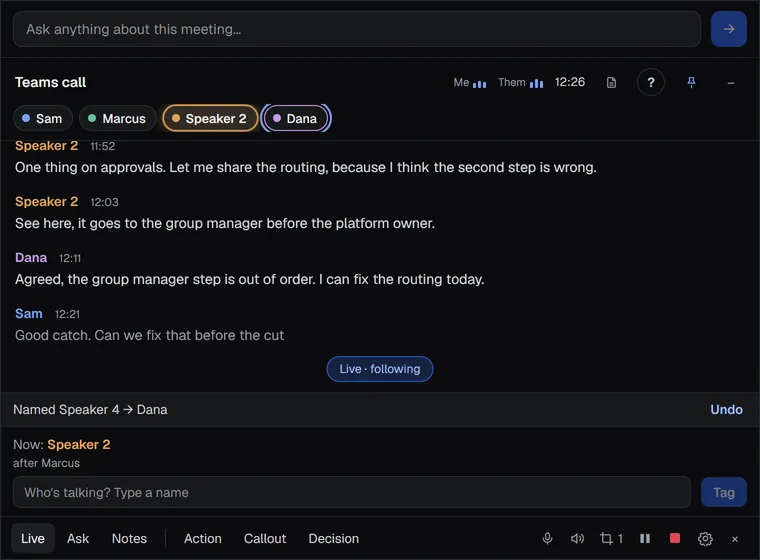
- Press Undo within 10 seconds. The window says Undone.
- Only the newest action can be undone, and the button goes after 10 seconds. An older action cannot be undone any more (Too late to undo that one.). Rename the person again to change it.
What is learned from your names#
- Nothing is learned during the call. Undo leaves no trace.
- A name you gave to a whole speaker can teach that person's voice after the call, but only if Voices is on. A name on a single line, and a name made different like Marcus (2), never teaches a voice.
- With Voices on and people already saved, A9 Voice may name someone by itself after they have spoken for about 8 seconds. A sure match names them everywhere. A likely match shows Priya? with a Yes button next to their lines. Pressing Yes counts as a name you gave. Nothing is learned during the call from this either.
- Your names are carried into the finished note by who was talking at the moment you named them. Look at the speakers on the note page when it is ready: The note page.
Ask during the meeting#
To see a question asked in the Live window, and the same in your notes:
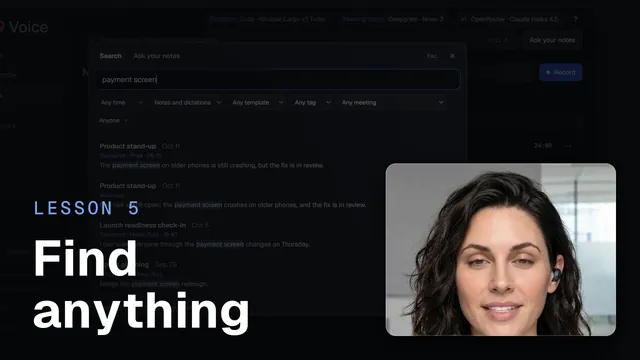 Find anything and ask your notesWatch the 40-second video
- Type a question in the field at the top, for example What was the problem with the approval routing?, and press Enter.
- The Ask tab shows your question and the answer. It is written from the transcript so far, using the names you gave, and cites the moments as time chips. Click a chip to jump to that line.
- Pick the language model in the list under the answer. With none set up, the tab says Add a language model key in Settings › Models to ask. See Language models.
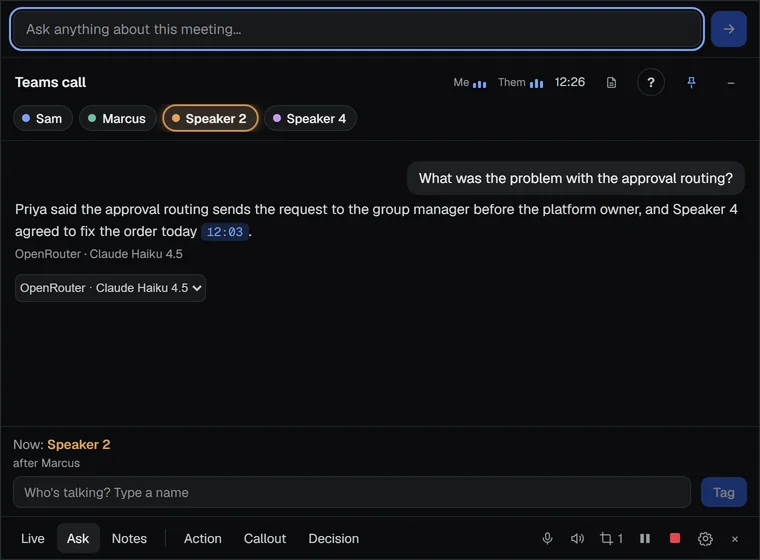
If nothing has been transcribed yet, Ask says so. The transcript text so far goes to the language model you chose, like any Ask. To ask across your finished notes, use the Ask page: see Asking your notes.
Mark moments and add notes#
The Notes tab holds what you add during the call. Each item lands in the note at that moment.
- Press Action, Callout or Decision in the footer. A9 Voice stamps this moment and keeps what was just said (the latest line, with its speaker). The header says, for example, Decision marked at 12:26.
- To write your own, open the Notes tab, type in Type a note; Enter adds it at this moment, and press Enter.
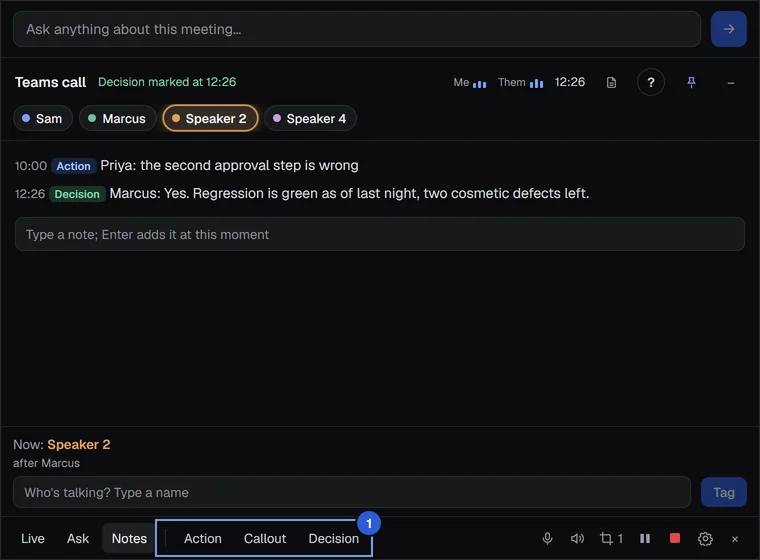
They show up in the note at that time. See The note page.
Add a screenshot#
- Press Snip in the footer (the number beside it counts the pictures so far) or on the recording bar, or press Win+Shift+S. The Windows snipping tool opens.
- Choose the area. A9 Voice saves it to the note, and the bar shows a thumbnail with Saved to note at 12:03.
- Press Undo on that card if you took the wrong one.
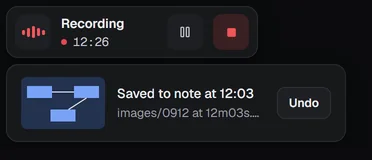
Any picture you copy to the clipboard while the recording runs is saved too, from any snipping tool. A picture copied before the recording started is not. You can also set a Snip key in Settings › Notes › Recording.
Snips are placed in the transcript at the moment you took them and are kept in the note's folder under images. Snip works only while a recording is running.
Other buttons#
- Open the note (the document icon in the header) opens the note in the main window.
- The microphone and speaker buttons choose what is recorded, like the bar. Same as Transcribe / default (microphone) and Windows default (computer audio) follow the usual choice; Off stops that side.
- The pause and stop buttons work like the bar's. The stop button here stops and keeps the recording without asking.
- The gear opens Settings › Notes › Live window.
Settings for the Live window#
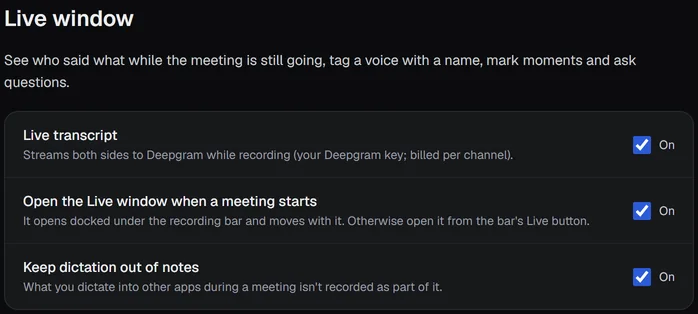
- Live transcript: streams both sides while you record. Off means no Live window text; the note is still made afterwards.
- Open the Live window when a meeting starts: it opens docked under the recording bar and moves with it. Off means you open it from the bar's Live window button.
- Keep dictation out of notes: what you dictate into other apps during a meeting is not recorded as part of it.
If something goes wrong#
- The window says Listening… and stays empty. Nobody has spoken on either side yet, or Computer audio is Off. Check the bar's pickers.
- My words show up under someone else, or theirs under me. Click the name above the line and move it. A headset prevents most of this.
- A name will not stick. It may belong to another speaker; look for the Same person? question.
- The window is gone. Press Live window on the bar. If the bar is gone, press Ctrl+Alt+B.
More in Troubleshooting.
Related#
- Recording a meeting: the bar, starting and stopping.
- Voices: recognizing people by voice.
- The note page: what the finished note shows.
- Keyboard shortcuts.
Something missing or wrong? Report an issue, or use Copy diagnostics in Settings › General when asking for help.