
Manual · Speech and AI
Speech models
Choose what turns your voice into text, with a cloud service and your own key, a model on this PC, or (new in 0.6.0) your graphics card.
Last updated for A9 Voice 0.7.2
A speech model is the engine that listens to audio and writes the words. A9 Voice has no engine of its own that you pay for: you bring a key for a cloud service, or you download a model that runs on your PC. You can mix them, and you can use a different one for dictation, for notes and as a spare.
Everything here is in Settings › Models. Which job uses which engine is chosen at the top, under What each job uses (see Models). Under Providers and keys the speech part has two groups: SPEECH SERVICES (services you reach with a key) and ON THIS PC (models that work offline).
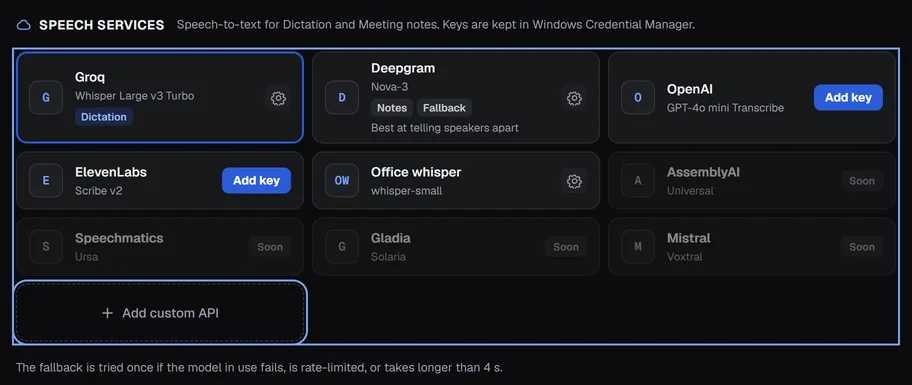
A tile with a blue Add key button has no key yet; a gear means it is set up.
New to the choices? Watch Sara go through cloud services, models on this PC and the three jobs.
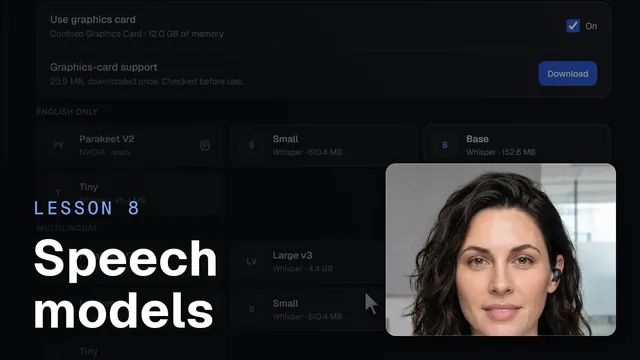 Speech models and your graphics cardWatch the 43-second video
Choose who does what#
Pick an engine for a job with its Change button in What each job uses:
- Dictation types what you say when you hold the dictation key.
- Fallback for dictation steps in when the dictation model fails. It has to be a different model.
- Meeting notes writes the transcript of your recordings.
A model's own window no longer has job boxes. You can't Disconnect the model that does dictation; choose another one for dictation first.
What the fallback does#
The fallback is tried once when the model in use fails, is rate-limited, or takes longer than the limit shown under Fallback for dictation (4 s). In the pill you see via and the fallback's name when it answered.
If you have a model on this PC and both cloud models fail, it answers last. With no internet at all, the cloud fallback is skipped (it would fail too) and a model on this PC answers straight away; the pill says offline. More in Without internet.
Which models tell speakers apart#
For meeting notes, Deepgram and ElevenLabs (and models on this PC with Identify speakers on) tell the people on a call apart. Groq, OpenAI and custom servers can't: notes label everyone but you as one speaker. Choosing one of those for Meeting notes shows an amber warning with a Fix this button, and asks Use it anyway? once. See Models.
When you save your first Deepgram key and your notes model can't tell speakers apart, the key window shows a box, Also use Deepgram for Meeting notes, checked. Leave it checked and Meeting notes move to Deepgram, which means your meeting audio is sent there. Uncheck it and the key is saved while Meeting notes stay on the model they use now. It asks only for a first key, and never when Meeting notes already use Deepgram, ElevenLabs or a model on this PC. Your dictation model is never changed by this. You can change Meeting notes later under What each job uses.
Set up a cloud provider#
The steps are the same for every provider. The only things that change are where you get the key and which model you pick. Your keys stay on your PC: they go into Windows Credential Manager and never into a file, a log or the app's storage. A9 Voice only ever learns "key saved" or "no key".
- Open Settings › Models, scroll to Providers and keys and click the provider's tile.
- Click the big blue Get your Groq key → button (the name changes with the provider). A9 Voice opens the provider's key page in your browser.
- On that page, sign in, create an API key, and copy it. Come back to A9 Voice: the cursor is already in the key box.
- Paste the key into API key.
- Click Test. A9 Voice sends a 2-second test clip and shows what it heard, for example Heard “Testing one two three.” and how long it took. Nothing is saved yet.
- Click Save. Then choose which job uses it under What each job uses.
The strip under the big button follows you: Get a key, Paste it here, Test, with each one ticked when done.
Groq#
Key page: console.groq.com/keys. The window says Free tier, no card needed. and the button reads Get your free Groq key →.
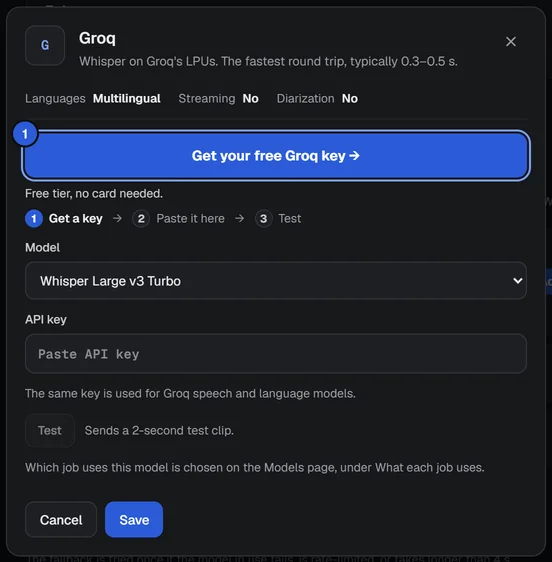
Paste the key and test it. Then choose the model (Whisper Large v3 Turbo or Whisper Large v3).
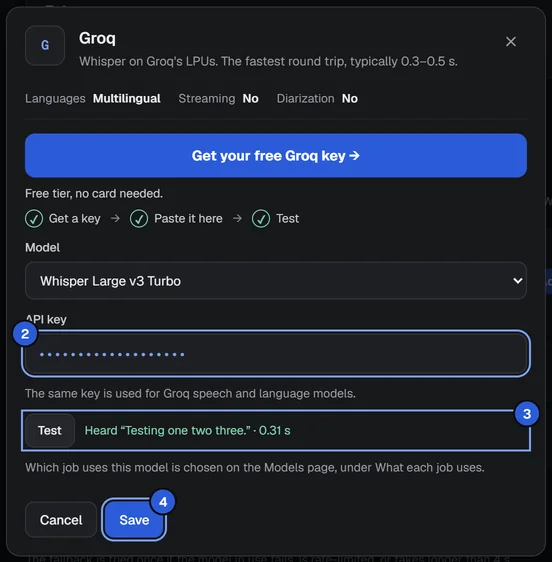
Groq can't tell speakers apart and doesn't stream. The same Groq key is also used for Language models, so you only add it once.
Deepgram#
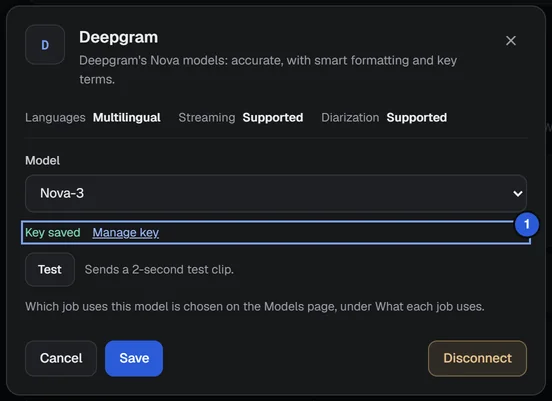
Key page: console.deepgram.com. The window says $200 of free credit, no card needed. and the button reads Get your free Deepgram key →.
Models: Nova-3 and Nova-2. Deepgram tells speakers apart, which makes it the best choice for notes, and it is the one used for the live transcript during a recording (see Live window).
Once a key is saved, the key box folds away and shows Key saved and Manage key.
OpenAI#
Key page: platform.openai.com/api-keys. The button reads Get your OpenAI key →, with no promise of a free tier.
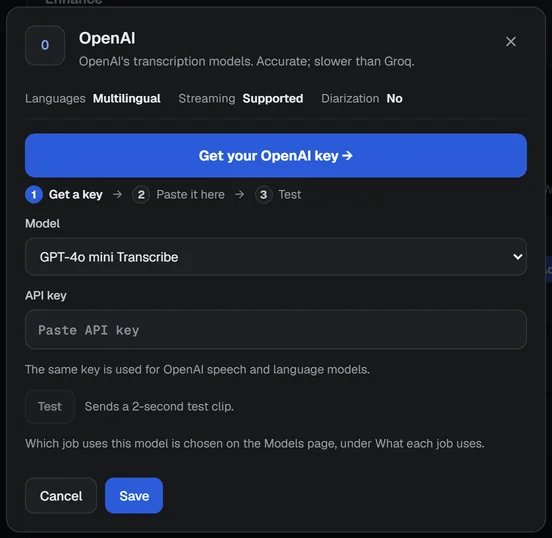
Models: GPT-4o mini Transcribe, GPT-4o Transcribe and Whisper. OpenAI can't tell speakers apart. For notes, A9 Voice uses Whisper with OpenAI because the GPT-4o models don't give the timestamps a note needs. The same key is used for OpenAI language models.
ElevenLabs#
Key page: elevenlabs.io/app/settings/api-keys. The button reads Get your ElevenLabs key →.
Models: Scribe v2 and Scribe v1. ElevenLabs tells speakers apart, so it works well for notes.
Providers marked Soon#
A few more services appear dimmed with a Soon badge. They can't be opened yet.
What the capability line means#
Every cloud window shows three facts under its name: Languages, Streaming and Diarization. Diarization is telling speakers apart. Streaming means the service can return words while you are still talking; the live transcript during a recording uses Deepgram, or a fast model on this PC.
Add a custom API#
Use Add custom API for your own server, or any service that speaks the same language as OpenAI's speech API: it must have a /audio/transcriptions address. A speech server running on your own PC or network works.
- Click Add custom API at the end of the cloud tiles.
- Fill in Name (what the tile will say), Base URL (for example
http://localhost:8000/v1) and Model (the model name your server expects, for examplewhisper-small). A9 Voice adds/audio/transcriptionsto the Base URL itself. - API key (optional): fill it in only if your server needs one.
- Extra header (optional) and Header value: if your server wants an extra HTTP header, type its name (for example
X-Org) and its value. The value goes into Credential Manager like a key. - Click Test, then click Save.
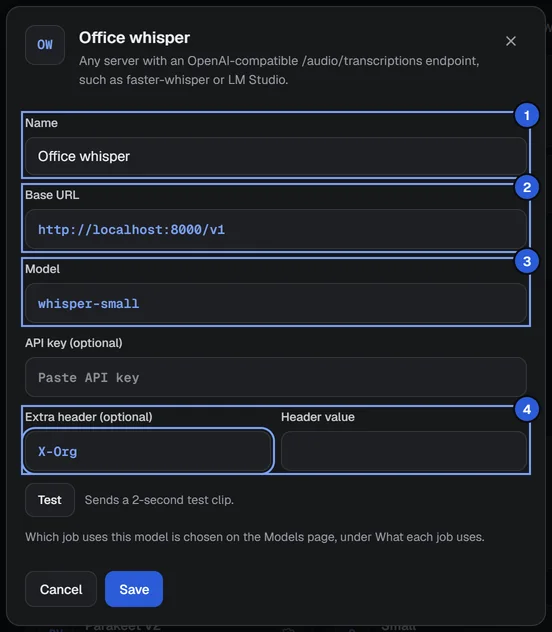
Only the Base URL is required to save. The server gets your audio, the model name, your dictation language and your Dictionary words as a hint. For notes, the server must answer with timestamps (the Whisper verbose_json style). Disconnect on a custom server removes the provider and its saved key and header.
Change a key or remove a provider#
- To replace a key: open the tile, click Manage key, paste the new one, Save.
- To remove one: open the tile and click Disconnect. This deletes the saved key from Credential Manager. If the provider was your fallback, the fallback is cleared.
- To see the keys in Windows: open Credential Manager, then Windows Credentials. A9 Voice's entries end in a slash and the provider's name (for example
/groq). - Groq and OpenAI use one key for speech and for language models. Disconnecting it in either place removes it for both.
On this PC#
Models in the ON THIS PC part run on your computer. They are free, work offline, and nothing you say leaves the PC. They don't need a key.
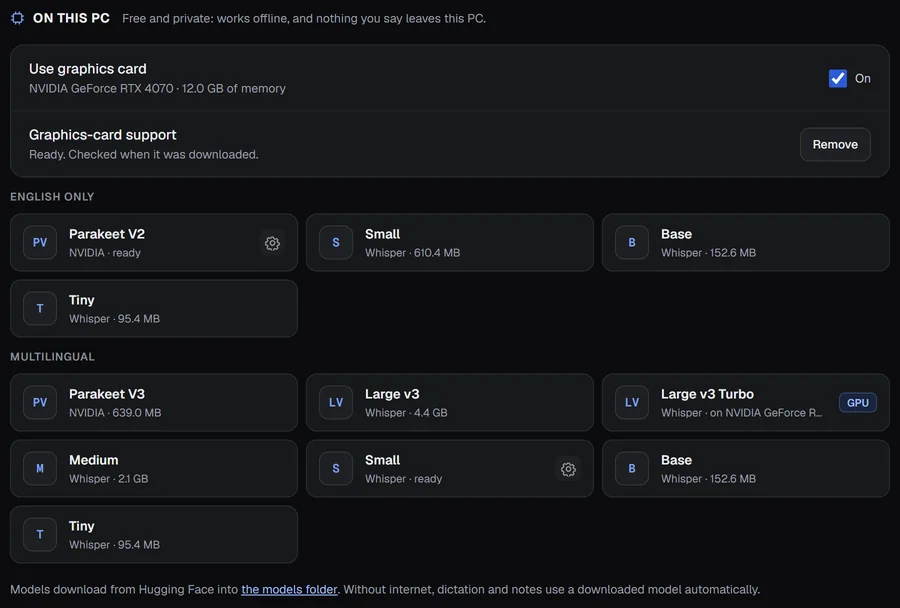
The tiles are split into ENGLISH ONLY and MULTILINGUAL:
| Model | Languages | Runs on |
|---|---|---|
| Parakeet V2 | English | the processor |
| Whisper Small, Base, Tiny (English) | English | the processor |
| Parakeet V3 | 25 European languages, picked by the model | the processor |
| Whisper Small, Base, Tiny | 99 languages | the processor (Small can also use the graphics card) |
| Whisper Medium, Large v3, Large v3 Turbo | 99 languages | the graphics card only |
The multilingual Whisper models use the language set for dictation. Parakeet V3 detects it by itself.
Download a model#
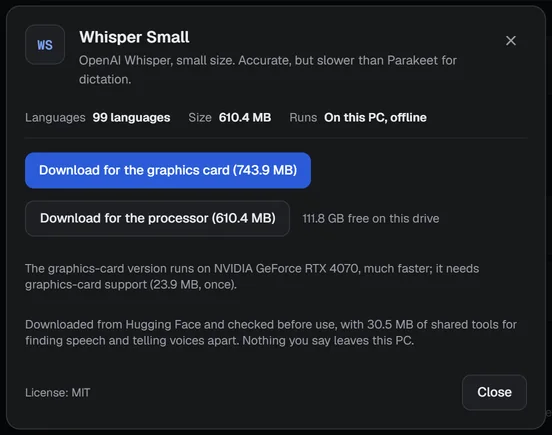
- Click a model's tile. The window says what it is, its languages, its Size, and how much room is free: for example 111.8 GB free on this drive.
- Click Download. A9 Voice downloads from Hugging Face, checks every file before use, and also fetches a small set of shared tools (finding speech and telling voices apart) the first time.
- A progress bar shows Downloading… … of …. Click Cancel to stop.
- When it finishes, A9 Voice runs a quick speed test by itself.
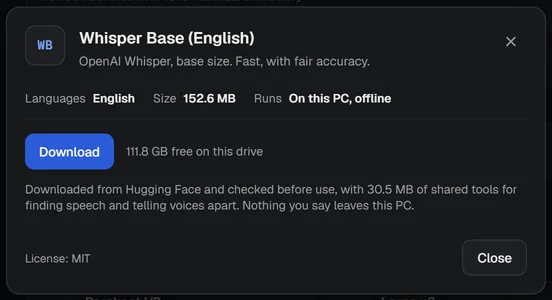
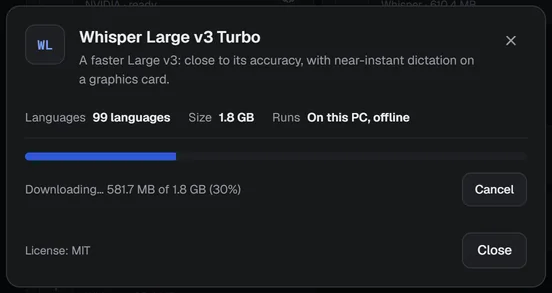
If the drive is too full you get Not enough free space: it needs …, and … is free; A9 Voice keeps 500 MB spare. A download that stops, because you cancelled or the connection dropped, picks up where it stopped when you click Download again. If it ends in an error, Discard partial download clears what was fetched.
Use a model#
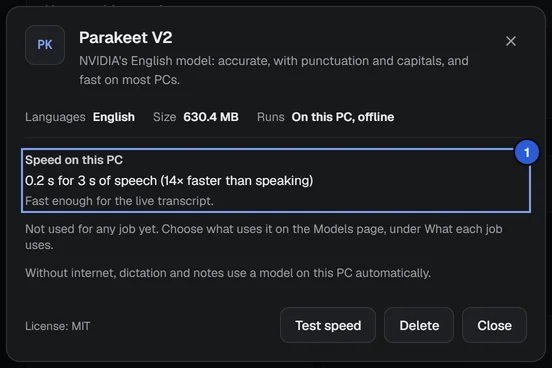
Open the model's window. It says what uses the model now, and its speed on this PC. To give it a job, use Change on that job under What each job uses in Models.
Speed on this PC#
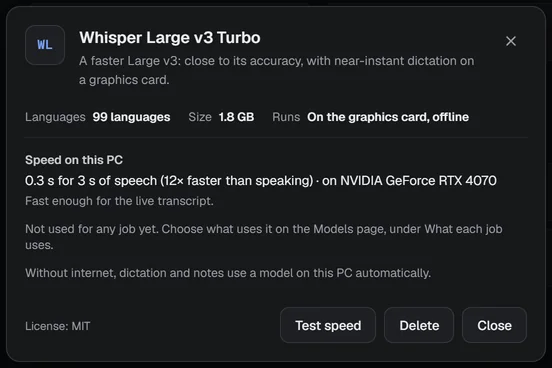
The window shows Speed on this PC, for example 0.2 s for 3 s of speech (14× faster than speaking). It is measured on a short built-in clip after the download. Click Test speed to measure again.
Under the speed, one line tells you about live notes:
- Fast enough for the live transcript. The model is at least twice as fast as speech.
- Too slow for the live transcript on this PC; notes are transcribed after the call. The note is still recorded and gets its transcript afterwards.
If notes use a model that is too slow, the live transcript stays off for that recording with the message Live transcript needs a cloud speech key or a faster PC. The note is still recorded.
Which one to pick#
- Parakeet V2 is the app's recommendation for English, especially on a PC without a graphics card: it adds punctuation and capitals. It's the one setup offers first.
- Parakeet V3 if you dictate in a European language.
- Whisper Small, Base and Tiny: Small is more accurate, Tiny is the smallest and the least accurate.
- Whisper Medium, Large v3 Turbo and Large v3 are for a PC with a graphics card; see Graphics card.
Without internet#
With no internet, dictation and notes use a model on this PC by themselves, no clicking needed. For dictation, A9 Voice picks the best model you have downloaded for your language, in this order for English: Parakeet V2, Parakeet V3, then Whisper Small, Base and Tiny. For other languages: Parakeet V3, then Whisper Small, Base and Tiny. Models that need a graphics card are never chosen this way.
The pill says offline when this happened. Notes whose cloud model can't be reached are transcribed on the PC the same way. If you have no model downloaded, dictation ends with No internet.
The models folder#
Models are stored in %LOCALAPPDATA%\A9 Voice\models. Click the models folder under the tiles to open it.
Delete a model#
Open the model's window, click Delete, then click it again to confirm. If the model is in use, the button says what uses it, for example Delete (used for dictation and notes). Pick another model for dictation first. Deleting removes both versions of a model (processor and graphics card). The shared tools go when the last model goes.
Graphics card#
New in 0.6.0. A9 Voice can run the larger Whisper models on your graphics card, which is much faster than the processor on a modern graphics card. It is optional, it works with any brand of card that supports DirectX 12, and if anything goes wrong it finishes the job on the processor by itself, so you are never worse off than without it.
What uses the card#
- Whisper Small, Medium, Large v3 Turbo and Large v3 can use the card.
- Medium, Large v3 Turbo and Large v3 run on the card only. Small has a processor version and a card version, so you can have either.
- Parakeet, voice detection and telling speakers apart always stay on the processor.
Turn it on and download support#
At the top of ON THIS PC is a box with the Use graphics card switch. It is on by default. Under its name you see the card it found and its memory, written like Your card's name · 12.0 GB of memory.
Below it, Graphics-card support is a small one-time download (the page shows its size: 23.9 MB). It holds the software that lets the models use your card. A9 Voice checks it when it arrives.

- Click Download next to Graphics-card support. A progress line shows Downloading… … of … (…%) and Cancel stops it.
- When it is done the line says Ready. Checked when it was downloaded. and the button becomes Remove. Remove deletes it; Download brings it back.


You don't have to do this first. Downloading a card model downloads the support with it if it isn't there yet, and the model's window lists it: graphics-card support (23.9 MB, once).
Download a model for the card#
- Click a model's tile, for example Large v3 Turbo. The window says Runs on and your card's name, then It needs about 3.5 GB of graphics memory.
- Click Download.
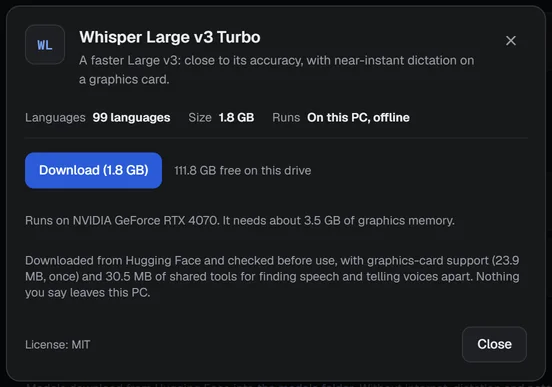
For Small (multilingual) you choose: Download for the graphics card or Download for the processor. If you already have the processor version, its window offers Faster on your card's name, the graphics-card version, with a Download button.
Once it is on the card, the tile reads Whisper · on followed by your card's name and carries a GPU badge. In the window, Runs says On the graphics card, offline, and the speed shown was measured on the card.
Choose a card#
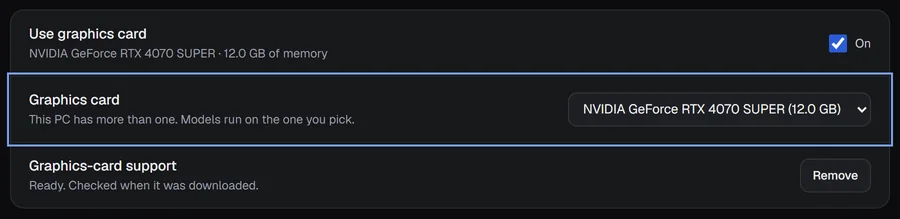
If your PC has more than one card that can run models, an extra row appears: Graphics card, This PC has more than one. Models run on the one you pick. Pick one from the list; the memory is shown next to each name. Without a choice, A9 Voice uses the card Windows prefers for performance, usually the separate card rather than the integrated one.
Memory and the "Needs about" message#
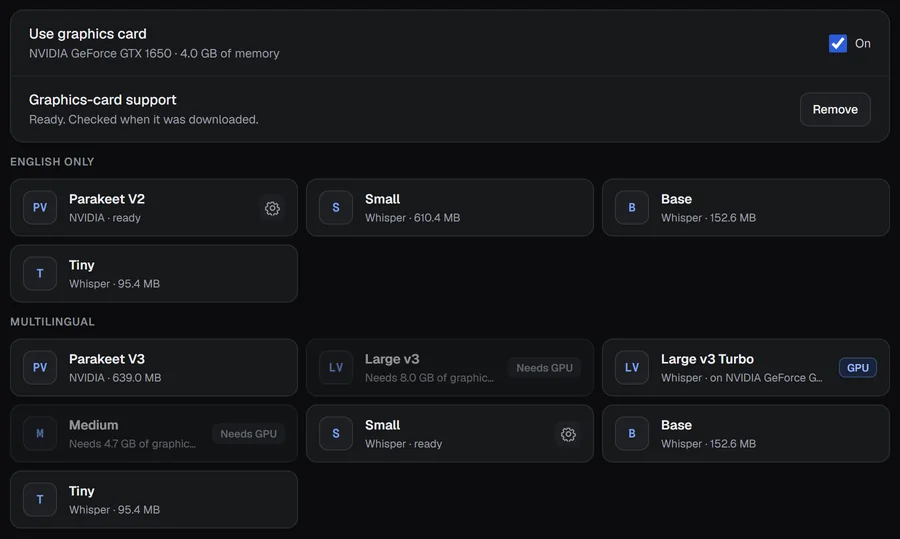
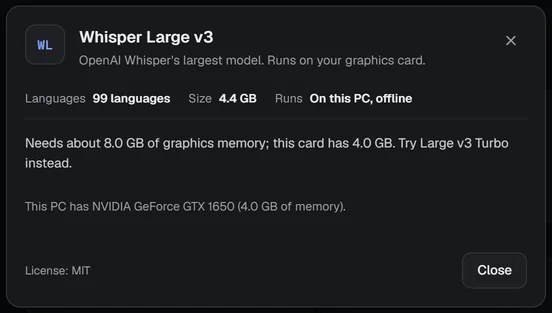
A model must fit in the card's memory with some room left for Windows. If it doesn't, its window says, for example, Needs about 8.1 GB of graphics memory; this card has 4.0 GB. Try Medium instead. and the tile says Needs 8.1 GB of graphics memory with a Needs GPU badge. The model it names is the next one down in size; it may still be too big for a small card, and its own window then says so. The figures the app shows for the models that run only on the card:
| Model | Graphics memory it needs |
|---|---|
| Large v3 Turbo | about 3.5 GB |
| Medium | about 4.7 GB |
| Large v3 | about 8.1 GB |
Whisper Small needs less than any of them. For an integrated card, the memory Windows lets it borrow from the PC counts too.
Every state you can see#
| What you see | What it means | What to do |
|---|---|---|
| No supported graphics card found. Whisper models run on the processor. The card-only tiles say Needs a graphics card. | No usable card. | Use Parakeet V2 for English, as the app suggests, or a Whisper model that runs on the processor. |
| The driver is too old for DirectX 12. Update the graphics driver. | A card was found but its driver can't do the job. | Update the graphics driver in Windows, then reopen the page. |
| The switch is off and the tiles say Needs Use graphics card. The window says Turn on Use graphics card (above the models) to use this one. | You turned it off. | Turn Use graphics card on. |
| Needs … of graphics memory, with a Needs GPU badge. | The model is too big for the card. | Choose the smaller model the message suggests. |
| Downloading… … of … next to Graphics-card support or on a tile. | A download is running. | Wait, or click Cancel. |
| Too slow for the live transcript on this PC; notes are transcribed after the call. on a model that says it runs on the card. | The card is no faster than live speech, which can happen with integrated graphics. | Check Speed on this PC. Use a faster model, or a cloud key for live notes. |
| Graphics card unavailable on tiles, and The graphics card isn't working right now. Turn Use graphics card off and on to try again. | The card failed (see below). | Turn the switch off and on. |



When the card fails#
If the card stops working in the middle of a job (it was removed, it ran out of memory, the driver crashed), A9 Voice finishes that job on the processor. You still get your text. It says Graphics card unavailable, used the processor once, in the pill and on this page. From then on the models use the processor until you turn Use graphics card off and on again, or restart A9 Voice.
The row Graphics card unavailable, used the processor says The model finished on the processor. Turn Use graphics card off and on to try the card again.
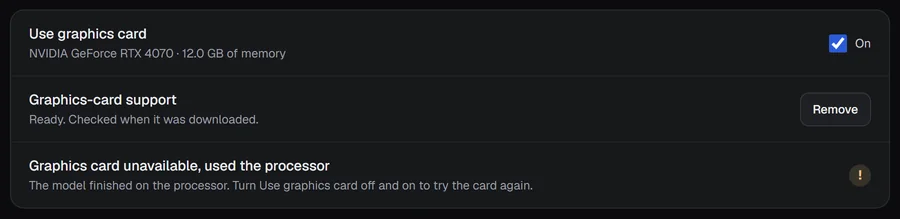
The reason is kept for support. Open Settings › General and click Copy diagnostics: it includes the switch, your cards (names and memory only), the support state and the last failure.
If something goes wrong#
- Groq key rejected, Deepgram key rejected and so on: the key is wrong or expired. Open the tile, click Manage key, paste a new one, Test, Save.
- … key missing: there is no saved key for that provider. Add one.
- … rate limit (429): you used up the provider's allowance for now. The fallback answers.
- … timed out or … error and a number: the provider is slow or down. The fallback answers.
- No internet: you are offline and no model on this PC is downloaded. Download one from ON THIS PC so dictation keeps working offline.
- Test works but nothing is typed: check that Dictation uses this model under What each job uses in Settings › Models, or in the Dictation chip at the top of the window.
More in Troubleshooting.
Related#
- Models: what each job uses.
- Language models: the keys for summaries, Ask and Enhance with AI.
- Transcribe: dictation, which uses the model you choose here.
- Recording a meeting and Live window: notes use the notes model.
- Privacy and data: what leaves your PC and when.
Something missing or wrong? Report an issue, or use Copy diagnostics in Settings › General when asking for help.