
Manual · Transcribe
Transcribe
Hold a key, talk, let go, and your words are typed into whatever app you are in. Use it for emails, chats, documents and anywhere else you can type.
Last updated for A9 Voice 0.7.8
Transcribe is A9 Voice's dictation. It needs a speech service, which you set up in Getting started or in Speech models. Everything on this page happens on your PC except the speech service you chose: your audio goes there, and nowhere else. See Privacy and data.
New to it? Watch Sara walk through it.
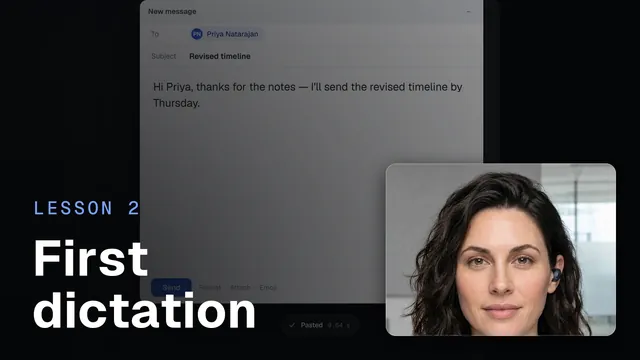 Your first dictationWatch the 47-second video
Dictate with the dictation key#
The dictation key is Ctrl+Space.
- Click in a text box in any app.
- Hold the dictation key and talk.
- Let go. After a moment the text appears where your cursor was.
A quick tap does nothing: no sound, no pill, nothing sent. A9 Voice treats a key press as dictation only once you have held it for a moment.
To change the key, open Settings › Dictation and click the Dictation key box. It says Press keys…. Press the new combination. It needs Ctrl, Alt, Shift or Win in it (F13 to F24 work alone). Press Esc to cancel. If another program already uses that key, A9 Voice tells you, and the sidebar shows Key in use · fix until you pick another.
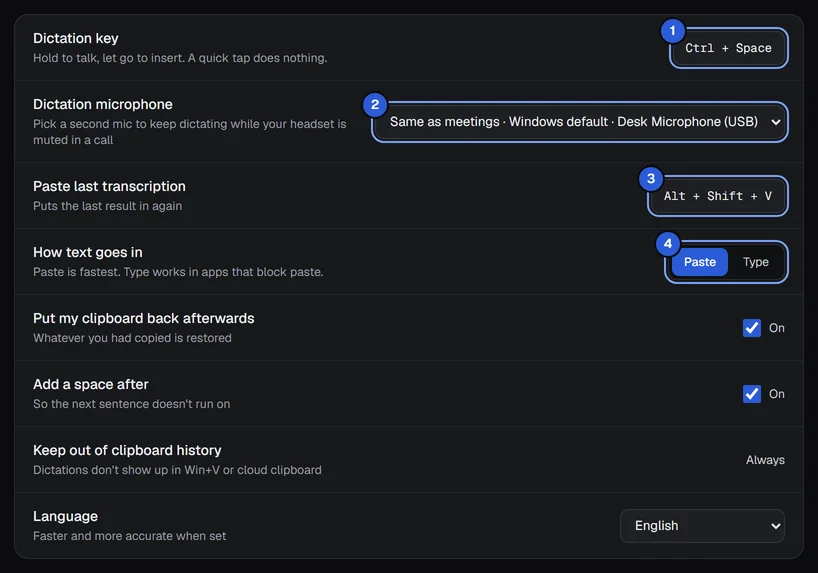
The numbers match the sections below. See Keyboard shortcuts for every key.
Cancel a dictation#
Press Esc while you are recording. The pill says Cancelled and nothing is sent. Esc is only watched while you record, so it works normally the rest of the time.
Hands-free mode#
Hands-free lets you talk for as long as you like without holding a key. Open Settings › Dictation. Hands-free mode has three choices:
| Choice | What it does |
|---|---|
| Off | Only hold-to-talk. This is how a new install starts. |
| Its own key | A second key. Press it once to start, press it again to stop and insert. Its default is Ctrl+Shift+Space. |
| Tap the dictation key | A quick tap of the dictation key starts hands-free; the next tap stops it. Holding still works as hold-to-talk. |
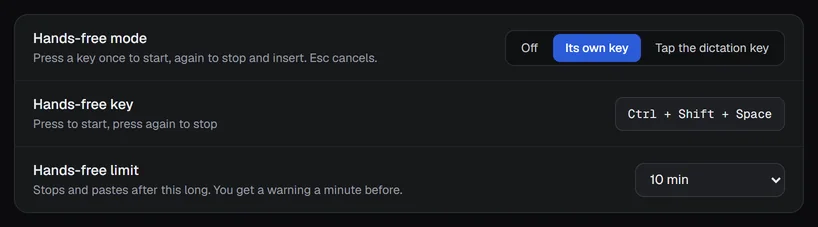
With Its own key, the Hands-free key row appears. Click it to record a new key, or press Backspace while it listens to clear it. If you hold the hands-free key down for a moment and let go, it finishes like hold-to-talk. Esc cancels in every mode.
Hands-free limit (1, 2, 5, 10, 15 or 30 minutes; 10 by default) stops the recording and inserts the text after that long. The pill warns you a minute before: the timer turns amber and says how long is left.
The pill#
While you dictate, a small pill shows what is happening. It appears at the bottom centre of the screen where the app you are working in is (you can move it to the top in Settings › General with Pill at the top of the screen). It never takes focus, so your cursor stays where it was. It is click-through, except for its buttons.
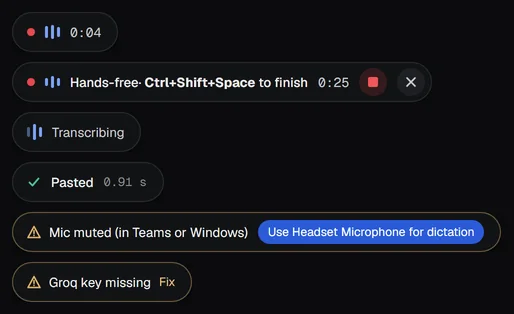
From top to bottom:
- Recording (red dot, level bars, timer): you are being heard. The bars move with your voice.
- Hands-free adds the label Hands-free · Ctrl+Shift+Space to finish (your key), a square stop button (stop and paste) and a cross (cancel).
- Transcribing: your speech is being turned into text.
- Pasted (or Typed, or Copied) with the time it took: done. It fades after a moment. If a second service answered, it adds via Deepgram (or the one that did); if there was no internet and a model on this PC answered, it adds offline.
- Mic muted (in Teams or Windows): see Microphone and muted mics.
- An amber message with Fix: something needs your attention, for example a missing key. Click the pill to open the setting that fixes it.
Other short messages: Didn't catch that (no speech was heard), Cancelled, Nothing to paste yet, and Timed out after 15 s. Nothing was pasted, which appears if a dictation has not finished after 15 seconds.
Turn on Show the pill when idle in Settings › General if you want a small dot to show that A9 Voice is running.
The Transcribe screen#
Click Transcribe in the sidebar to see your dictations. Each is a row with the text, the time, the app it went into and how long it took.
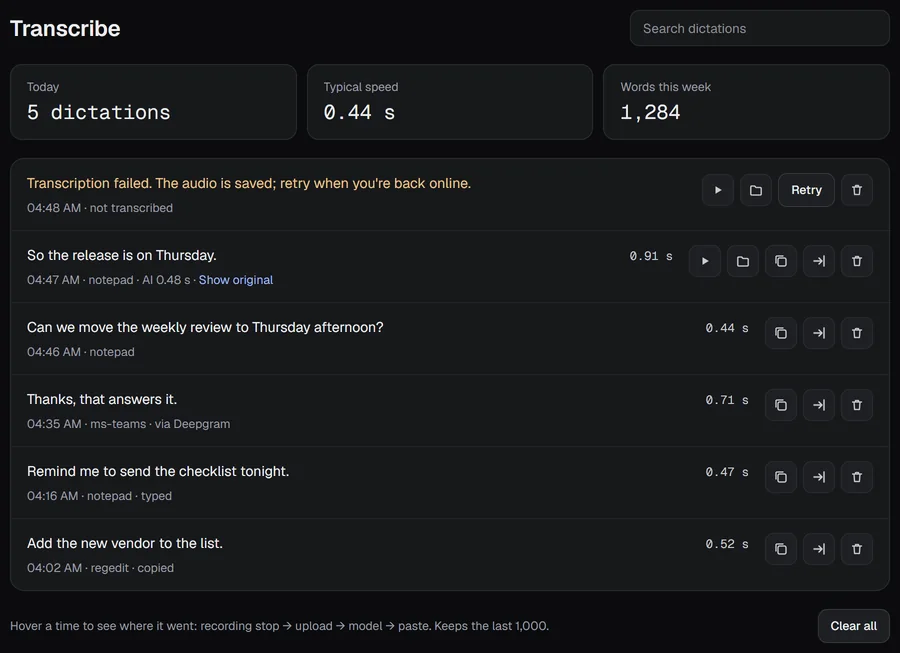
At the top: Today, Typical speed and Words this week, counted on this PC. Words this week is the same count as Home's 7 days, so deleting rows doesn't lower it. Type in Search dictations to find a row. Each row's buttons:
- Copy puts the text on the clipboard. Paste again hides A9 Voice and pastes it into the app you were in.
- Delete removes the row. Clear all at the bottom deletes every row, after asking. Neither changes the totals on Home; Settings › General › Reset counts does that.
- Play recording and Show in folder appear when the audio was saved (see Dictation audio).
- Retry appears on a failed row.
Under each text, a line says how it went in: the time, the app, and typed or copied when it was not pasted. via Groq (or the other service) means your first choice failed and the backup answered. Hover over the time on the right to see where it went: from the key release to the audio being sent, the model, and the paste. Settings › General › History kept sets how many rows stay (the last 100, 500, 1,000, 5,000 or 20,000).
Failed dictations#
If the speech service cannot be reached, the row says Transcription failed. The audio is saved; retry when you're back online. Click Retry and the row fills in with the text. A retry does not paste anything; use Copy to take the text. If audio saving was off, the row says The audio is gone.
Enhanced rows#
When Enhance with AI changed the text, the row says AI and the time it took, with Show original to see what was heard and Show enhanced to go back.
Copy the last transcription from the tray#
Missed the text box? Right-click the A9 Voice icon in the tray (the small icons by the clock) and choose Copy last transcription, or open Recent and click one of your last five dictations. The text goes on your clipboard as a normal copy; paste it with Ctrl+V. Copy last transcription is greyed out while the history is empty.
Paste the last transcription again#
Press Alt+Shift+V (the Paste last transcription key, number 3 above) to put your newest dictation in again at the cursor. Change it in Settings › Dictation, or press Backspace while it listens to turn it off. If you have not dictated yet, the pill says Nothing to paste yet.
Microphone and muted mics#
A9 Voice uses the Windows default microphone, which follows what you pick in Windows. To choose one yourself, open Settings › Microphone (or Dictation microphone in Settings › Dictation; it is the same setting). Click Test and talk: the bar should move when you talk and rest when you do not.
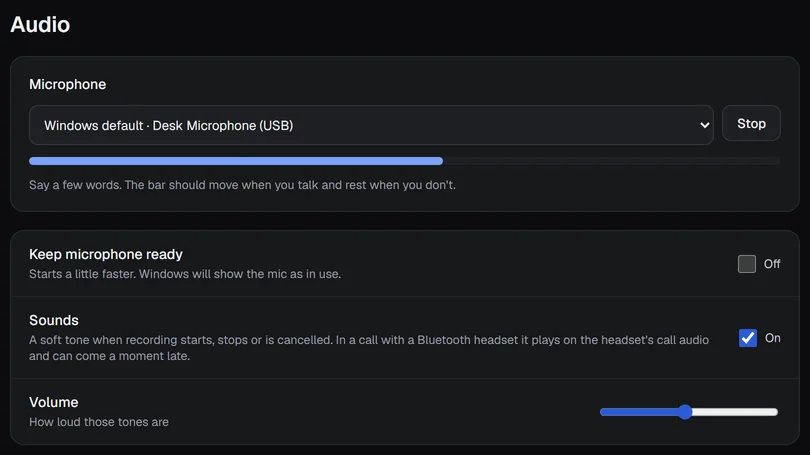
- Keep microphone ready makes dictation start a little faster. Windows shows the microphone as in use while it is on.
- Dictation microphone lets you use a second microphone for dictating while your headset is muted in a call. Notes can use another one: Settings › Recording › Microphone (Me) says Same as Transcribe by default.
If you speak and the pill says Mic muted (in Teams or Windows), the microphone's Windows mute switch is on (a headset can do this when you mute yourself in Teams), or the microphone is sending complete silence. A9 Voice never unmutes anything for you. Unmute, or click Use … for dictation on the pill when it offers another microphone that is not muted. Clicking the message itself opens Settings › Microphone. A microphone that is only muted inside Teams, not in Windows, still works for A9 Voice.
Sounds#
A soft tone plays when recording starts, stops or is cancelled, and a lower tone when something goes wrong. The start tone comes just after you press the key, so a quick tap stays silent. Turn the tones off with Sounds and set Volume in Settings › Microphone. During a call, or with a headset in call mode, the tones play on the headset's call audio and can come a moment late.
How text goes in#

How text goes in (number 4 above) has two choices:
- Paste is the default and fastest. A9 Voice puts your text on the clipboard, sends Ctrl+V, and puts back whatever you had copied before. Dictations are kept out of Windows clipboard history (Win+V and the cloud clipboard).
- Type types the text key by key. Use it in apps that block paste.
Related settings in the same card: Put my clipboard back afterwards (on by default), Add a space after (on by default, so the next sentence does not run on) and Language (English by default; also detect automatically, Spanish, French, German, Portuguese, Italian, Dutch, Japanese or Chinese). A language that is set is faster and more accurate. Click Show advanced for Paste keys (switch to Shift+Insert for some terminals and remote desktops) and Clipboard restore delay.
Dictating into A9 Voice itself#
You can dictate into A9 Voice's own text boxes too: Ask, a note's title, tags and transcript lines, search, and Settings. Click in the box first, then hold the dictation key. The text goes in at the cursor and the pill says Typed. If no A9 Voice text box has the cursor, the text is copied and the pill says Copied — click a text box in A9 Voice first.
Enhance with AI#
Enhance with AI cleans up each dictation before it is inserted. It is off by default. Open Settings › Dictation and scroll to the Enhance with AI heading.
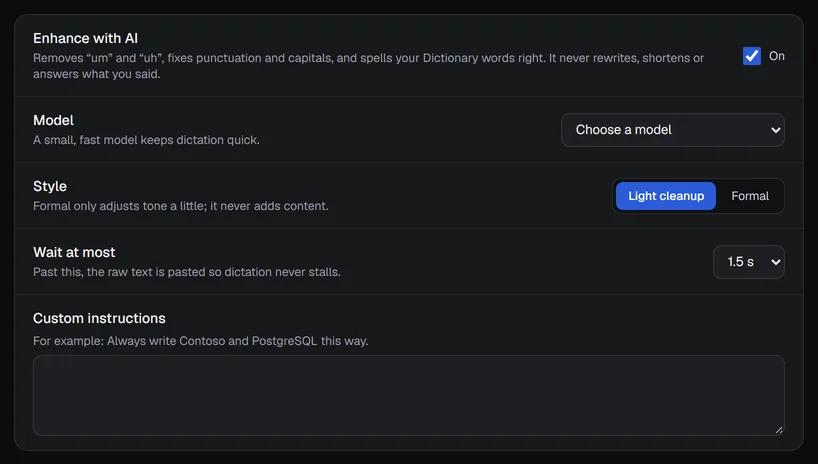
- Switch Enhance with AI on.
- Pick a Model. If the list is empty, add a key in Settings › Models first (see Language models); until then text is pasted as heard. A small, fast model keeps dictation quick.
- Choose a Style: Light cleanup or Formal (Formal only adjusts tone a little and never adds content).
- Set Wait at most (1.0 to 3.0 seconds; 1.5 by default). Past this, the plain text is pasted so dictation never stalls.
- Optionally write Custom instructions, for example which spellings to use. They cannot override the rules below.
What it does: removes "um" and "uh", fixes punctuation and capitals, and spells your Dictionary words right. What it never does: rewrite, shorten or answer what you said. If the answer comes back much longer or shorter than what you said, A9 Voice ignores it and pastes your words as heard. The History line then says AI too slow · as heard, AI failed · as heard or AI reply skipped · as heard; when nothing needed changing it says AI: no changes.
When Enhance is on, the text of each dictation is sent to the language model you chose, in addition to the speech service.
Dictation audio saved for retries#
By default A9 Voice keeps a small compressed copy of each dictation's audio for 7 days, so a dictation that failed can be transcribed again. Open Settings › Dictation audio.
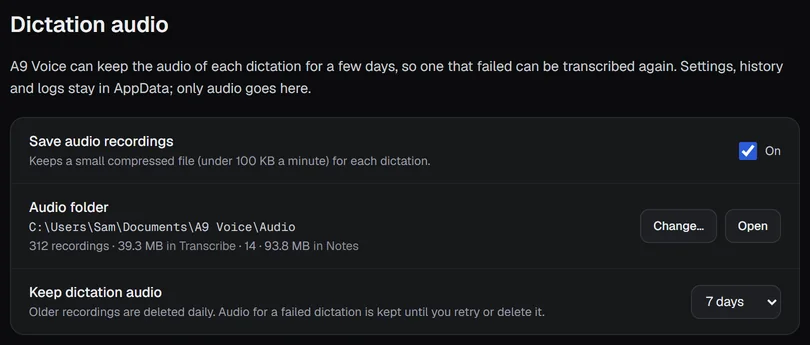
- Save audio recordings turns it on or off.
- Audio folder shows where the files go (by default in Documents\A9 Voice\Audio, in a Transcribe folder). Change… moves it; Open shows it. Settings, history and logs stay in AppData.
- Keep dictation audio is 1 day, 7 days, 30 days, 90 days or Forever. Older audio is deleted daily. Audio for a failed dictation is kept until you retry or delete it.
If something goes wrong#
Nothing pastes#
Work down this list.
- Nothing happens at all when you hold the key. Another program may own the shortcut. Look for Key in use · fix in the sidebar and choose another key in Settings › Dictation. Also check the tray: if you chose Pause dictation there, the keys are switched off. Hovering the tray icon says dictation paused or shows your key.
- The pill says "Pick how A9 Voice hears you first". No speech service is set up. Click Fix and add a key or download a model in Speech models.
- The pill says "key missing", "key rejected", "rate limit hit" or "timed out". Check the key in Settings › Models. A backup service (see Speech models) takes over when the first one fails, and the History line shows via and its name.
- The pill says "No internet". The dictation is kept as a failed row if audio saving is on; click Retry on it later. If you have downloaded a model to this PC, A9 Voice uses it instead and the pill says offline.
- The pill says "Didn't catch that" or "Mic muted". The microphone heard nothing. Check Settings › Microphone.
- The pill says "Can't type into an admin window — copied instead". Windows does not let a normal app send keystrokes to a program running as administrator. Press Ctrl+V yourself; the text is on your clipboard.
- The pill says "Paste was blocked — copied instead" or "Typing was blocked — copied instead". Windows did not let A9 Voice send the keys. The text is on your clipboard meanwhile, so press Ctrl+V yourself. If the pill says Pasted but nothing appears, the app may ignore Ctrl+V (some terminals and remote desktops do): switch How text goes in to Type, or under Show advanced set Paste keys to Shift+Insert.
- The pill says "The clipboard was busy — try again". Another program was holding the clipboard. Dictate again, or use Paste again on the row.
- Text pasted somewhere unexpected. The text goes into the window that has focus when the transcription finishes. Keep the right window in front until the pill says Pasted.
If it still does not work, see Troubleshooting.
Related#
- Dictionary: names and fixes that apply to every dictation.
- Speech models: choose the speech service and a backup.
- Keyboard shortcuts
- Settings reference
Something missing or wrong? Report an issue, or use Copy diagnostics in Settings › General when asking for help.