
Manual · Reference
Keyboard shortcuts
Every key A9 Voice uses, what each does, its default, and where you can change it.
Last updated for A9 Voice 0.7.1
A9 Voice has two kinds of keys. Global keys work from any app, even when A9 Voice's window is closed: dictating, recording a meeting, showing the recording bar. You can change these. Window keys work only while an A9 Voice window is in front: searching, playing a note, moving around a list. These are fixed.
Keys are shown as Ctrl+Space, which means hold Ctrl and press Space.
Dictation#
All of these are set in Settings › Dictation. See Transcribe for what they do.
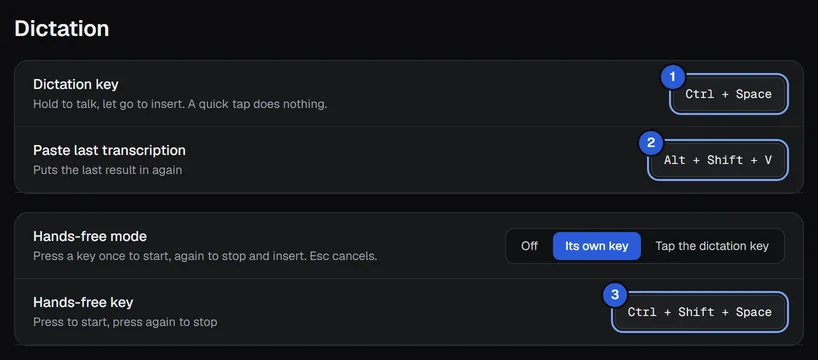
| Key | Default | What it does | Change it |
|---|---|---|---|
| Dictation key | Ctrl+Space | Hold, talk, let go: the text is typed where your cursor is. A quick tap does nothing. | Yes, Dictation key (1). It cannot be cleared. |
| Hands-free key | Ctrl+Shift+Space | Press once to start recording, press again to stop and insert. Only works when Hands-free mode is Its own key. | Yes, Hands-free key (3). Can be cleared. |
| Tap the dictation key | the dictation key | When Hands-free mode is Tap the dictation key, a quick tap of the dictation key starts hands-free and the next tap stops it. | Yes, with Hands-free mode (choices: Off, Its own key, Tap the dictation key). |
| Paste last transcription | Alt+Shift+V | Puts your newest dictation in again at the cursor. | Yes, Paste last transcription (2). Can be cleared. |
| Esc | While you are recording, cancels it. Nothing is sent. | No. It is only used while recording, so it works normally the rest of the time. |
On a new install, Hands-free mode is Off, so the hands-free key does nothing until you choose Its own key. If you hold the hands-free key down for a moment and let go, it finishes like hold-to-talk.
Meeting notes#
These are set in Settings › Recording, under While recording. See Recording a meeting.
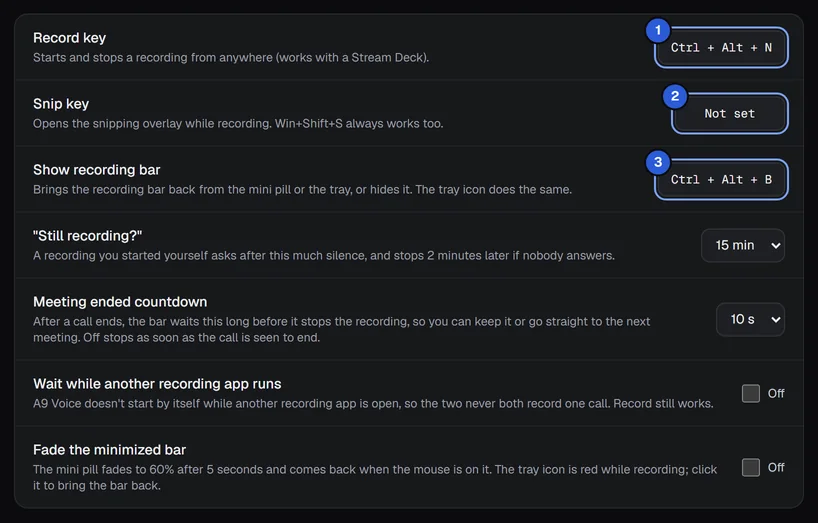
| Key | Default | What it does | Change it |
|---|---|---|---|
| Record key | Ctrl+Alt+N | Starts and stops a recording from anywhere. During the Meeting ended countdown it saves that meeting and starts the next one. | Yes, Record key (1). Can be cleared. |
| Snip key | none | Opens the snipping overlay while you record, and saves the picture into the note. | Yes, Snip key (2). Can be cleared. |
| Win+Shift+S | Windows' own | Does the same as the snip key while a note is recording. | No. This is Windows' key. |
| Show recording bar | Ctrl+Alt+B | Brings the recording bar back from the mini pill or the tray, or hides it. | Yes, Show recording bar (3). Can be cleared. |
Search#
| Key | What it does | Change it |
|---|---|---|
| Ctrl+K | Opens Search (and Ask your notes) over your notes, transcripts and dictations. Press it again to close. Works once setup is finished, while the A9 Voice window is in front. | No |
| Enter | In the search box, runs the search (or asks the question on the Ask your notes tab). | No |
| Esc | Closes the search window. | No |
Ask#
These work in the question box of the Ask page and of the Ask your notes tab of Ctrl+K. See Asking your notes.
| Key | What it does | Change it |
|---|---|---|
| Enter | Asks the question in the selected mode (Quick, Deep or the template you picked). | No |
| Ctrl+Enter | Asks the question as Deep, whatever is selected. | No |
| Alt+1 | Selects Quick. | No |
| Alt+2 | Selects Deep. | No |
| Alt+3 | Opens the Template menu. | No |
| Esc | Closes the Template menu. | No |
Notes list#
| Key | What it does |
|---|---|
| ↑ / ↓ | Moves the selection up and down the list of notes. |
| Enter | Opens the selected note. |
| F2 | Renames the selected note. Then Enter saves and Esc cancels. |
These keys are fixed, and do nothing while you are typing in a box.
Note page#
| Key | What it does |
|---|---|
| Space | Plays or pauses the recording (when the note still has audio). |
| ← / → | Jumps back or forward 5 seconds. |
| Enter | In the title box, saves the new title. In a transcript line you are editing, saves the line. In Add tag, adds the tag. In Ask about this note…, sends the question. |
| Shift+Enter | In a transcript line you are editing, starts a new line. |
| Esc | Cancels a title, line or tag edit, and closes the Export window and the full-size image. |
Space and the arrow keys only control playback when you are not typing in a box and no window is open over the note. They are fixed.
Live window#
| Key | What it does |
|---|---|
| Enter | In the question box, sends your question; in a name box, saves the name; in the note box, adds a typed note at this moment of the meeting; in the tag box, tags the person talking. |
| Esc | Closes an open menu or the merge question. In the tag box, cancels. |
While you choose a key#
When you click one of the key boxes in Settings, it says Press keys…. Press the combination you want.
- Esc cancels without changing anything.
- Backspace or Delete clears the key, for the boxes that can be cleared. They show Not set afterwards.
- A key needs Ctrl, Alt, Shift or Win in it, so ordinary typing is never caught. F13 to F24 are allowed alone.
- Ctrl+Alt+R is reserved and cannot be chosen.
- Two of A9 Voice's keys cannot be the same: the second box shows Same key as and the other key's name, for example Same key as dictation or Same key as paste last transcription.
- If another program already uses the combination, the box shows "… is in use by another app. Quit that app or choose another key."
Other keys inside the app#
- Enter in the Dictionary page's Add a word or name box adds the word.
- Esc closes the speech-model windows, the search window and the Tidy folder names window.
- You can also dictate into A9 Voice's own text boxes: click in the box, then hold the dictation key. See Transcribe.
If something goes wrong#
- A key does nothing. Another program may own it. Look for Key in use · fix in the sidebar, or the message at the top of Settings › Dictation, and choose another combination.
- A key stopped working after you chose Pause dictation. Pause dictation in the tray menu switches the dictation keys off. Choose it again to switch them back on.
- Ctrl+K does not open search. The A9 Voice window must be in front, and setup must be finished.
See Troubleshooting for more.
Related#
Something missing or wrong? Report an issue, or use Copy diagnostics in Settings › General when asking for help.