
Manual · Speech and AI
Models
One page for every model A9 Voice uses, organized by job: dictation, meeting notes, summaries, Ask and Enhance.
Last updated for A9 Voice 0.7.2
People think in jobs, not in engines. Settings › Models starts with what each job uses and a Change button for each, and keeps the keys and downloads underneath.
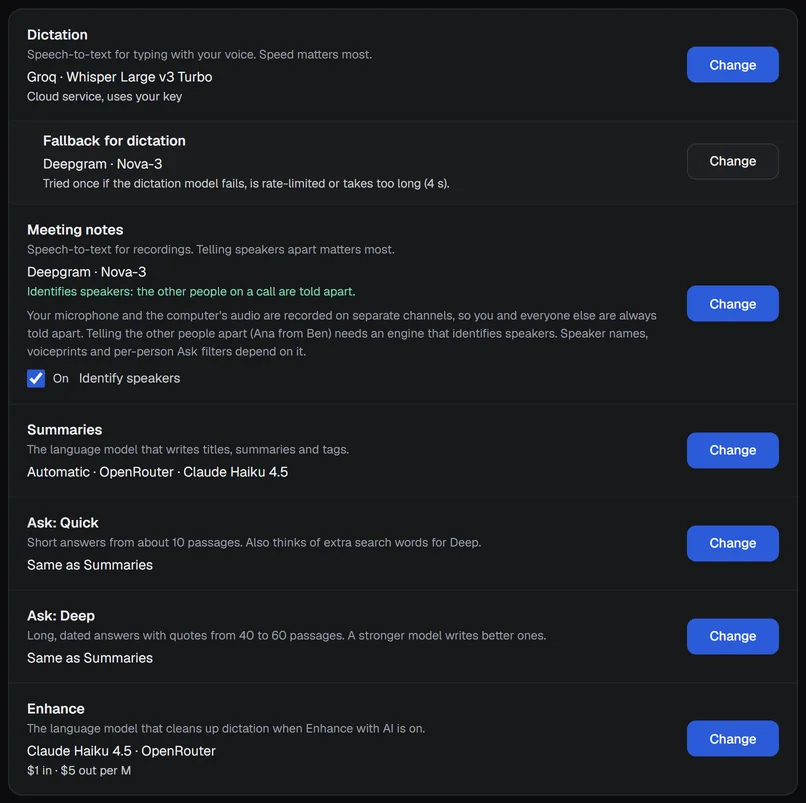
What each job uses#
| Job | What it does | Picks from |
|---|---|---|
| Dictation | Speech-to-text for typing with your voice. Speed matters most. | speech services and models on this PC |
| Fallback for dictation | Tried once if the dictation model fails, is rate-limited or takes too long. | the same list, or none |
| Meeting notes | Speech-to-text for recordings. Telling speakers apart matters most. | speech services and models on this PC |
| Summaries | The language model that writes titles, summaries and tags. | every language model you have a key for |
| Ask: Quick | Short answers from about 10 passages. It also thinks of the extra searches for a Deep answer. | language models, or Same as Summaries |
| Ask: Deep | Deep answers that find every meeting a topic came up in, and the longer templates such as Briefing: up to 120 passages, with dates and quotes. | language models, or Same as Summaries |
| Enhance | Cleans up dictation when Enhance with AI is on. | language models, or Same as Summaries |
A job set to Same as Summaries follows the Summaries row: change that one and the others move with it. Summaries itself can be Automatic, which uses the first model you have set up (Claude Haiku 5.5 on Anthropic or OpenRouter, then the others).
The three chips at the top of every window, Dictation, Meeting notes and AI, show the same choices. Click one to switch, or use Settings… to open this page.
Change a job's model#
- Open Settings › Models and click Change on the job.
- Pick from the list. Choosing Same as Summaries puts the job back on the Summaries model.
For a speech job the list shows the speech services you have a key for and the models you have downloaded. For a language job it is the searchable list described below.
Telling the other people on a call apart#
Your microphone and the computer's audio are recorded on separate channels, so you and everyone else are always told apart. Telling the other people apart, for example Ana from Ben, needs speaker separation. Deepgram and ElevenLabs do it, and so does a model on this PC when Identify speakers is on and its model files are downloaded. Speaker names, voiceprints and per-person Ask filters all depend on it.
When Meeting notes can't do it, its row gets an amber border and says Can't tell the other people apart. Everyone on the call except you will show as one speaker. Choose an engine that identifies speakers. The Meeting notes chip at the top shows a warning triangle too. Amber is a warning, not an error: nothing is broken and the note is still made.
Saving your first Deepgram key while Meeting notes can't tell people apart shows a box in the key window, Also use Deepgram for Meeting notes. It starts checked. Checked, Meeting notes move to Deepgram and your meeting audio goes there. Unchecked, the key is saved and Meeting notes stay as they were. You can change it later in the Meeting notes row.
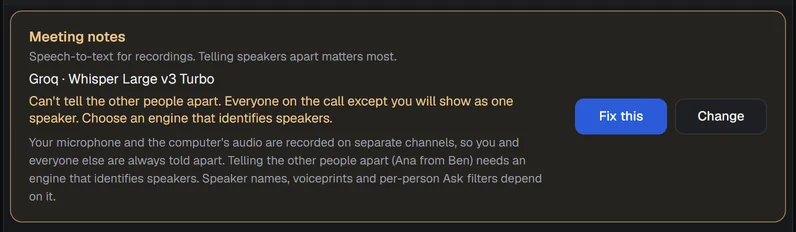
- Fix this opens the list with only the engines that identify speakers. Only engines that identify speakers can be unticked to see the rest.
- In the list, engines that identify speakers come first with an Identifies speakers badge. The others say One speaker for everyone else.
- Choosing one of those asks Use it anyway? once. That is fine when you only record calls with one other person.
- When the engine can do it but Identify speakers is off, the row says so and Turn on switches it on.
Dictation shows no warning: speakers don't matter there.
Pick a language model#
The list holds every model each of your providers offers, read from the provider itself: OpenRouter, Anthropic, OpenAI, Groq and Google, plus your own servers. A model released tomorrow shows up without an update of A9 Voice. The lists are kept for 24 hours and the last one is used when you are offline. Refresh lists asks again now.
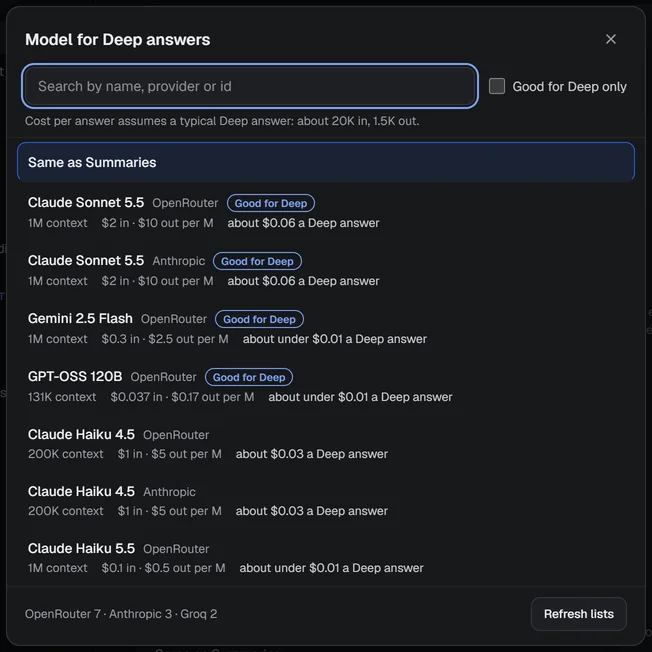
Each row shows the model's name, its provider, its context (how much text it reads at once) and its price in dollars per million tokens, in and out. price unknown means the provider doesn't say.
- Good for Deep marks a model with a context of 100,000 tokens or more and a stronger tier. Deep answers read up to 120 passages, and a small model gives them thin.
- For Ask: Deep the list also shows about $0.04 a Deep answer per model. The estimate uses the median size of your last 20 Deep answers, or about 20,000 tokens in and 1,500 out until you have some.
A newer model#
When your Summary model is a Claude Haiku and a newer one is on offer, the page says Newer: Claude Haiku 5.5, cheaper and stronger. Switch Summaries to it? once. Not now closes it for good. Your own choices are never changed without asking.
Providers and keys#
Under the jobs, Providers and keys holds the provider cards: keys, tests and downloads. There are no job checkboxes in a provider's window any more; jobs are chosen at the top. See Speech models and Language models for each provider's steps.
The old Speech models and Language models pages are this page now. Links and the manual's ? button land here.
When a model can't take a request#
If a model is skipped or fails, the answer's footer says why after after:. These are the reasons for a too-big request:
- request too large for Groq's per-minute token cap on this model: the one request is bigger than your Groq plan allows per minute. It never counts as usage, so Groq's dashboard can show 0%. A9 Voice learns the cap and skips that model for requests it can't take, without sending them.
- request too large for OpenAI's context window on this model: the question and passages don't fit the model's context.
- Groq rate limit (429): a real rate limit; wait a minute or use another model.
The next model you have set up answers instead. See Asking your notes.
Related#
- Speech models: keys, models on this PC and your graphics card.
- Language models: keys for summaries, Ask and Enhance.
- Asking your notes: Quick and Deep answers.
- Search and Ask: find words in your notes.
- Recording a meeting: notes and speakers.
Something missing or wrong? Report an issue, or use Copy diagnostics in Settings › General when asking for help.