
Manual · Start here
Video tutorials
Short walkthroughs of A9 Voice, each under a minute.
Last updated for A9 Voice 0.6.13
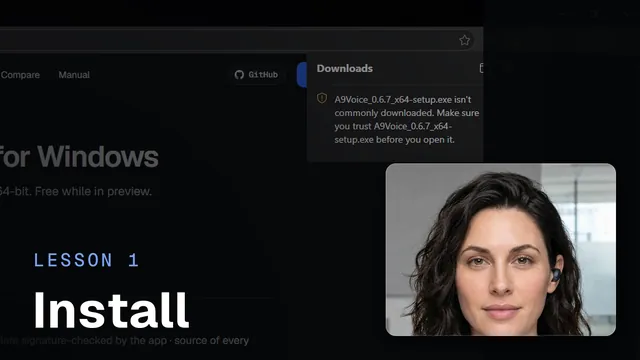
Lesson 1 · 0:59
Installing A9 Voice
Download A9 Voice and see what your browser and Windows show for a new app that isn't code-signed yet, step by step. Then check the file's SHA-256 fingerprint on the download page if you want to be sure.
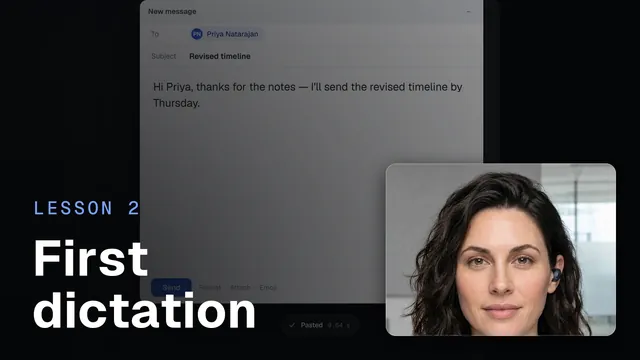
Lesson 2 · 0:47
Your first dictation
Click where you want the words, hold Ctrl and Space, talk, and let go: your words are typed where your cursor is. Esc cancels, and hands-free mode is in Settings.

Lesson 3 · 0:57
Your first meeting
Start a recording from Notes or with a key, or let it start with a call. The bar and the Live window follow along, and when it ends you get the transcript, then a summary with decisions and action items.

Lesson 4 · 0:49
Naming speakers
Turn Speaker 2 and Speaker 3 into real names: live during the call, or on the note page afterwards. Recognize people by voice is off until you turn it on; then A9 Voice names people you have named before, and the voiceprints stay on your PC.
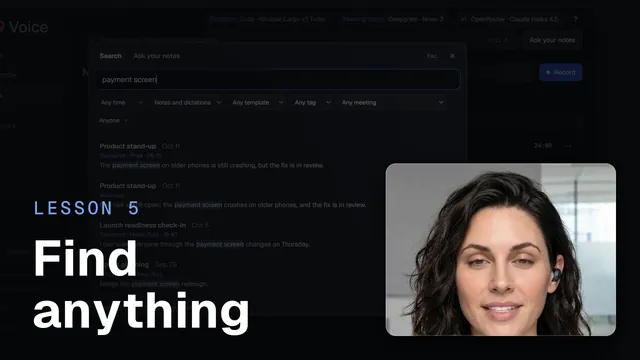
Lesson 5 · 0:40
Find anything and ask your notes
In A9 Voice, press Ctrl + K to search your notes and dictations, or ask a question and get an answer with links to where it was said. During a call, the Live window answers questions about that meeting.
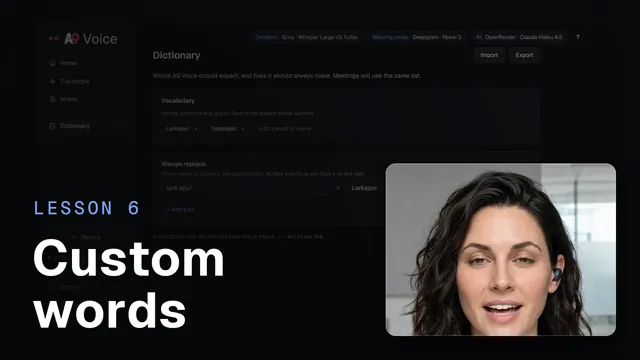
Lesson 6 · 0:40
Custom words
Teach A9 Voice your names and jargon: add words as hints, and add fixes for mistakes that keep coming back. The same lists work for dictation and for meeting notes.
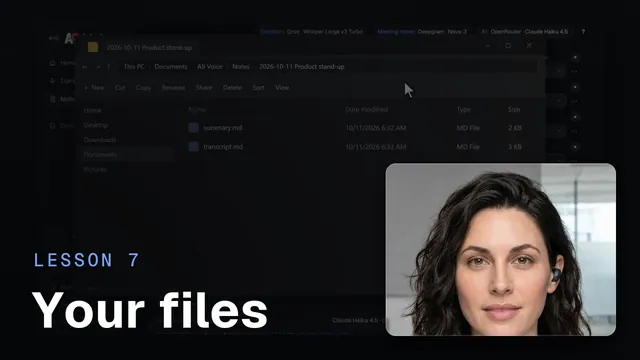
Lesson 7 · 0:45
Your notes, your files
Every note is a folder of plain Markdown files, with the audio kept in your Audio folder. See where they live, how Export works and how templates shape the summary.
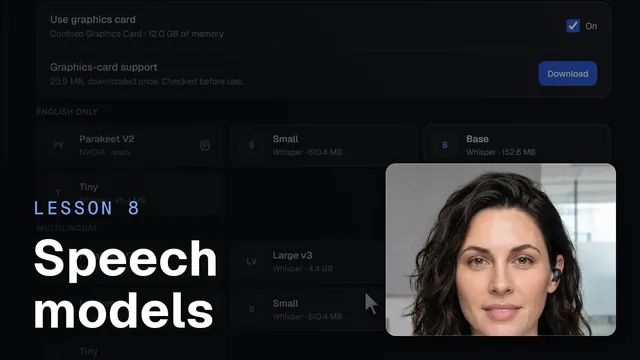
Lesson 8 · 0:43
Speech models and your graphics card
Use a cloud service with your own key, or a model that runs on your PC, with the graphics card for the bigger ones. Then choose who handles dictation, who handles meeting notes and the fallback for dictation.
Sara is an AI presenter.
Something missing or wrong? Report an issue, or use Copy diagnostics in Settings › General when asking for help.