
Manual · Notes
Voices (voice recognition)
Let A9 Voice put names on the people in your meetings by how they sound. It is off until you turn it on, and the voiceprints stay on your PC.
Last updated for A9 Voice 0.7.7
Without this, people on a call show up as Speaker 2, Speaker 3 and so on, until you name them. With Recognize people by voice on, A9 Voice remembers how each person you have named sounds, and names them for you in later meetings, both on the live transcript and in the finished note.
It works on the other people on the call. Your own voice is never learned or matched: A9 Voice already knows which speaker is you, because that is your microphone.
What is stored, and where#
- A voiceprint: a set of numbers that describes how a person sounds. It is not a recording.
- Where: in a file called
voices.dbin A9 Voice's own data folder on your PC. Not in your Notes folder. - Never anywhere else: voiceprints are never put in a note, a log, an export, a webhook, or any request to a speech or AI service. The connector for AI apps never returns them either.
- Next to each person: a short history in plain words (when the voice was learned or strengthened, renamed, merged).
For everything else A9 Voice keeps, see Privacy and your data.
Turn it on#
Open Settings › Notes › Voices and switch Recognize people by voice on.
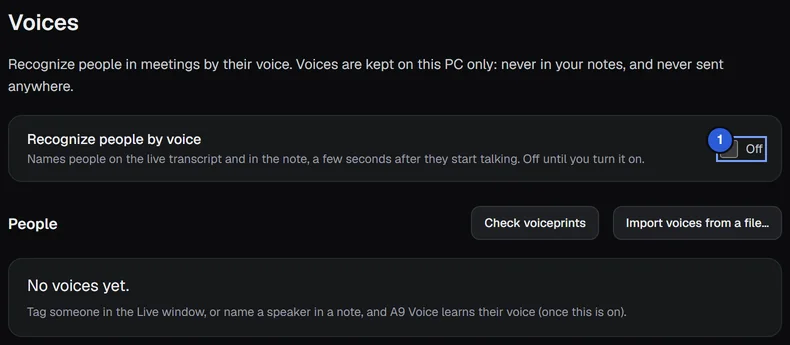
Voices is off until you turn it on. A window called Before you turn this on opens. It says what is stored, where, how to delete it, and that you are responsible for consent. Read it, then choose Turn on. Not now leaves the switch off.
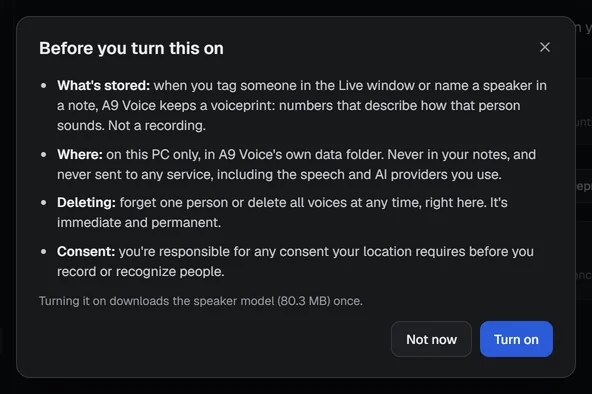
The consent point reads: "you're responsible for any consent your location requires before you record or recognize people." Rules about recording people, and about recognizing them, differ from place to place.
A9 Voice downloads the Speaker model once (80.3 MB). A progress bar shows how far it has got. If the download fails, a message appears and the button reads Try again.

When you switch Recognize people by voice off again, the voices you already have stay on your PC until you forget them or delete them (see Manage people).
How A9 Voice learns a voice#
To see the three steps, from naming a speaker to turning recognition on:
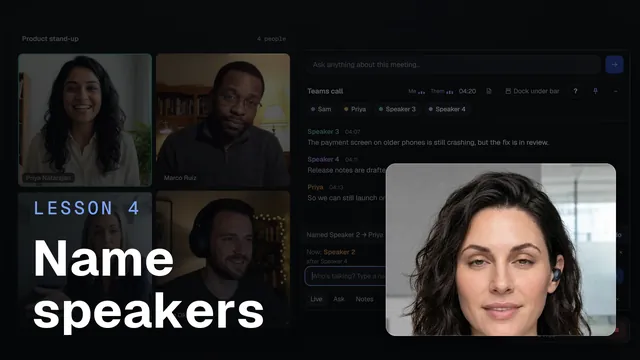 Naming speakersWatch the 49-second video
A voice is learned only when you tell A9 Voice who someone is, in one of two ways:
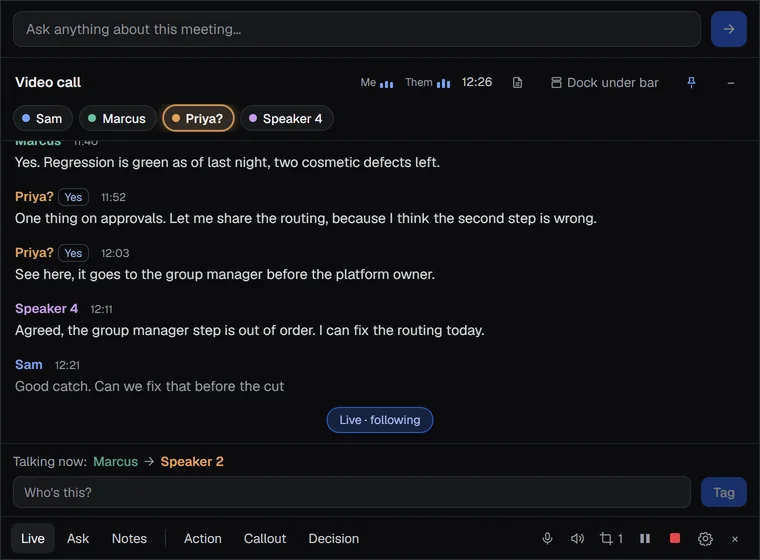
- Naming a whole speaker in the Live window. While you record, type the name into Who's talking? and press Tag, name a speaker from their chip, or press Yes next to a likely match. See The Live window.
- Naming a whole speaker in a note. In the note's Speakers list, type a name for a speaker (or answer Yes to "Sounds like ...?"). See The note page.
A few rules keep wrong names out:
- Never from a single line. Moving one line to another speaker does not teach anything. Only a name for the whole speaker does.
- Never your own voice. Your microphone channel, and any speaker you name as yourself, are skipped.
- Never a speaker you left out. A speaker marked Not part of the meeting in a note is never learned from, and leaving one out never changes a stored voice. If that speaker had been named from a voice, the person's history says "Excluded from a note", so a wrong match shows.
- Never from an editable copy of a note that came from an added folder. See Search and Ask.
- After the call. Tags taught during a call are learned when the note is processed afterwards, not during the call. That is also why Undo in the Live window leaves no trace.
- It needs the audio. A voice is learned from the note's recording, so nothing is learned from a note whose audio has been removed (see Keep notes audio in The note page).
- Enough speech. A voice is learned only from at least 12 seconds of that person's clear speech. With less, the history says "not enough clear speech".
- Too different. If the new sample sounds too unlike the voice already stored under that name, it is not added. The history says "voice too different", and it is probably the wrong person.
- A tag on the wrong person. If you Tag a name that already has a voice stored, but the speaker clearly sounds like a different person you taught, A9 Voice names the speaker with that other person and learns nothing from the tag.
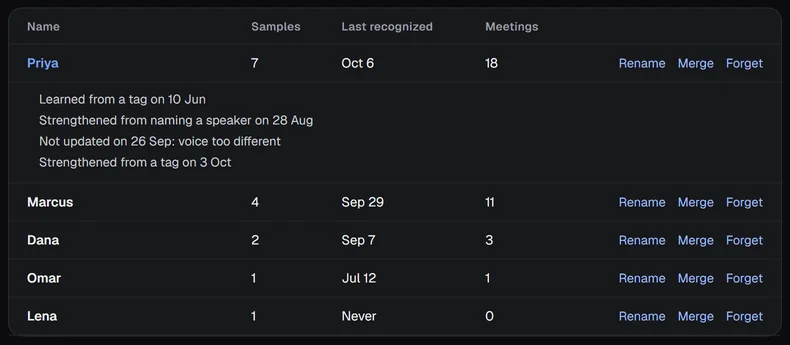
The Samples column on the Voices page counts how many times a voice has been learned or strengthened.
How names show up#
During a call#
A9 Voice starts to compare a speaker with the voices you taught it after about 8 seconds of that speaker's talking, and tries again as more speech comes in. A name is shown only once two tries in a row agree on it, and it does not change after that.
- A sure match (the voice is alike enough, and clearly closer to this person than to anyone else you taught) names the speaker on every line, past and future.
- A likely match (alike, but not sure enough) shows the name with a question mark, such as Priya?, and a Yes button. One click confirms it and counts as a Tag.
In the finished note#
When the note is ready, speakers nobody named yet are checked against your voices again, using everything that person said. In the note's Speakers list you will see one of three things:
- Recognized by voice under a name A9 Voice was sure about.
- Sounds like Dana? with Yes and No. Yes names the speaker, which also teaches the voice. No dismisses the guess.
- Nothing, and the speaker stays Speaker N. A speaker with very little speech is not judged at all.
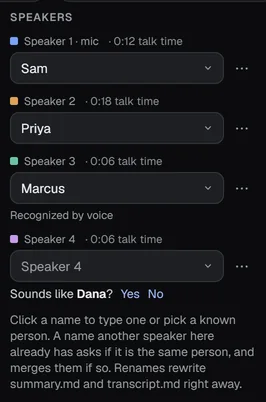
Two rules apply in every meeting. A speaker gets at most one name, and a person is matched to at most one speaker, so two speakers never both become Priya. A name you have already given in this meeting is never offered again to another speaker.
Naming a speaker yourself always wins over a guess.
The Voices page#
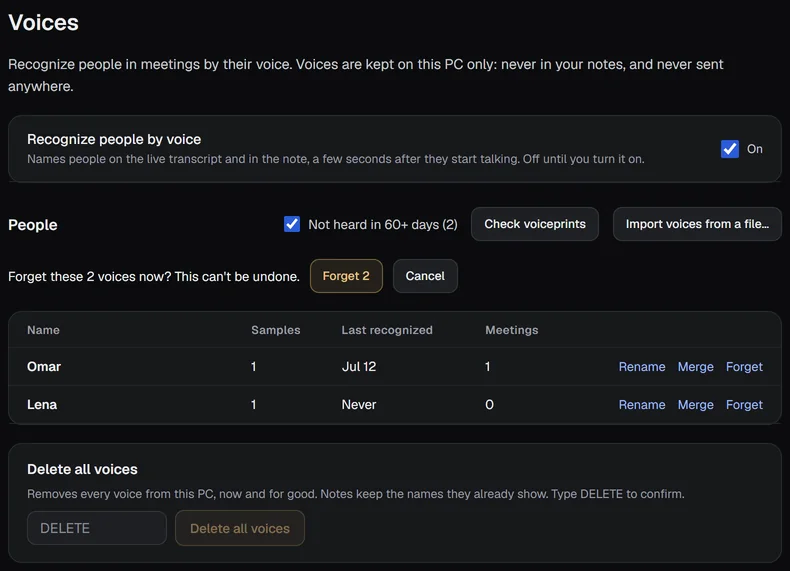
Open Settings › Notes › Voices to see everyone A9 Voice has learned.
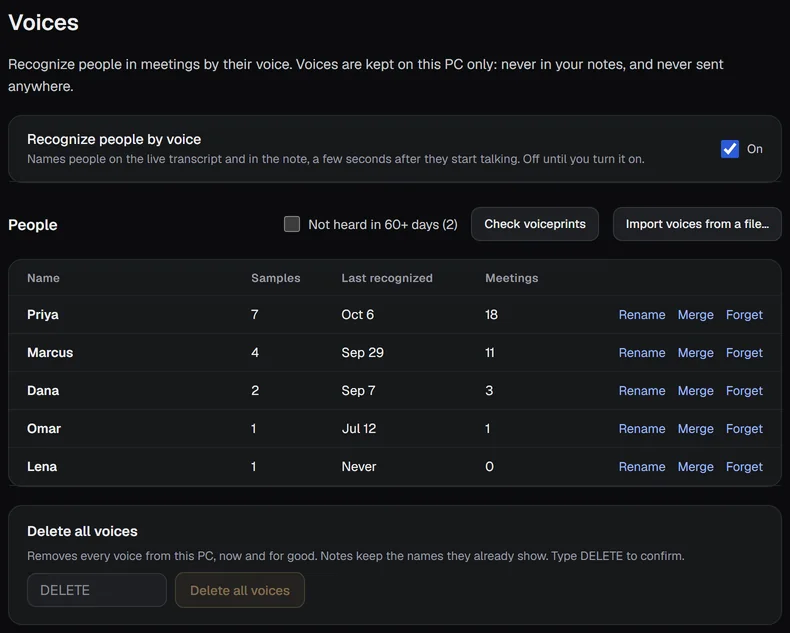
Each row shows the person's Name, Samples, Last recognized (the date, or Never) and Meetings (how many meetings they were recognized in). Last recognized and Meetings move when A9 Voice names someone with a sure match in a finished note.
Manage people#
Each row ends with three links.
- Rename opens the name picker with the current name. Type the new name and press Enter. If that name already belongs to another saved voice, A9 Voice asks Same person?: Merge joins the two, No, different person keeps both.
- Merge folds this voice into another one, for when the same person was taught under two names. Pick the other person in the name picker, which lists only people that are already saved. The two voices become one, weighted by how many samples each had.
- Forget removes the person and their history now. A line opens under the row asking you to confirm with Forget. The space the voiceprint used is overwritten, so nothing about that voice is left on your PC.
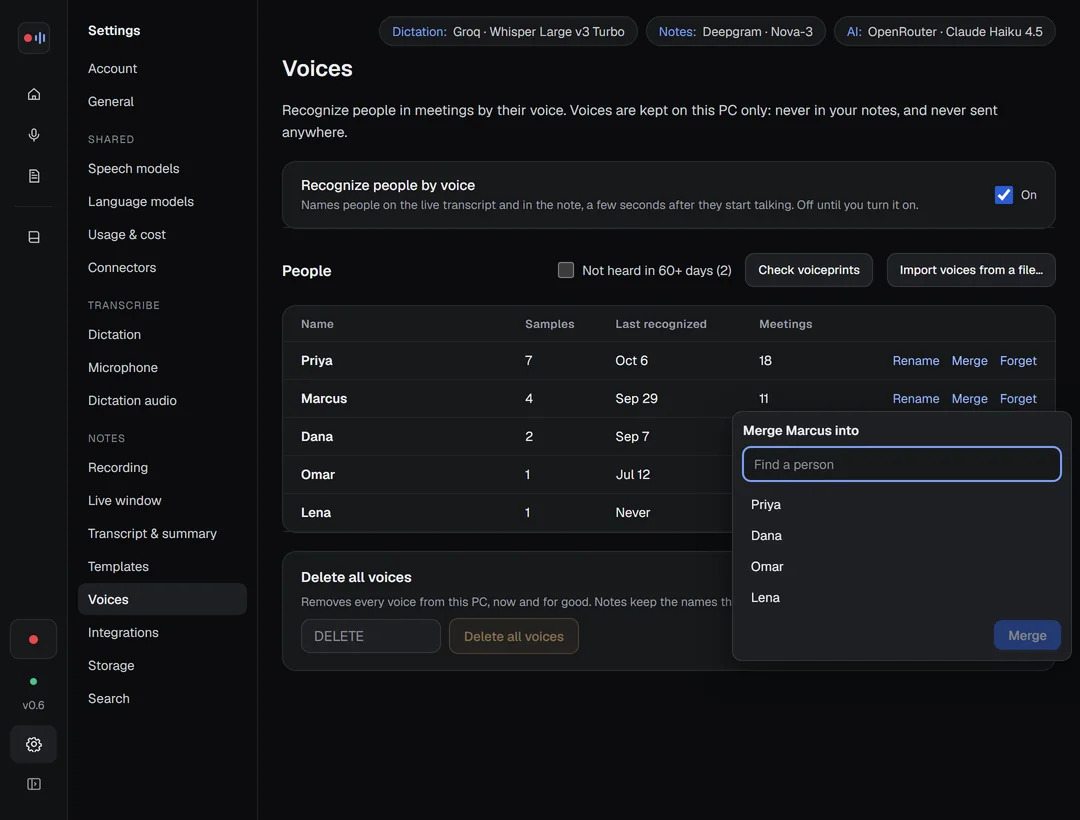
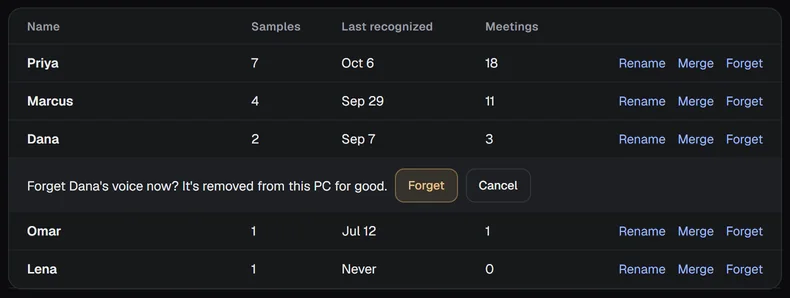
Click a person's name to open their history, one short line per event.
Clear out voices you no longer need#
When someone has not been heard for 60 days or more (or was added that long ago and never heard), a box labeled Not heard in 60+ days appears, with the count. Tick it to show only those people. Forget all N shown then asks once more ("This can't be undone") and removes them together.
Check voiceprints#
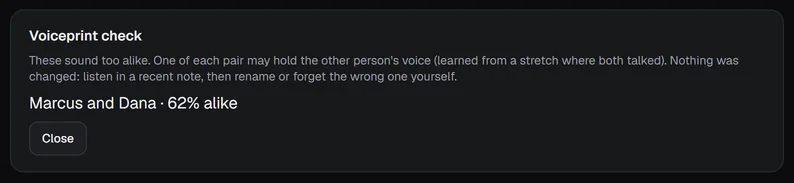
Check voiceprints looks for two people whose voices sound too alike. That usually means one of them picked up some of the other person's voice, from a stretch where both talked. It only reports: it changes nothing. Listen in a recent note, then rename or forget the wrong one yourself.
Import voices from a file#
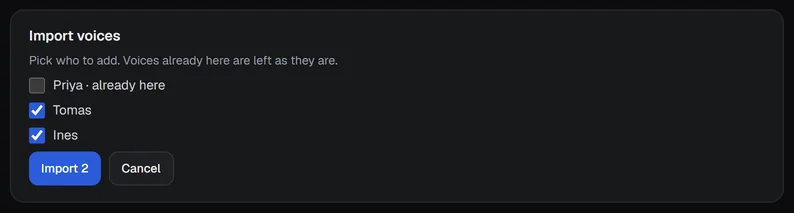
Import voices from a file... reads a voiceprints file you already have and lets you pick who to add. People who are already here are shown as already here and left as they are, and nothing is replaced. Choose who to add and press Import with the number of people. A9 Voice does not export voices, so this is only for a file that came from somewhere else. A file it cannot use gives an error such as "Not a voiceprints file".
Delete all voices#
At the bottom of the page, Delete all voices removes every voice from your PC at once. Type DELETE in the box and
press Delete all voices. This removes the whole voices.db file. Notes keep the names they already show: only
the voiceprints go.

If something goes wrong#
- Nobody is named. Check that the switch is On and the Speaker model has finished downloading. A9 Voice also needs at least one person in the list, so name someone first. Matching needs a few seconds of clear speech from each speaker.
- The wrong name appears. Rename the speaker in the note. If the same mistake keeps coming, run Check voiceprints, then Forget the voice that is wrong and teach it again.
- Two people keep getting each other's names. The two voices probably mixed during a call where both talked. Use Check voiceprints, then forget or rename the wrong one.
More in Troubleshooting.
Related#
- The Live window: Tag people while you record.
- The note page: name speakers in a finished note.
- Privacy and your data: what stays on your PC.
Something missing or wrong? Report an issue, or use Copy diagnostics in Settings › General when asking for help.