
Manual · Connect
Webhooks
Send each note to another service when it is ready: your own second brain, an automation in n8n, Zapier or Make, or a chat channel in Discord, Slack or Telegram.
Last updated for A9 Voice 0.6.0
A webhook is a web address that another service gives you. When a note is ready, A9 Voice posts it to that address, and the service does whatever you set it up to do: file the note, make tasks from the action items, or post the summary in a channel.
You choose what is sent and which notes are sent. The service on the other end gets what you tick and nothing else. Audio, image files and voiceprints are never sent. Whoever can read that service can read what you send to it, so add only places you trust.
Set up a webhook#
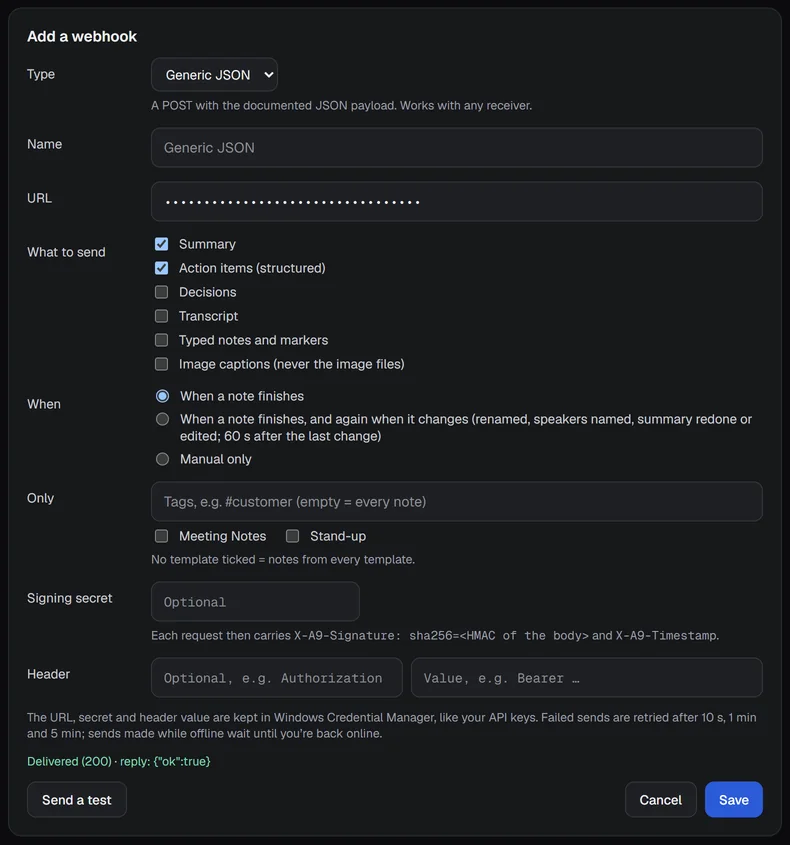
Open Settings › Notes › Integrations and click + Add webhook.
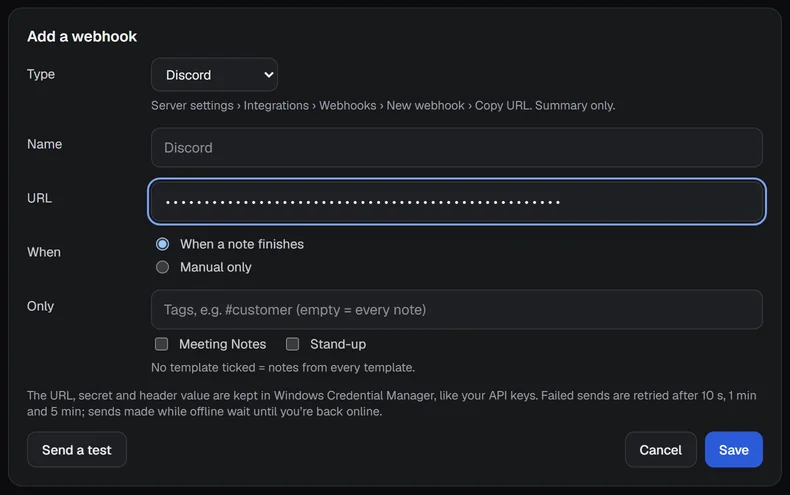
Choose the Type. Under the menu, a line tells you where to get the address for that type.
- Generic JSON, n8n, Zapier and Make get a JSON payload (see The JSON payload).
- Discord, Slack and Telegram get the summary as text, trimmed to fit that service.
Give it a Name (optional; the type's name is used if you leave it empty) and paste the URL. The URL is hidden as you type.
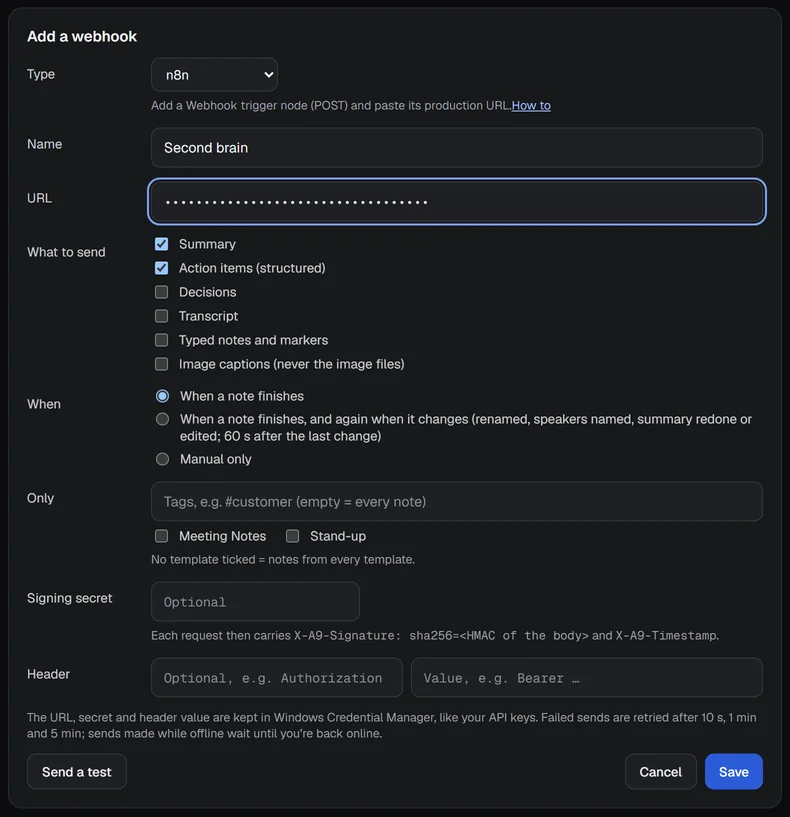
For the JSON types, tick What to send (see What to send), then choose When, and optionally limit which notes with Only.
Click Send a test to check it (see Send a test), then Save.
Saving needs a URL. If the address is wrong for the type you picked, the form says what it expects, for example "Paste the Discord webhook URL (https://discord.com/api/webhooks/…)" or "Use an https:// URL".
What each type needs#
| Type | Where the address comes from | What it receives |
|---|---|---|
| Generic JSON | Any receiver that accepts a web request | The JSON payload |
| n8n | A Webhook trigger node (POST); paste its production URL | The JSON payload |
| Zapier | "Webhooks by Zapier", then Catch Hook; paste its URL | The JSON payload |
| Make | A Custom webhook module; paste its address | The JSON payload |
| Discord | Server settings › Integrations › Webhooks › New webhook › Copy URL | The summary as text |
| Slack | An incoming webhook for a channel | The summary as text |
| Telegram | https://api.telegram.org/bot<token>/sendMessage?chat_id=<chat id> | The summary as text |
Discord, Slack and Telegram addresses are checked: Discord must be a discord.com webhook address, Slack must be on
hooks.slack.com, and Telegram must be the sendMessage address with a chat_id.
A chat webhook sends the note's title, when it happened and the summary. A note without a summary has nothing to send, and the webhook says "This note has no summary yet".
What to send#
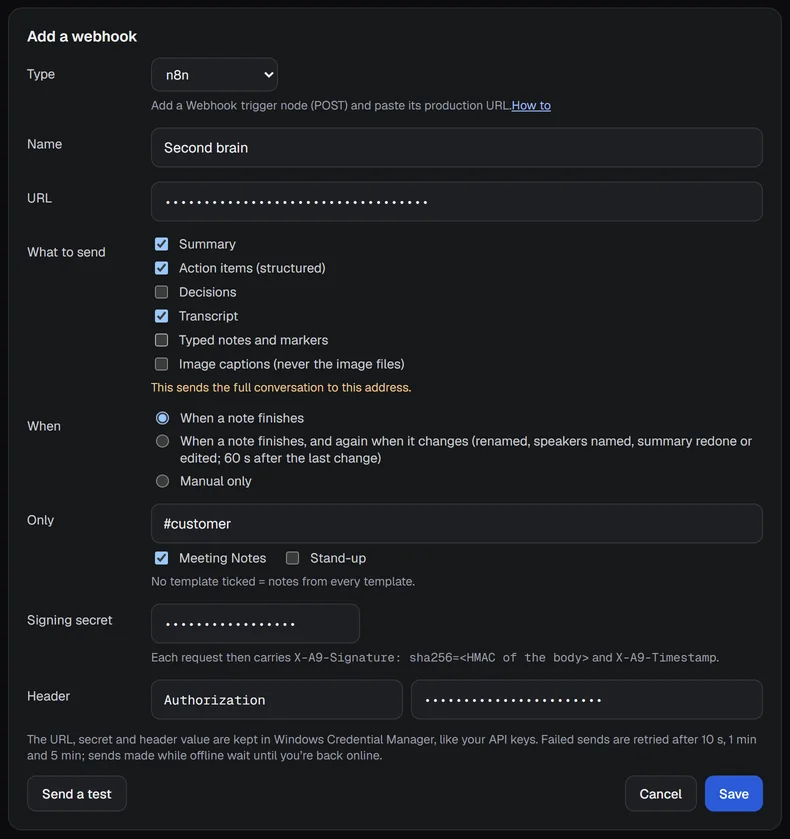
For the JSON types, tick any of these. Fields you do not tick are left out of the payload.
- Summary
- Action items (structured)
- Decisions
- Transcript: the whole conversation. This is off unless you turn it on, and the form warns you: "This sends the full conversation to this address."
- Typed notes and markers
- Image captions (never the image files)
When#
- When a note finishes sends
note.completedonce, when the note is ready. - When a note finishes, and again when it changes (JSON types only) also sends
note.updatedafter a rename, a speaker named, a summary redone or an edit, 60 seconds after the last change. Use it so a receiver stays in step with the note. - Manual only sends nothing by itself. See Send by hand.
Only some notes#
In the Only row, type tags (for example #customer) to send only notes that have at least one of them. Tick one or
more templates to send only notes made with them. Leave both empty and every note is sent. This works for every type.
Security#
- HTTPS only. An address must start with
https://. For a receiver running on your own PC,http://localhostandhttp://127.0.0.1are allowed too. - Signing secret (JSON types, optional). Paste any secret you make up, and each request carries a signature the receiver can check to be sure it came from A9 Voice. See Check the signature.
- Header (JSON types, optional). A header name and a value, for example
AuthorizationandBearer .... The name can hold only letters, digits and dashes. - Kept in Windows Credential Manager. The URL, the signing secret and the header value are stored there, like your API keys. They are not in A9 Voice's settings file or its logs. When you edit a webhook, the fields show "Saved" and you paste a new value only to replace it.
Retries and offline#
A send that fails is tried again after 10 seconds, after 1 minute and after 5 minutes. Then it gives up and the log says so. A send made while your PC is offline waits, and is tried again every minute, for up to 24 hours. Each attempt waits up to 20 seconds for an answer. Any answer in the 200s counts as delivered.
Send a test#
Send a test posts a made-up note ("Platform stand-up (test)", with Sam Example and Jane Doe) to the address and shows what came back. For the JSON types it is a real payload with the parts you ticked, signed and with your header. For chat types it is a short message: "A9 Voice test: this webhook works. Note summaries will arrive here."
On success the form says "Delivered (200)" and the start of the reply. On failure it says why: "Refused (401): check the URL, secret or header" (also for 403), "Not found (404): was the webhook deleted?", "Rate limited (429)", "No answer in 20 s" or "Couldn't reach it (offline?)".
You can also click Test on a saved webhook in the list.
Your webhooks#
The list shows each webhook with its type, its name, when it sends, and its last result, such as "When a note finishes · Last: Thu 3:09 AM · delivered". A problem shows in amber, and a number says how many sends are waiting to be retried.
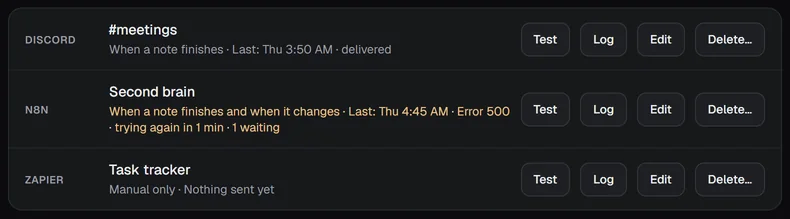
Each row has Test, Log, Edit and Delete... (click it again to confirm). Deleting a webhook drops any sends still waiting for it.
The delivery log#
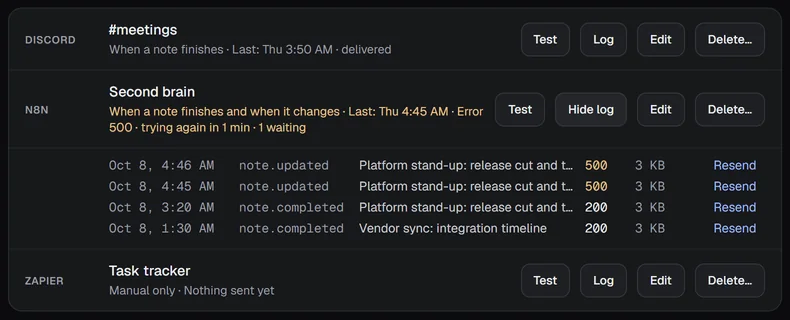
Log opens the list of sends for that webhook: the time, the event (note.completed or note.updated), the note's
title, the HTTP status the receiver answered with, the size, and Resend. Resend sends that note again, the same
way as any other send, with retries.
Send by hand#
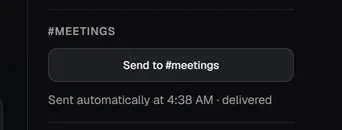
On a note's page, each webhook has a Send to ... button in the right column with its name, and a line under it that
says what happened last, for example "Sent automatically at 3:58 AM · delivered". Press it to send that note now as
note.completed. A hand send is tried once, and the result is shown right there; use the log's Resend if you want
retries.
The JSON payload#
This is what Generic JSON, n8n, Zapier and Make receive. The data in this example is made up.
{
  "schema_version": 1,
  "event": "note.completed",
  "sent_at": "2026-10-05T17:41:00Z",
  "app": { "name": "A9 Voice", "version": "0.6.0" },
  "note": {
    "id": "8f0c2d1e-5b7a-4c3e-9d21-7a4e5f6b8c90",
    "title": "Platform stand-up",
    "started_at": "2026-10-05T16:00:00Z",
    "duration_sec": 1722,
    "source": "manual",
    "template": "Meeting Notes",
    "tags": ["stand-up"],
    "participants": [{ "name": "Jane Doe", "is_me": false, "talk_sec": 410 }],
    "summary_md": "## Overview\n…",
    "action_items": [{ "task": "Send checklist", "owner": "Jane Doe", "due": "2026-10-07", "mine": false }],
    "decisions": ["Release cut Thursday 4 PM"],
    "notes_md": "- [12:03] **Decision:** Release cut Thursday",
    "images": [{ "at_sec": 723, "caption": "Approval routing" }],
    "transcript": { "segments": [{ "start": 0.0, "end": 4.2, "speaker": "Jane Doe", "text": "…" }] }
  }
}
The fields:
schema_version: always1for this layout.event:note.completedornote.updated.sent_at: when the payload was prepared, in UTC. A retry sends the same payload, with the samesent_at.app: the app's name and version.note.id: stays the same for the life of the note, in every event, even if the note is renamed. A receiver can use it to update the same item instead of making a new one.note.title,started_at(UTC),duration_sec,template(the template's name) andtagsare always there.note.source: a short lowercase id of the meeting app A9 Voice detected,otherfor an app you added yourself, ormanualwhen you started the recording yourself.note.participants: each speaker who talked, with their name as shown in the note,is_me(this is you) andtalk_sec, their talk time in seconds. Someone who never spoke is left out.summary_md: the summary as Markdown (Summary).action_items: a list oftask,owner,dueandmine(it is one of your own items).dueis the due date as it was said in the meeting, such as "Tue", "next week" or a date, or an empty string (Action items (structured)).decisions: the bullet points under the summary's Decisions heading (Decisions).notes_md: what you typed or marked during the meeting, one line each, with its time and, for markers, Action:, Decision: or Callout: (Typed notes and markers).images: for each image,at_sec(when in the meeting) andcaption. Never the image file (Image captions).transcript.segments: eachstartandendin seconds, thespeakername and thetext(Transcript).- Fields you did not tick are left out.
- A very large transcript is dropped. If the whole payload would be over 10 MB, it is sent without the transcript and
with
"transcript_omitted": "too_large"innote.
Headers#
Each request is a POST with these headers:
Content-Type: application/jsonUser-Agent: A9 Voice webhooksX-A9-Event: the event,note.completedornote.updated.X-A9-Timestamp: when this attempt was made, in Unix seconds.X-A9-Signature: only if you set a signing secret. See below.- Your own header, if you set one.
Check the signature#
With a signing secret, X-A9-Signature is sha256= followed by the hexadecimal HMAC-SHA256 of the raw request body,
using your secret as the key. Compute it over the exact bytes you received, before parsing the JSON, and compare it before
trusting the body. The timestamp header is not part of the signature.
import hashlib, hmac
expected = "sha256=" + hmac.new(SECRET.encode(), raw_body, hashlib.sha256).hexdigest()
ok = hmac.compare_digest(expected, request.headers["X-A9-Signature"])Examples#
n8n#
- In n8n, add a Webhook node. Set the HTTP method to POST and respond Immediately. Copy its Production URL.
- In A9 Voice, open Settings › Notes › Integrations, click + Add webhook, choose n8n, paste the URL and tick what to send. Click Send a test.
- In n8n, the test arrives as
body.note. For example, add a Split Out node onbody.note.action_itemsto turn each action item into its own task in your tracker, keyed onbody.note.idso an update replaces the earlier version.
Zapier#
- In Zapier, start a Zap with "Webhooks by Zapier" and the Catch Hook trigger. Copy the address it gives you.
- In A9 Voice, add a webhook of type Zapier, paste the address and tick what to send. Click Send a test.
- Back in Zapier, test the trigger. The test note arrives with the fields from The JSON payload, such as
title,summary_mdandaction_items, which you can use in the steps that follow. Useidto tell notes apart.
Make#
- In Make, add a Custom webhook module as the start of a scenario. Copy its address.
- In A9 Voice, add a webhook of type Make, paste the address and tick what to send. Click Send a test.
- In Make, the test note's fields are available to the modules that follow. Use
note.idto tell notes apart.
How you use the fields next is up to the service. Their own help covers their screens; A9 Voice only sends the payload above.
If something goes wrong#
- Test says Refused (401) or (403). The receiver did not accept the request. Check the address, the signing secret and the header value. If the service needs a token, put it in Header.
- Test says Not found (404). The address is wrong, or the webhook was deleted at the other end.
- Nothing arrives, and the log says "trying again". The receiver is answering with errors or is slow. A9 Voice tries again after 10 seconds, 1 minute and 5 minutes, then gives up. Fix the receiver and use Resend in the log.
- The webhook never fires. Check its When: Manual only sends only when you press Send to .... Check Only too: a tag or template filter that no note matches sends nothing.
- A chat webhook says This note has no summary yet. Chat types send the summary, so the note needs one first. Add a language model and make a summary (see Language models).
- "Couldn't reach it (offline?)". Your PC could not reach the address. Offline sends wait up to 24 hours and go out when you are back online.
More in Troubleshooting.
Related#
- The note page: the Send to button, and the summary a webhook sends.
- Templates and export: the templates a webhook can be limited to.
- Privacy and your data: what A9 Voice sends, and where.
- Connector for AI apps: the other way to let a service use your notes.
Something missing or wrong? Report an issue, or use Copy diagnostics in Settings › General when asking for help.