
Manual · Notes
The note page
Where a finished recording lives. Read the summary, fix a wrong speaker name or a misheard word, leave out something that was never part of the meeting, play any line back, and run the transcript or summary again.
Last updated for A9 Voice 0.7.7
Every recording becomes a note. You find it in the Notes list, open it, and the note page shows the summary, the transcript, the people, the pictures and the audio in one place. Everything you change here is also written to the note's folder on your PC at once.
The Notes list#
Click Notes in the sidebar.
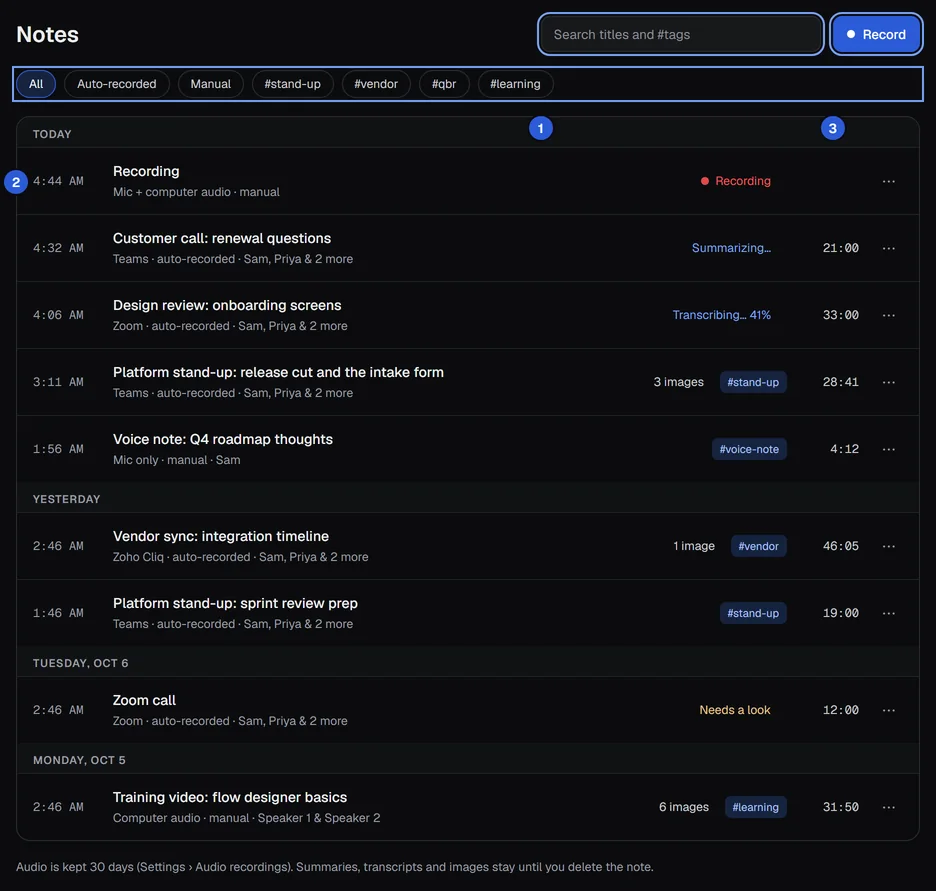
- Type in Search titles and #tags to find a note by words in its title. Type
#vendorto show only notes with that tag. You can use both:stand-up #release. - Use the chips under the title: All, Auto-recorded, Manual, then your five most used tags. All tags ▾ appears when you have more than five and lists every tag with its count. Click a chip again to turn it off.
- Press Record to start a recording. While one is running the button says Stop recording.
Notes are always newest first, grouped by day (TODAY, YESTERDAY, then the weekday and date). Each row shows the time, the title, a line saying where it came from (for example "Teams · auto-recorded · Sam, Priya & 2 more" or "Mic only · manual"), the number of images, up to two tags and the length.
The word at the right of a row tells you where a note is:
- Recording (red): still being recorded.
- Waiting…: queued behind another note.
- Transcribing…: turning the audio into text. With a model on this PC it also shows a percentage.
- Summarizing…: writing the summary.
- Needs a look: something failed. Open the note; see If something goes wrong.
Notes you made from another app's folder say Editable copy; see Notes from an added folder.
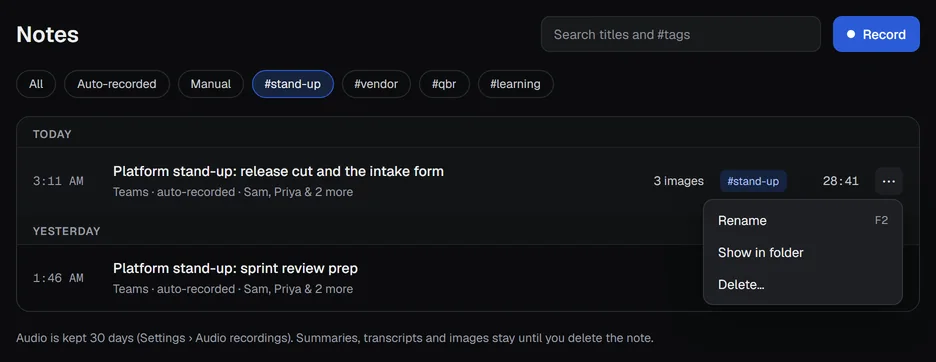
Click a row, or select it with ↑ and ↓ and press Enter, to open it. The ⋯ button on a row has Rename (also F2), Show in folder and Delete…. The line under the list reminds you how long audio is kept; see Deleting a note and how long audio is kept.
The search box at the very top of the page ("Search notes, transcripts and dictations") is a different search that looks inside what was said. See Search and ask.
Open a note#
Click a note. The page has three parts.
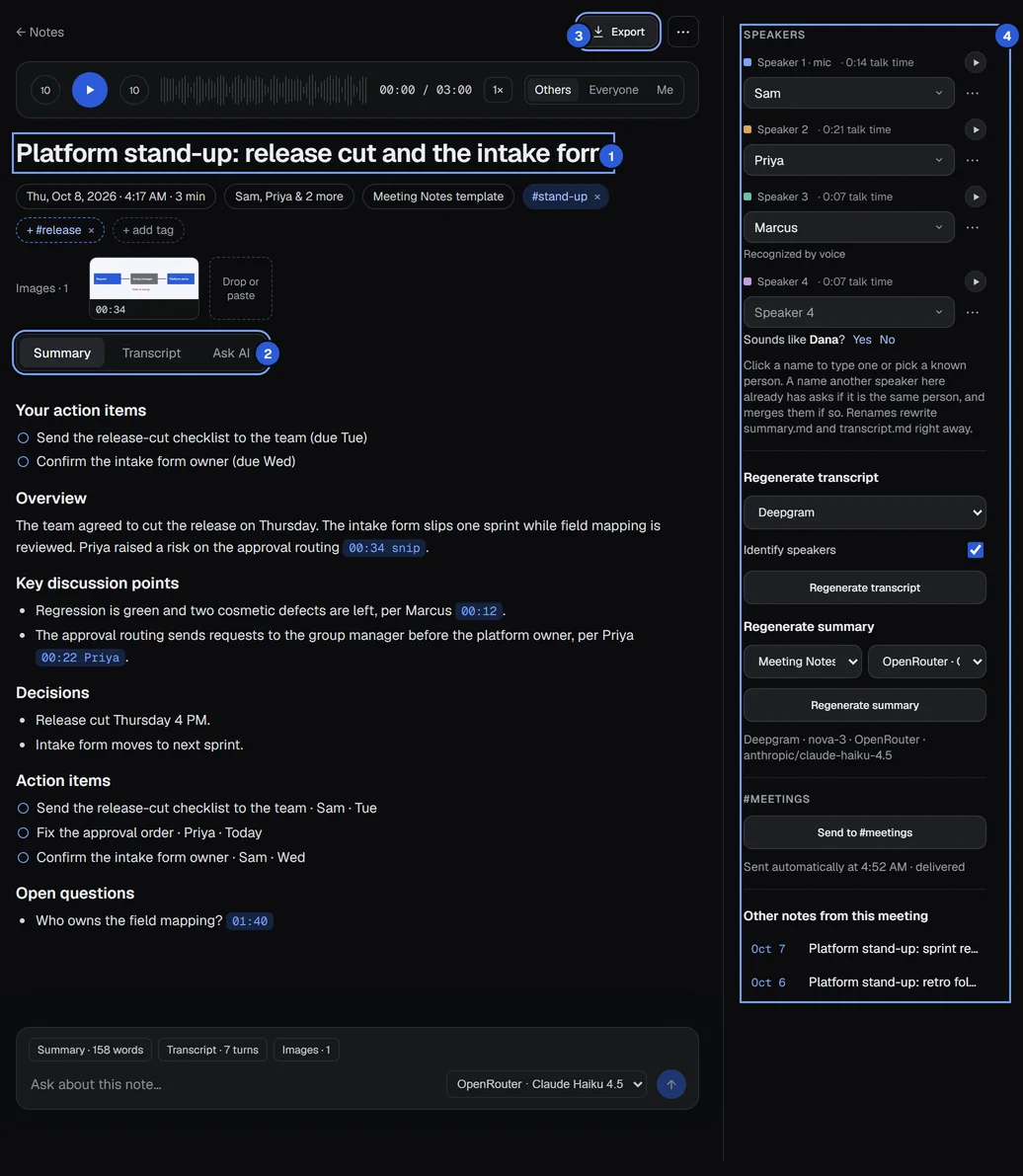
- The title and the chips under it. Click the title to rename it.
- The tabs: Summary, Transcript and Ask AI.
- Export and the ⋯ menu at the top.
- The right-hand column: speakers, Regenerate transcript, Regenerate summary and more. It stays in view while the text scrolls.
Click ← Notes to go back to the list.
The title#
A new recording is called Recording, or for a call that A9 Voice started, the app's name plus "call" (for example "Teams call"). It then gets a real name:
- If Name notes after the meeting is On (Settings › Notes › Transcript & summary), A9 Voice reads the meeting's own name from the Teams, Zoho Cliq or browser meeting window during the first 90 seconds of the call and uses it.
- Otherwise, or if no usable name is found, the AI names the note when it writes the summary, in at most eight words.
- A title you type always wins, and A9 Voice never replaces it.
When the title came from the meeting window or from you, the AI's own title is shown in grey under it, so you keep both.
To rename a note, click the title, type, and press Enter. Esc cancels.
The chips under the title#
- The date, time and length.
- Copied from and the app's name, on an editable copy.
- The people who spoke ("Sam, Priya & 2 more"). Hover to see everyone.
- The template used, for example Meeting Notes template.
- Your tags, each with an × to remove it.
Tags#
Click + add tag, type a name and press Enter. As you type, the tags you already use are offered; click one to add it. Esc closes the box.

A dashed chip such as + #release is a tag the AI suggests for this note. Click it to add it, or click its × to dismiss it. The AI only suggests; it never adds a tag you do not already use unless you click. With AI auto-tag on (Settings › Notes › Transcript & summary), it adds up to three of your existing tags that clearly fit. A template can also add its own tags to every note that uses it; see Templates and export.
To rename, merge or delete a tag everywhere, use Settings › Notes › Transcript & summary › Tags.
The summary#
The Summary tab is written from the template. The sections follow the template's order. One section is always first: Your action items, with the tasks that belong to you ("None." when there are none). The section called Action items lists everyone's tasks as check-box lines: task, owner, due date.
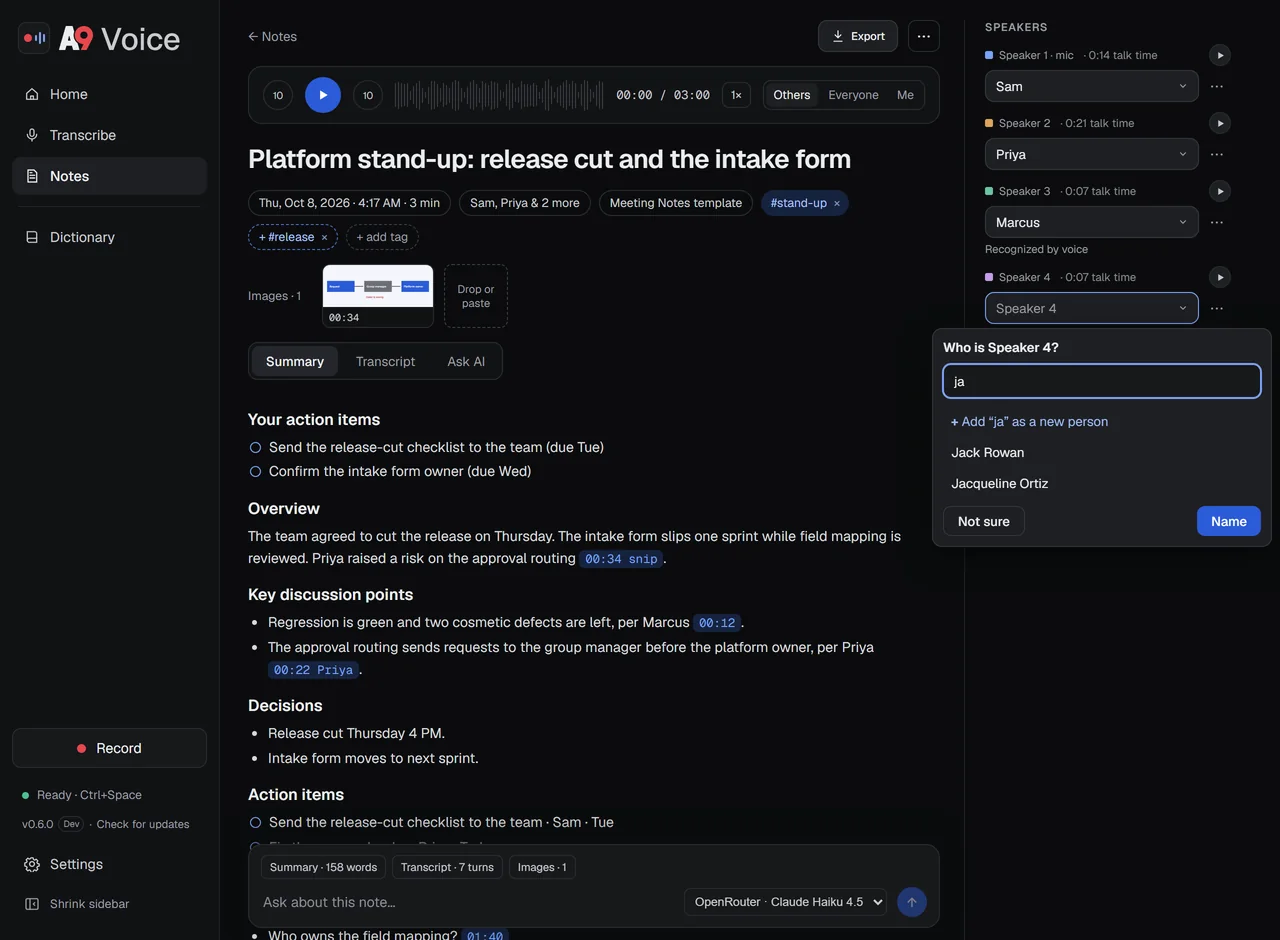
Where the summary points at a moment in the recording, it shows a small blue time chip, such as 00:22 Priya. Click the chip to play from there. A chip that ends in snip opens the picture taken at that moment.
If you rename a speaker, the new name replaces the old one in the summary too.
To change how summaries are written, edit the template. See Templates and export.
When the summary is out of date#
If you fix a line in the transcript, a bar appears: "Transcript edited · the summary was written from the earlier text." Click Re-summarize to write it again from the corrected text. You can also leave it as it is.
Ask AI#
The Ask AI tab and the bar at the bottom answer questions about this one note, such as "What did I promise?". Type a question, choose a language model next to the arrow, and press Enter. Answers cite the moment; click the citation to play it. The bar's small tags tell you what the AI is given: the summary (with its word count), the transcript (number of turns) and the images. To ask across all your notes, use the Ask page: see Asking your notes.
The transcript#
Click the Transcript tab. Each line has a time, the speaker's name in their own color and what was said.
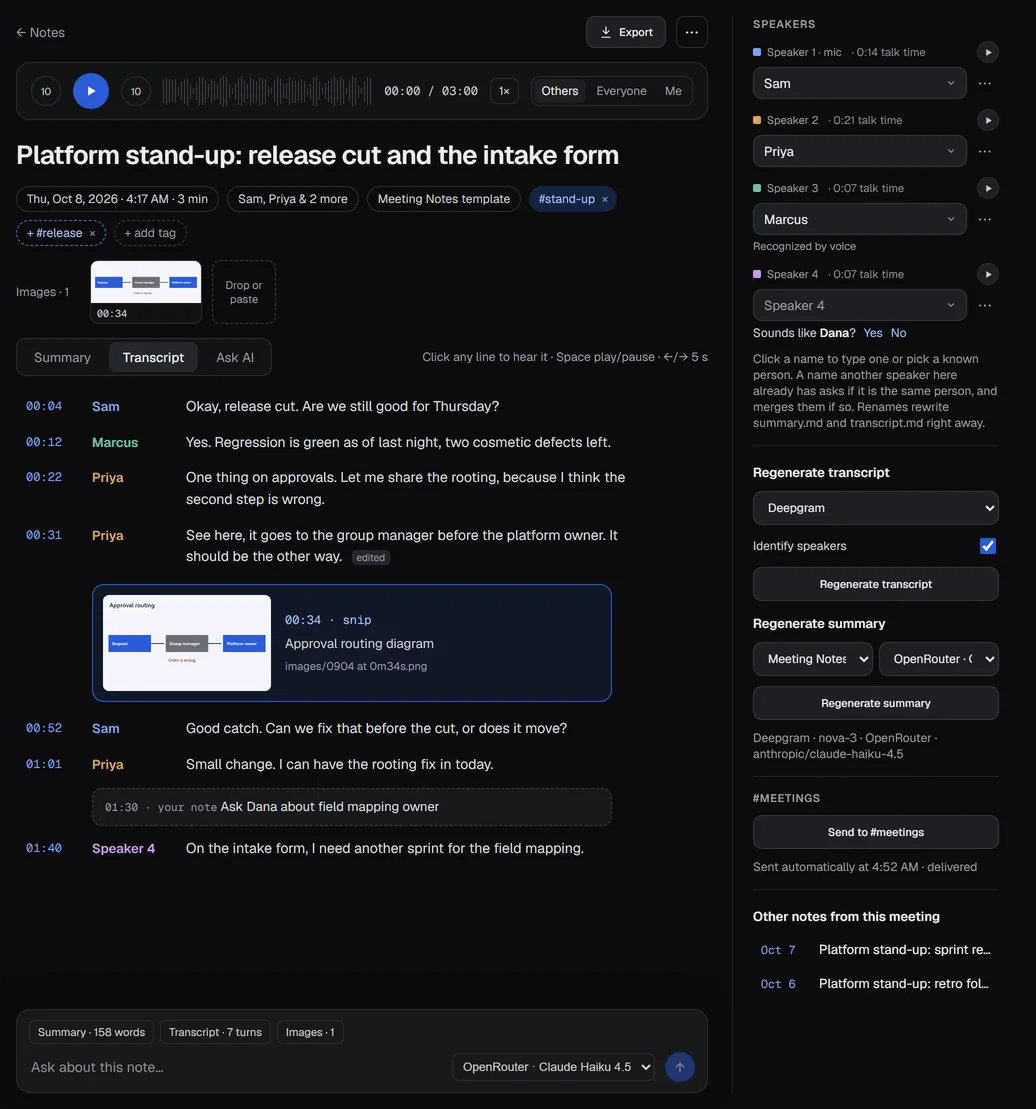
- Click any line to hear it. This works while the audio is still kept. The hint above the transcript reminds you: Click any line to hear it · Space play/pause · ←/→ 5 s.
- Pictures taken during the recording appear in place as cards with the time, where they came from (clipboard, paste or drop) and the caption.
- Notes you typed during the recording appear in dashed boxes: your note, or Action, Decision or Callout when you marked the moment from the Live window. See The Live window.
- On an editable copy of a note that had no times, a ~ before a time means it is an estimate.
Fix a misheard word#
- Double-click the text of a line, or click the pencil (✎) at the end of the line.
- Type the correction. Enter saves; Shift+Enter starts a new line in the box; Esc cancels.
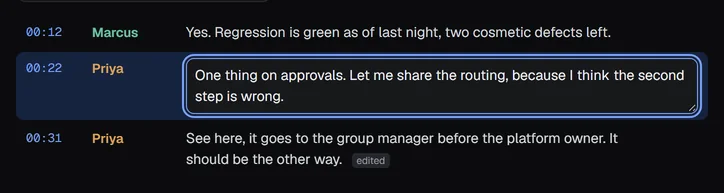
A message appears at the bottom, "Line edited", with Undo. The line gets a small edited label and a Revert button; hover the label to see the original words. A9 Voice keeps the transcript as it was first written in a hidden .original folder inside the note's folder, so a correction never loses the original.
If you changed exactly one word, A9 Voice offers to fix it everywhere:
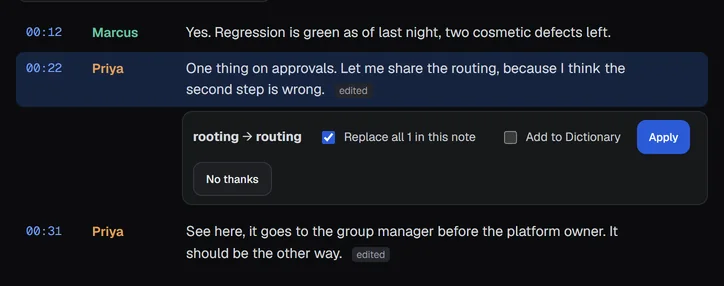
- Replace all N in this note changes every other time that word appears in the transcript.
- and in the summary appears when the summary has the word too.
- Add to Dictionary also teaches the Dictionary to write it your way next time. See Dictionary.
Click Apply to do what is ticked, or No thanks.
Fix the speaker of one line#
Sometimes one line is under the wrong person.
- Click the speaker's name at the start of the line. The name picker opens under it, the same one the Live window uses.
- Type a name, pick a person from the list, or pick one of the Speakers chips to move the line to that speaker. A new name shows as + Add "name" as a new person at the top of the list. A name another speaker here already has says whose it is, for example Speaker 3.
- Under Apply to, choose Just this line, This and the lines after it, until the speaker changes, or Everything from that speaker. A speaker with no name yet starts on Everything from; a named speaker starts on Just this line.
- Press Enter or Name. Not sure and Esc close the picker and change nothing.
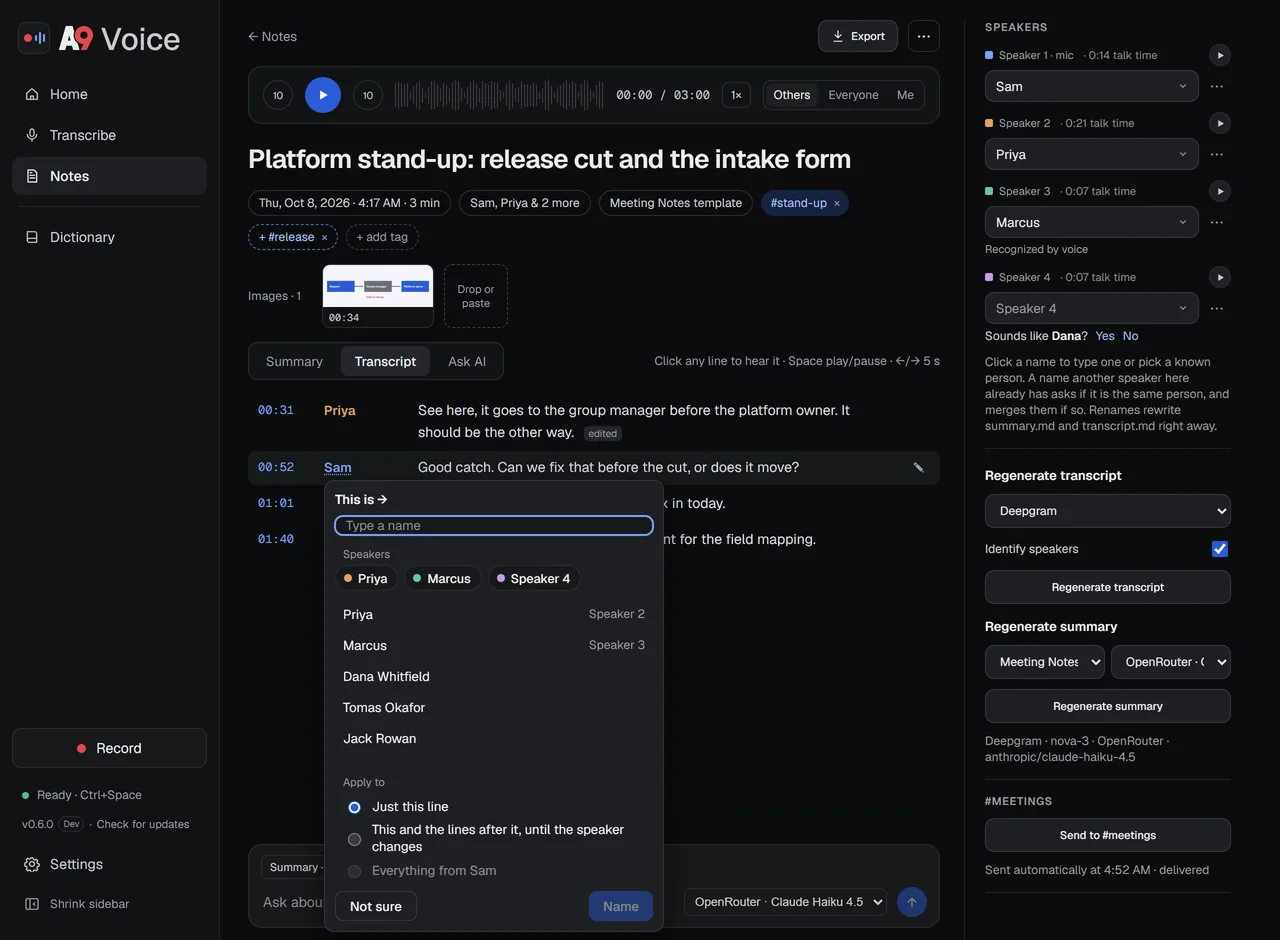
A message says "Line moved to another speaker" and offers Undo. Naming one line never teaches a voice. Choosing Everything from and a name another speaker already has asks Same person? first.
The same box has Not part of the meeting, for a line that was never said in the meeting. It uses the same Apply to choice. See Leave something out of the note.
Name the speakers#
The column on the right lists everyone who spoke, under SPEAKERS. Your own side is marked Speaker 1 · mic. Each person shows their total talk time.
To see a speaker named here, after the call:
 Naming speakersWatch the 49-second video
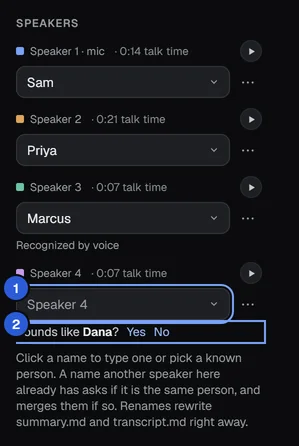
Click the name under a speaker. The name picker opens under it: type to narrow the list by first or last name, then click a person or press ↓ and Enter. People you named lately are first. To use a new name, type it and press Enter, or click + Add "name" as a new person. Tab goes to Name, Esc or Not sure closes the picker with nothing changed, and Clear name takes a name off.
Type to narrow the list. A name another speaker already has shows whose it is. If the box has a suggestion under it, "Sounds like Dana?", click Yes to accept it or No to dismiss it. A name shown with "Recognized by voice" was matched from a voiceprint. See Voices.
A message at the bottom says "Renamed to Dana" and offers Undo. Every rename rewrites the summary and transcript.md in the note's folder straight away, and a rename of a whole speaker can also teach A9 Voice that voice if you have turned Voices on.
If you pick a name that another speaker in this note already has, A9 Voice asks Same person?. Merge moves all the lines to one person; No, different person keeps both speakers with that name.
The speaker menu#
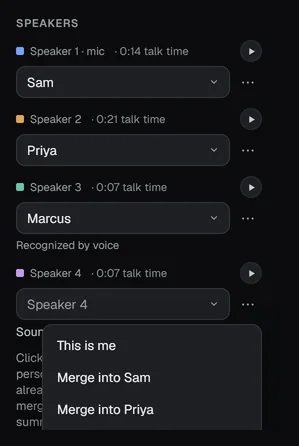
The ⋯ next to a speaker's name opens:
- This is me: gives that speaker the name from your Account.
- Merge into and each other speaker's name: moves all of this speaker's lines to that person, and removes this speaker.
- Not part of the meeting: leaves this speaker out of the note, for a voice that was never in the meeting. Your own side doesn't have it. See Leave something out of the note.
Hear who someone is#
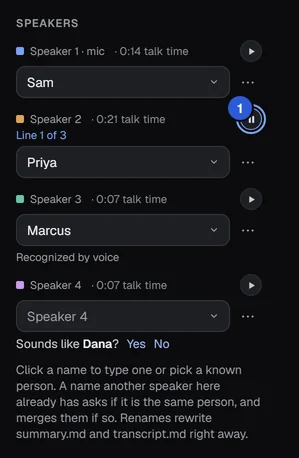
If you are not sure who "Speaker 4" is, click the small ▶ at the right of their name. It plays one of their lines. Each click plays their next line, and wraps to the first after the last. A small label such as Line 1 of 3 tells you where you are. Click the button again, now showing ❚❚, to pause.
Leave something out of the note#
A9 Voice records everything your PC plays, not only the meeting. If a video, a song or a notification read aloud played during the call, it can show up as its own speaker, and its words end up in the transcript, the summary and your searches. Not part of the meeting takes them out again.
- Open the ⋯ next to that speaker and choose Not part of the meeting. To leave out only some lines, click the speaker's name at the start of a line, pick Just this line or This and the lines after it, until the speaker changes under Apply to, then click Not part of the meeting.
- A message says "Speaker 5 left out of this note" and offers Undo for 10 seconds. There is no question first.
What changes:
- The transcript. Their lines are removed from
transcript.md. Each stretch is replaced by one line such as*[Not part of the meeting · 06:30–06:32]*. In the app the lines are greyed and collapsed under Show 3 excluded lines; they stay playable, so you can check what was left out. - The summary. It is written again from the rest of the meeting with the note's template and model: the card says "Re-summarizing without Speaker 5…". The title and the action items come from that same pass. If you changed the summary yourself (for example with Replace all … and in the summary), A9 Voice does not overwrite it: a bar says Speaker excluded · Re-summarize? (replaces your edits), with Re-summarize and Keep my summary. Until you choose, that summary isn't sent, indexed or shown to a model.
- Everything else. Their words are not in search or Ask, the people list, talk time, exports, what a webhook sends, or what a connected app can read. A speaker who is left out is never used to learn a voice.
- The recording is never changed.
Speakers who are left out move to Excluded at the bottom of the Speakers list, with their talk time, a ▶ to hear them and Include again. In the transcript, Show 3 excluded lines opens a stretch, and each line has its own Include again. It works any time, not only for 10 seconds: the lines come back, transcript.md is written again, and the summary is redone under the same rule.
Undo puts the transcript, the search index and the earlier summary back exactly as they were, and does not ask the language model for anything.
If you run Regenerate transcript, the speakers are numbered afresh, so A9 Voice puts what you left out back by time: a new line is left out when at least half of it falls inside a stretch you left out. If a speaker got another number, or only part of it matched, a note says so, for example "Kept 1 exclusion (Speaker 5 is now Speaker 4). Check it." Click OK when you have looked.
Your own side, Speaker 1 · mic, can't be left out as a whole, but any single line of it can.
Play the recording#
When the audio is still kept, a player sits at the top of the note.

- 10 buttons jump back or forward 10 seconds.
- Click the wave to jump to a place in the recording.
- The speed button cycles 1×, 1.25×, 1.5× and 2×.
Keys, when you are not typing in a box:
| Key | What it does |
|---|---|
| Space | Play or pause |
| ← | Back 5 seconds |
| → | Forward 5 seconds |
Who you hear: Others, Everyone, Me#
A meeting is recorded on two sides: your microphone, and the computer audio (the other people). Played as they are, they would come out of different ears. So A9 Voice plays both in both ears, and the switch at the right of the player chooses what you hear:
- Others (the default): the computer audio only, the other people.
- Everyone: both sides, with your microphone a little lower so your own voice and room noise do not cover the others.
- Me: your microphone only.
Your choice is remembered. When you click a line, or play a person with their ▶, you hear that person's own side whatever the switch says. The switch only changes how the note plays; the file on disk keeps both channels. A recording of only one side has no switch.
If the audio is gone you see "Audio removed after 30 days. The summary, transcript and images stay." instead of the player (the number is your Keep notes audio setting).
Pictures#
Pictures captured during a call (a snip, or any image you copy) are saved into the note. You can also add them later.

- Drag an image from a folder onto the note page, or copy an image and press Ctrl+V on it. A9 Voice saves it as a PNG in the note's
imagesfolder and says "Image added at 00:34". The time is where the player is, or the recording's timer if you are recording now. - Click a picture in the strip, or a picture card in the transcript, to open it larger. The player jumps to its moment.
- Type a Caption (goes into the summary). The AI reads captions the next time it writes the summary.
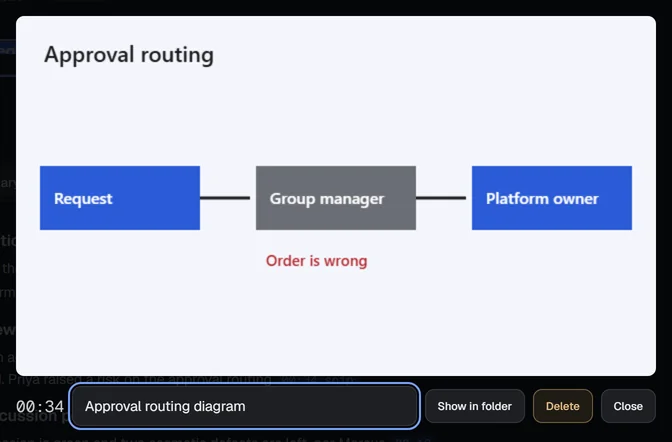
In the viewer, Show in folder opens the picture's place on disk, Delete removes it from the note, and Close (or Esc) goes back.
The right-hand column#
Below the speakers:
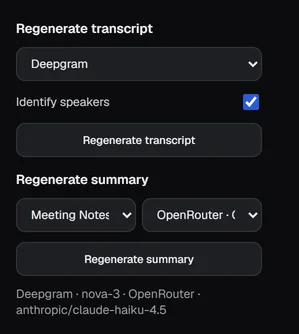
- Regenerate transcript: see below.
- Regenerate summary: see below.
- A small grey line with the speech model and the language model that made this note, for example "Deepgram · nova-3 · OpenRouter · …".
- One block per webhook you set up, with Send to and its name, and a line such as "Sent automatically at 3:09 AM · delivered". See Webhooks.
- Other notes from this meeting: see Other notes from the same meeting.
Run the transcript again#
Use this when the speakers were mixed up, or you want to try another speech model.
- Under Regenerate transcript, pick a speech model. Models that are not set up yet are greyed out "(set up first)". Models on this PC appear as "(on this PC)".
- Leave Identify speakers ticked to separate the people. It is greyed out for a model that cannot do it.
- Click Regenerate transcript.
The audio is transcribed again and the note shows "Transcribing…" until it is done. What this does:
- It replaces every line. Corrections you made to lines are not kept.
- It keeps the names you gave speakers, matching them by who spoke when.
- It does not write the summary again. Click Regenerate summary afterwards if you want a new one.
- A cloud speech model uses your own key with that provider, and is billed by them to you. A model on this PC works without the internet.
- It needs the audio. If the audio has been removed, the button is greyed out.
Run the summary again#
Use this after you fixed the transcript or the speakers, or to try another template or language model.
- Under Regenerate summary, choose a Template and a Language model.
- Click Regenerate summary.
The note shows "Writing the summary…". What this does:
- It writes the summary, action items and the tags from the template again, using the current transcript, speaker names, captions and typed notes.
- The template you chose becomes the note's template.
- It gives the note a new AI title only if the title was not typed by you and not taken from the meeting window.
- It does not touch the transcript.
- It uses your own language-model key. See Language models.
- The button is greyed out when there is no transcript or no language model set up.
Other notes from the same meeting#
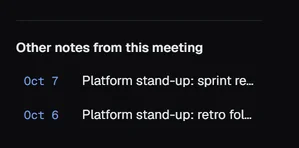
When you have recorded the same meeting more than once, Other notes from this meeting lists up to five of the others, newest first, each with its date. Click one to open it. Two notes belong together when their titles match once dates and numbers are ignored: "Sprint Standup #12" and "Sprint standup Oct 6" are the same meeting. Placeholder titles such as "Recording" or "Teams call" never match.
The menu at the top#
The ⋯ at the top of the note has:
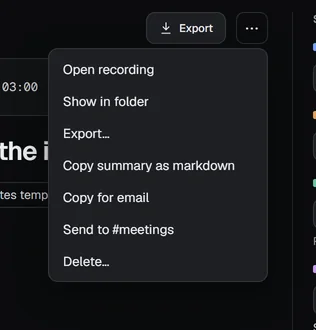
- Open recording: plays the audio file in your default player. Greyed out if there is no audio.
- Show in folder: opens the note's folder in File Explorer.
- Export…: the same as the Export button. See Templates and export.
- Copy summary as markdown: copies the summary text to the clipboard.
- Copy for email: copies the summary as a formatted message, with the template's logo and colors, ready to paste into a new email.
- Send to and the name of each webhook you set up.
- Delete…: see Deleting a note and how long audio is kept.
Notes still being made, and notes that failed#
Recording right now#
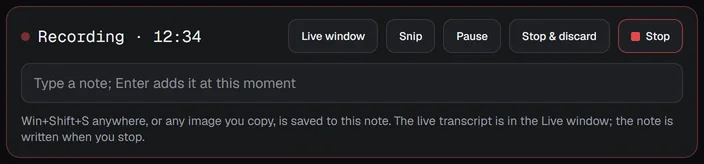
While a note is still recording, the note page shows a red box with the timer and Live window, Snip, Pause (then Resume), Stop & discard and Stop. Type in the box and press Enter to add a typed note at this moment. The transcript and summary appear when you stop. See Recording a meeting.
Processing#
A box with a spinner says what is happening: Transcribing… (with a percentage on this PC), Writing the summary…, or Waiting for the note before it…. You can close the note and come back; it finishes on its own. Regenerate waits until it is done.
If something goes wrong#

- A note says "Needs a look" and shows a reason. Read the reason, for example that the speech provider could not be reached. Fix that (see Speech models), then click Try again. Try again needs the audio; if the audio was removed it is greyed out. The audio of a failed or unfinished note is never removed by the retention rule, so you can try again.
- The summary is missing and a grey bar shows a message. Often no language model is set up. The transcript is still a good note. Add a key in Settings › Models (see Language models), then click Regenerate summary.
- The summary is old after you edited the transcript. Click Re-summarize in the bar.
- A speaker is wrong everywhere. Rename or merge the speaker in the right-hand column, or run the transcript again with Identify speakers ticked.
For anything else, see Troubleshooting.
The note's folder on disk#
To see the folder, the Export window and a template from the library:
 Your notes, your filesWatch the 45-second video
Every note is also a plain folder you can open, copy and give to other tools. By default it lives in Documents\A9 Voice\Notes and is named by day and meeting, for example 2026-10-05 Platform stand-up. Change where notes go in Settings › Notes › Storage.
The folder holds:
summary.md: the summary.transcript.md: every line as[mm:ss] Name: text.notes.md: only if you typed notes during the recording.images: the pictures.
The files are always current. A rename, a corrected line, a new tag or a regenerate rewrites them and renames the folder straight away. Branding from a template never goes into these files; it is only added when you export.
A9 Voice only changes, renames or deletes folders that it made itself. Each carries a hidden .a9voice file. A folder without that file is never touched.
To open the folder, use Show in folder on the list row or in the ⋯ menu.
Deleting a note and how long audio is kept#
Delete one note#
- Click ⋯ on the note (or on its row in the list) and choose Delete….
- The item changes to Delete audio, files and note. Click it to confirm.
This removes the note, its audio, and the files A9 Voice put in the note's folder: summary.md, transcript.md, notes.md, the pictures and the hidden files. Anything else you saved in that folder stays. The app has no undo for this.
How long audio is kept#
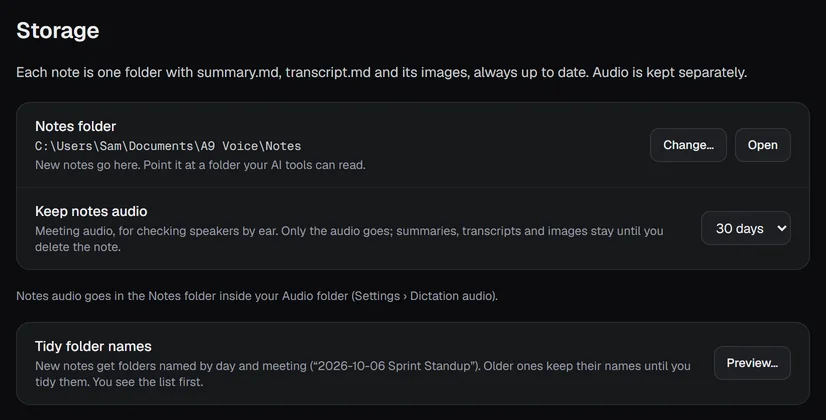
Audio is the largest part of a note. In Settings › Notes › Storage, Keep notes audio deletes only the audio, after 1 day, 7 days, 30 days, 90 days or Forever. The summary, transcript and pictures stay until you delete the note. A9 Voice checks about a minute after it starts, then once a day, and right away when you change the setting.
Once the audio is gone you cannot play lines or run the transcript again, but you can still read, edit, export and re-summarize the note.
Notes from an added folder#
If you added a folder in Settings › Notes › Search, notes that live in it can be found and opened. They are read only: A9 Voice never changes, moves or deletes anything in that folder. See Search and ask for how to add one.
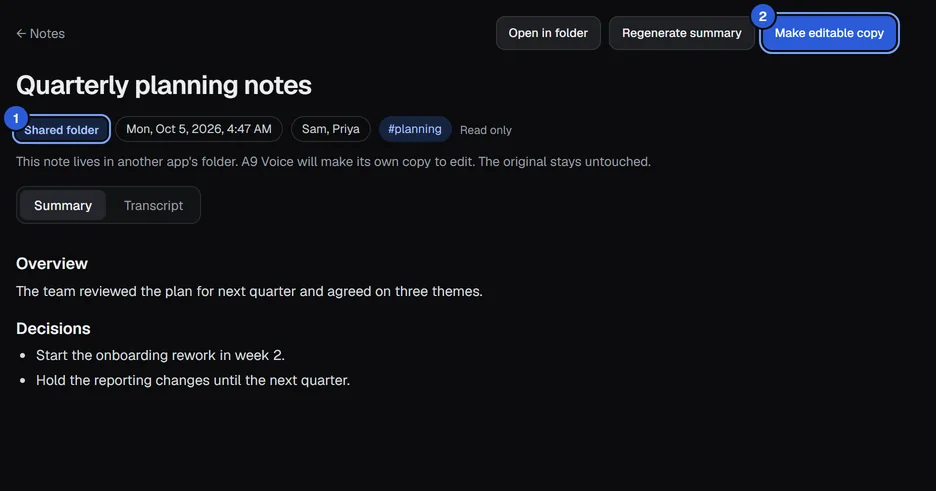
The page shows a badge with the app or folder it came from, the date, the people, Read only, and the sentence "This note lives in another app's folder. A9 Voice will make its own copy to edit. The original stays untouched." You can read the summary and transcript, play a line if there is audio, and use Open in folder to see the original files.
To change anything, click Make editable copy. A9 Voice copies the note into your own notes, leaves the original as it was, and opens the copy as a normal note. It shows Copied from on its chips and Editable copy in the list. If you click a speaker's name, double-click a line, or click Regenerate summary on a read-only note, A9 Voice asks first:

Click Make copy to go ahead, or Cancel. Once a copy exists, the read-only page says "An editable copy exists." with Open it.
Related#
- Templates and export: change how the summary is written, and send it as a PDF, Word file or email.
- Recording a meeting and The Live window: what happens before the note exists.
- Voices: let A9 Voice recognize people by voice.
- Asking your notes: question every note at once.
- Search and ask: find words in every note.
- Webhooks: send a summary somewhere when it is ready.
Something missing or wrong? Report an issue, or use Copy diagnostics in Settings › General when asking for help.