
Manual · Reference
Troubleshooting and FAQ
Fixes for the things that go wrong most often, how to copy the diagnostics that help someone find the cause, and short answers to common questions.
Last updated for A9 Voice 0.7.3
Find the symptom, read the cause, try the fix. Each entry links to the page with the full story. If none of them helps, copy your diagnostics and report the problem.
Dictation#
I hear no tone when I start dictating#
The start tone is a soft two-note sound that plays about a quarter of a second after you press the dictation key, so a quick tap stays silent.
- Check the switch. Open Settings › Microphone. Sounds must be on, and Volume must not be at the bottom.
- Sleepy or Bluetooth outputs. A USB or Bluetooth headset that has gone to sleep used to swallow the tone. A9 Voice now wakes the output when you press the key. If you run an older version, update.
- In a call. During a call, or with a headset whose microphone is in call mode, the tone plays on the headset's call audio and can come a moment late.
Every tone is written to the log with where it played, so Copy diagnostics shows whether it was sent. More: Transcribe.
The pill says "Mic muted"#

The microphone is muted in Windows or in your call app (for example Teams), so A9 Voice heard only silence. Unmute it and try again. If another microphone is available and not muted, the pill offers a button, Use followed by that microphone's name and for dictation; press it to switch. Clicking the pill opens Settings › Microphone. To keep dictating while your headset is muted in a call, pick a second microphone for Dictation microphone in Settings › Dictation.
The pill says "Didn't catch that"#
A9 Voice heard no speech. Open Settings › Microphone, press Test and say a few words: the bar should move when you talk. Check that the right microphone is picked and not muted, hold the key a little longer, and speak after the tone. Make sure Language in Settings › Dictation matches what you speak.
"Ctrl+Space is in use by another app"#
Another program has the same shortcut, often another dictation tool. A9 Voice shows Key in use · fix in the sidebar until it is solved, and A9 Voice cannot use that key meanwhile.
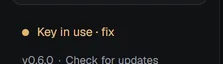
Quit the other program, or open Settings › Dictation and press the Dictation key box to choose a different shortcut. The same applies to the hands-free key and the other keys: the page shows the conflict under the key. More: Keyboard shortcuts.
Nothing is pasted, or "copied instead" appears#
When A9 Voice cannot put text where you are typing, it copies the text to the clipboard so you can paste it yourself with Ctrl+V, and the pill says why:
- "Can't type into an admin window — copied instead". Windows does not let a normal app type into a program running as administrator. Paste with Ctrl+V.
- "Paste was blocked — copied instead" or "Typing was blocked — copied instead". The app ignores pasted or typed input. Try the other How text goes in setting in Settings › Dictation, or set Paste keys to Shift+Insert under Show advanced, which some terminals and remote desktops prefer.
- "The clipboard was busy — try again". Another program was holding the clipboard. Dictate again.
- "Copied — click a text box in A9 Voice first". You dictated while an A9 Voice window without a text box was in front. Click a text box first.
You can also put the last result in again with Alt+Shift+V, or use Copy last transcription in the tray menu. More: Transcribe.
The pill shows an amber error#

Press Fix in the pill: it opens the page where the problem is. The message names the service and the problem:
- "Groq key missing" or "Groq key rejected" (or the name of whichever service you use). The key is not saved or the service refused it. Open the service in Settings › Models, paste a fresh key and press Test.
- "Groq rate limit hit". You sent too many requests, or your plan's limit was reached. Wait a moment, or use another service as the fallback.
- "Groq timed out" or "Groq error 503" (an error followed by a number). The service is slow or down. If a fallback is set, A9 Voice already tried it once.
- "No internet". A9 Voice could not reach the service. If you have downloaded a model on this PC, it answers automatically, and the pill adds offline to the result.
- "Groq sent a bad reply" or "Groq couldn't run". The service gave something A9 Voice could not read. Try again; if it repeats, copy the diagnostics.
- "Pick how A9 Voice hears you first". No speech service or model is set up yet. Open Settings › Models.
- "Timed out after 15 s. Nothing was pasted". A dictation took longer than 15 seconds. Check your connection and try again.
- "The microphone stopped". The microphone disappeared while you spoke. Re-plug it and check Settings › Microphone.
After a successful dictation the pill may add via Deepgram (or another name): that means your fallback answered because the first service failed. Details: Speech models.
Meetings and notes#
The recording bar or the pill is gone#
The recording bar is a small window that stays above other windows. If you cannot see it:
- Press Ctrl+Alt+B. This is Show recording bar in Settings › Recording. It brings the bar back from wherever it is, including from the small minimized pill; pressing it again hides the bar.
- Click the A9 Voice tray icon. While a recording is on it brings the bar back. The tray menu also has Show recording bar.
- Right-click the tray icon and choose Reset bar position to put the bar back at its default place on this monitor setup. An undocked Live window goes back under the bar.
- Every button in the Live window also brings the bar back.
If the dictation pill looks cut off or the wrong size, copy the diagnostics: they include the display details that help. More: Recording a meeting.
A call did not start recording#
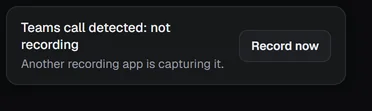
Check these in order:
- Is the app on? Open Settings › Recording. Only Microsoft Teams and Zoho Cliq and Zoho Meeting are on in a new install. Turn on Zoom, Webex, Slack huddles, Discord, or Browser calls for calls in a web browser, or add another app under Other app.
- Is the app using the microphone? A9 Voice starts when the app starts using your microphone, and stops when the app lets go of it.
- Is another recording app capturing the call? With Wait while another recording app runs on, A9 Voice holds back only while another recording app is really capturing the call. The bar says, for example, "Teams call detected: not recording" and "Another recording app is capturing it", and offers Record now. Press it to record anyway, or turn the setting off.
You can always start a recording yourself with the Record button, Ctrl+Alt+N or Start recording in the tray menu. More: Recording a meeting.
Show in folder opens the wrong place#
Older versions could open Documents instead of the note's folder or file. This is fixed; update to the latest build. If it still opens the wrong place, copy the diagnostics and report it.
I named a speaker wrong in the Live window#
Every naming action in the Live window can be undone for 10 seconds with Undo in the small bar that appears. Nothing is learned during a call, so Undo leaves no trace. To fix a name later, click it in the transcript and choose whether the fix is for that line or for everything that speaker said. If the name is already used, A9 Voice asks "Same person?" and can merge the two speakers. After the call you can rename speakers on the note page. More: Live window and Note page.
A note is stuck on "Transcribing…" or says it failed#
- Wait for it to finish. A long meeting takes a while to write up. The note shows its stage: transcribing, then "Writing the summary…".
- After a crash or a restart, A9 Voice finishes any note that was left unfinished the next time it starts. Open A9 Voice and give it a minute.
- If the note says it failed, read the message on the note, then press Try again (this needs the audio, which is kept for a failed note). If a service rejected your key, fix it in Settings › Models first.
- If the transcript is fine but there is no summary, add a key in Settings › Models, then press Regenerate summary in the right-hand column of the note. You can also choose another speech model and press Regenerate transcript.
More: Note page.
Speech models and the graphics card#
A model will not download#
Model files come from Hugging Face and are checked before use. Messages you may see:
- "The download was cut short; try again". The connection dropped. Press Download again: it picks up where it stopped.
- "A downloaded file was damaged; try again". The checksum did not match, so the file was thrown away. Try again.
- "The download server answered …". The server refused or could not find the file. Try later.
Also check the free space: the model window shows how much is free on the drive. If the download keeps failing, press Discard partial download and start again. A firewall, proxy or security tool that blocks huggingface.co will stop downloads. More: Speech models.
The graphics card is not used#
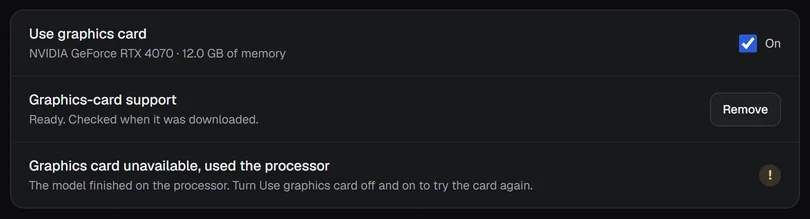
Open Settings › Models and read the Use graphics card row. It tells you why:
- "No supported graphics card found. Whisper models run on the processor." The PC has no DirectX 12 card that can run models. That is fine: everything works on the processor.
- "The driver is too old for DirectX 12. Update the graphics driver." Update the driver from your card's maker or Windows Update.
- The switch is off. Turn Use graphics card on. A model tile says "Needs Use graphics card" in that case.
- The graphics-card support is not downloaded. Press Download on the Graphics-card support row. It is a one-time download of about 25 MB.
- "Needs … of graphics memory". The model needs more memory than the card has. The model window names a smaller model to use.
- The PC has two cards. A Graphics card row lets you pick which one runs models.
"Graphics card unavailable, used the processor"#
The card had a problem while a model was running, so A9 Voice finished the job on the processor and told you once. Nothing was lost. To try the card again, turn Use graphics card off and on. If it keeps happening, copy the diagnostics: they list the card, the driver and the last failure.
Settings and files#
A notice says my settings or a database was damaged#
A hard crash or power cut can damage a file. At the next start A9 Voice keeps the damaged file beside the new one and shows a notice in the pill:
- "Settings were damaged; restored the last good copy". Your settings came back from the previous good version. You might lose the very last change.
- "Settings were damaged and reset; the old file is kept beside them". There was no good copy, so settings started from the defaults. Your keys are safe, because they are not in that file.
- "History was damaged. Rebuilt it and kept what could be read; the old file is saved beside it" (or Notes). The rows that could be read were copied back.
The damaged files are in %APPDATA%\com.riptide9.scribe with a name ending in .bad- or .damaged- and a number. You can send them with a report if you want them looked at; they hold your data, so do not post them in public.
The window looks wrong, cut off or too small#
- The main window needs at least 960 × 640. Below 1150 pixels wide the sidebar shows only icons; Keep the sidebar open at the bottom keeps it open.
- If Windows text size or scaling is above 100%, try 100% to see whether it changes.
- Copy the diagnostics and attach them to a report: they include your monitors, scaling, Windows text size, the WebView version and the size the pill and recording bar were given.
Updates#
An update did not finish#
You pressed Restart to update, or A9 Voice restarted itself, and afterwards the version is still the old one. When it starts, A9 Voice says "The update to X didn't finish. A9 Voice will try again when you're not dictating or recording." and tries once more by itself, once for each time it starts.
If it keeps failing, restart the PC and open A9 Voice again; it picks the update up on its own. The installer logs each step it takes to installer.log in the logs folder (Settings › General › About › Open logs folder), and A9 Voice's own log, scribe.log, has lines starting "update hand-off" and "handing off to the installer". Copy them into a report with the diagnostics. See Updates and channels.
"Restart your PC to finish the update"#
The installer waited for the running A9 Voice to close, tried to end it, and it still would not go. Nothing was replaced, so the version you have keeps working. Restart the PC; the update installs by itself the next time A9 Voice starts.
Getting help#
Open the manual from the app#
Every page of A9 Voice has a small ? button at the top right, beside the model chips. It opens this manual in your browser at the page that explains the screen you are on, for example the Speech models page opens Speech models. The Live window has the same ? button in its header. The Manual button in the sidebar, and Help › Manual in the tray menu, open the front page of the manual.
Copy diagnostics#
Copy diagnostics puts a block of text on your clipboard that tells someone what you are running, without anything private.
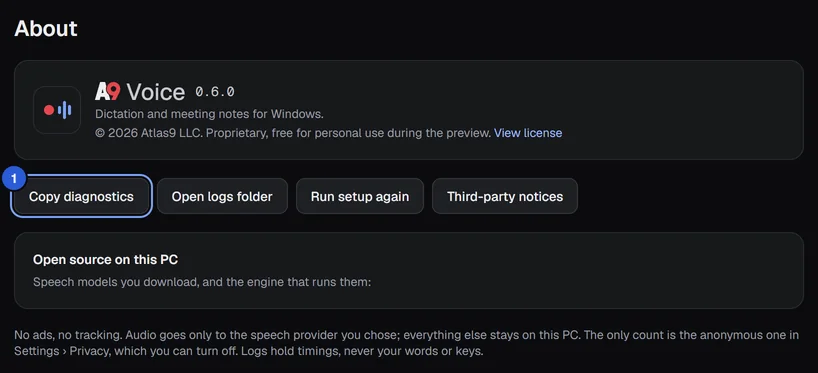
You find it in two places: Settings › General, at the bottom in the About card, and the tray menu under Help › Copy diagnostics. Paste it into your message.
It contains:
- the A9 Voice version and your Windows version,
- the microphone in use,
- which speech and language services you have set up (names only), and which is first and which is the fallback,
- your dictation shortcuts and whether Windows accepted them, and your update channel,
- the graphics-card section: whether Use graphics card is on, the cards found with their memory and driver, whether graphics-card support is downloaded, and the last failure,
- the display section: monitors, scaling, text size, WebView version, the font in use, and the size given to the pill and recording bar,
- the last 200 lines of the log.
It never contains your API keys: anything that looks like a key is replaced by [redacted]. It never contains what you said or the text of your notes, because the logs do not hold them. It does contain names of your devices and the apps you dictated into, so read it before you post it in public.
Report a problem#
- Press Copy diagnostics (above).
- Open the issue form on GitHub and describe what you did, what you expected and what happened. Paste the diagnostics.
- Or paste the diagnostics into an email to [email protected].
Do not post API keys, meeting content or other people's names in a public issue.
Common questions#
How much does it cost?#
Transcribe is free, always. Notes is free for 30 days from the day you press Try Notes free, then $49 once for one person on up to 3 machines, with every update. Separately, you pay the speech and language services directly, with your own keys, at their prices. Settings › Usage & cost shows your own estimate for the month, worked out from a price table you can edit. Models that run on this PC cost nothing per use. See the Settings reference.
Is there a Mac version?#
No. A9 Voice runs on Windows 10 and 11, 64-bit.
Why is it free?#
Transcribe is free and stays free. Notes is the part that is paid for: it is free for 30 days from the day you press Try Notes free, and nothing starts the clock before that, so a PC that only dictates never uses its trial and a call is never recorded until you have turned Notes on. After that a new recording needs a license ($49, once). Everything you already recorded stays readable, searchable and exportable. The speech and language services you use bill you directly either way. See Settings › Account to buy, extend or enter a key.
Windows shows a note about the publisher when I install#
The installer is not code-signed yet, so Edge may say the file is not commonly downloaded, and Windows SmartScreen may show a note for installers from publishers it has not seen many downloads from. The note shows the publisher and the file. The download page explains what the screens are and lists the installer's SHA-256 so you can check the file you have. The installer runs for your user only and does not ask for administrator rights.
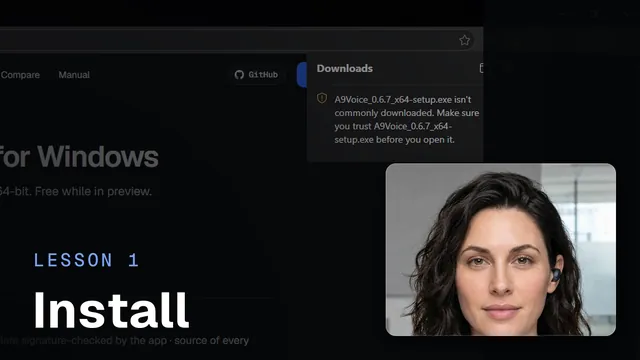 Installing A9 VoiceWatch the 1-minute video
Does a bot join my meetings?#
No. A9 Voice records what your microphone hears and what your computer plays. See Recording a meeting, and remember that some places require everyone's permission to record.
I closed the window. Is A9 Voice still running?#
Yes. Closing the window hides it to the tray, and A9 Voice tells you so the first time. Dictation keeps working. To quit, right-click the tray icon and choose Quit.
Does it work without internet?#
Yes, if you download a speech model under On this PC. See Privacy and data for how to keep everything on your PC.
Where is my data?#
On your PC: settings and history in the app's data folder, notes as files in a folder you pick, keys in Windows Credential Manager. Privacy and data lists every folder and every place data can go.
Why does Windows show my microphone as in use?#
While you dictate or record, A9 Voice uses the microphone. If Keep microphone ready is on in Settings › Microphone, the microphone is held open so dictation starts faster, and Windows shows it as in use all the time. Turn the setting off if you do not want that.
Related#
Something missing or wrong? Report an issue, or use Copy diagnostics in Settings › General when asking for help.