
Manual · Notes
Speakers on this PC
Tell the other people on a call apart while it is still going, on your own PC, for free. Nothing is sent anywhere and no key is needed.
Last updated for A9 Voice 1.0.17
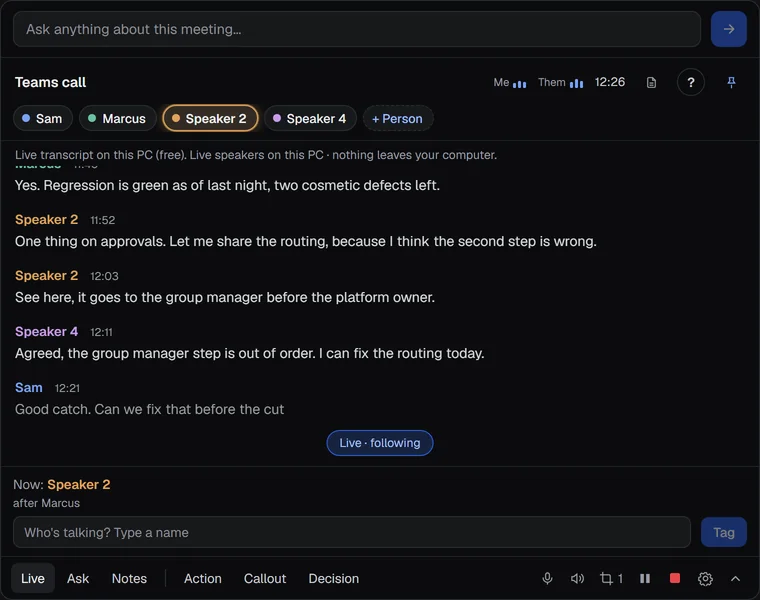
In the Live window, each person on the other side of the call gets a color and a name, Speaker 2, Speaker 3 and so on, so you can see who is saying what as it happens. Some speech services do this in the cloud. This page is about doing it on your PC instead, which is how it works when your live transcript is written on your PC (the free setup).
How it works#
- A9 Voice listens to the computer audio, the other people. It never looks at your microphone: you are always Me, because your microphone is its own channel.
- Every couple of seconds it makes a voice fingerprint of the last few seconds of the other side: numbers that describe how the voice sounds, not a recording. It uses the same speaker model as Voices.
- Fingerprints that sound alike belong to one speaker. A new speaker appears only after two fingerprints agree that someone new is talking, so one cough or a laugh does not make a Speaker 5. About once a minute it checks whether two speakers are really one person and joins them; their lines are relabeled in the window.
- A line shows up a few seconds after the speech, with its speaker. A line is given to the speaker who talked for most of it.
- When the recording stops, A9 Voice reads the whole meeting again with what it learned, and that final pass gives the note its speakers. The live labels are a draft; the note has the more careful answer. Names you gave during the call are carried into the note.
Turn it on#
It is Automatic to begin with:
- Live transcript on this PC: speakers are told apart on this PC.
- Live transcript from Deepgram or AssemblyAI: their own speaker labels are used, as before.
To choose, open Settings › Notes › Live window and use Speakers during the call:
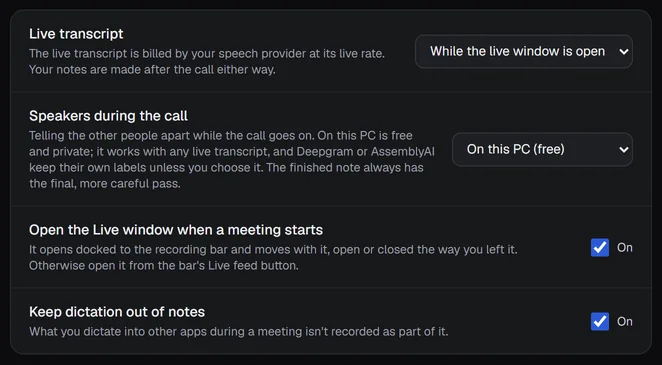
- Automatic: this PC when the live transcript is written on this PC, otherwise the service's labels.
- On this PC (free): this PC for any live transcript, including one from a service that has no speaker labels.
- The live service's labels: only what the live service labels. Nothing is done on this PC.
It works while Identify speakers is on, and it needs the speaker model (80.3 MB, the same one Voices uses). If it is not downloaded yet, the Live window says so under its header with a Download button. The live lines show the speakers the transcript has until the model is there, and speakers on this PC start with the next meeting.
Names#
Naming works as it always has: click a speaker's chip, or type a name in Who's talking?, and the name goes to that speaker everywhere, now and in the note. With Recognize people by voice on, A9 Voice also names people it knows. It does so only when one saved voice is a clear match and well ahead of the next closest one. If two people sound alike, the speaker stays Speaker 3 rather than getting the wrong name. A name you type always wins over a guess.
If you click the name box a moment after someone stopped, the name goes to the person who had the floor in the last few seconds.
What stays on your PC#
- The audio, the fingerprints and the speaker labels never leave your PC. Speakers on this PC makes no network request.
- Each note keeps, in A9 Voice's own data folder, who talked when and one set of numbers per speaker, so that names can be matched again later without the audio. They are not in the note's folder, the exports, the webhooks or the connector. Deleting the note deletes them.
- The live fingerprints are kept in memory during the recording only.
If something goes wrong#
- Two people show as one speaker, or one person as two. It can happen on a short meeting, or with people who sound alike. Join two speakers or move a line from the speaker's menu, as in the Live window. The final pass in the note is usually better.
- The Live window says it needs the speaker model. Press Download. The live lines keep the transcript's speakers until it is ready, and speakers on this PC start with the next meeting.
- Everyone is one speaker in the note. Check that Identify speakers is on in Settings › Notes › Transcript & summary.
Related#
Something missing or wrong? Report an issue, or use Copy diagnostics in Settings › General when asking for help.