
Manual · Speech and AI
Usage and cost
What your notes, dictation and Ask cost at your own keys' rates, how the estimate is made, and how to change the prices it uses.
Last updated for A9 Voice 0.7.25
A9 Voice is free. The speech and language services you connect bill you directly, with your own keys. Settings › Usage & cost estimates that bill. It has three tabs: Overview, History and Prices. The estimate is built from what A9 Voice sent and a price table, so your provider's own bill is always the final word.
What is counted#
Every time something is sent to a service you pay for, A9 Voice writes it down, with the model and how it was sent:
- A meeting's audio, live. With the live transcript on and a Deepgram key saved, each side of the call (you, and the other people) is streamed while the meeting runs. That is billed at the provider's live rate, for each side, for as long as it streams.
- A meeting's audio, after the call. When the meeting ends, each side is uploaded again to the Meeting notes model for the final transcript, at its after-the-call rate. A side that was silent is not uploaded and costs nothing.
- Dictation. Each clip you dictate, at the after-the-call rate of the dictation model that answered. Dictation on this PC costs nothing.
- Summaries, Ask and Enhance. Each call to a language model, by the tokens the provider counted. OpenRouter also says what each call cost, and that number is used instead of the table.
A meeting with the live window on is therefore billed twice: once live, once after the call. Turn off Live transcript in Settings › Notes › Live window if you only want the final notes.
Models on this PC (Parakeet, Whisper) are always $0.00.
Overview#
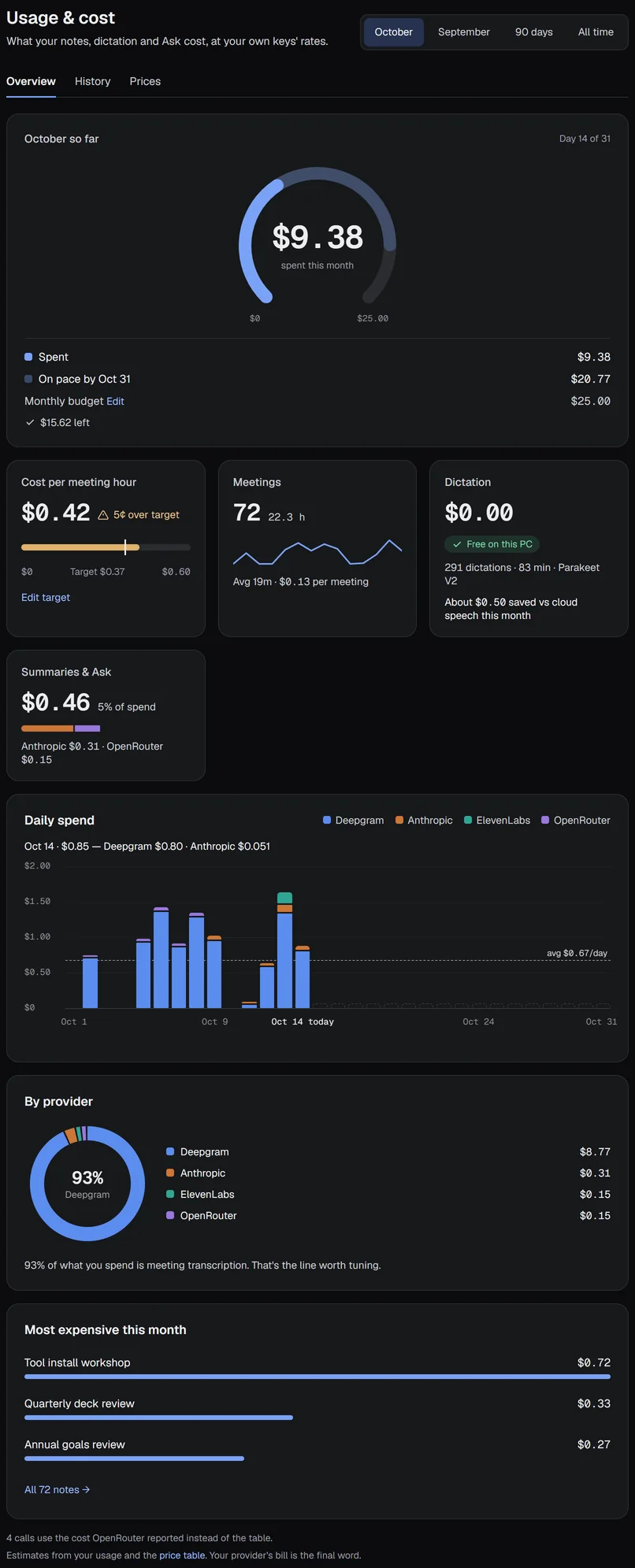
Pick a period at the top right: this month (the default), last month, 90 days or All time. Everything on the tab follows it.
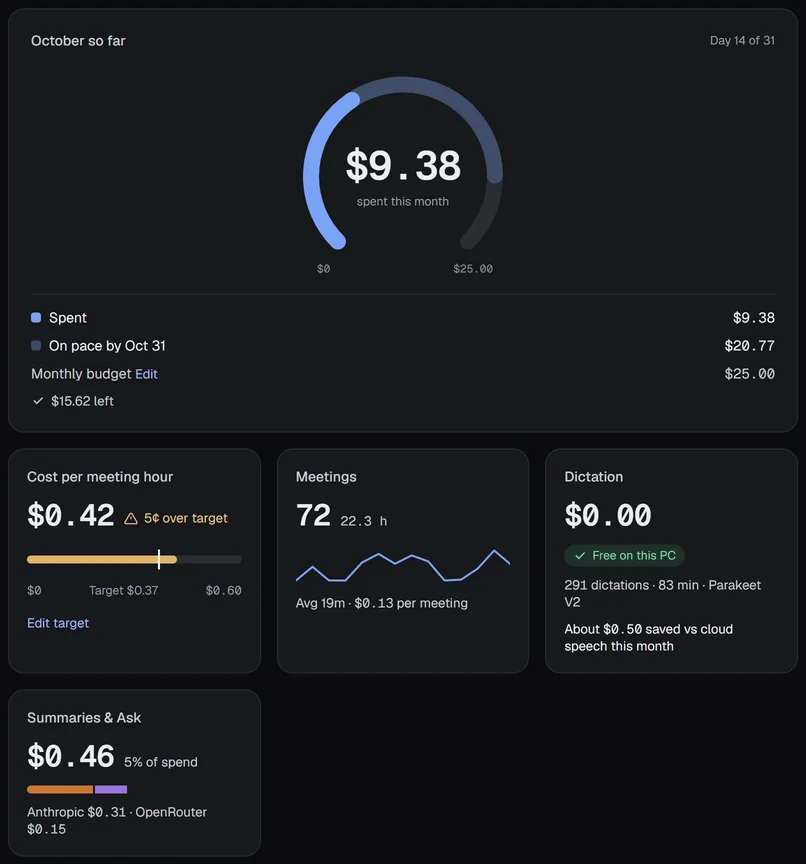
- The gauge shows what you spent against an optional monthly budget. The pale arc is where the month ends if you keep this pace. With no budget the arc scales to that projection and the card says Set a budget. Over budget it turns amber and says so in words.
- Cost per meeting hour is what a meeting costs per hour of recording, transcript and summary together. Set a target and the bar shows it, and says how many cents you are over it.
- Meetings shows the count, the hours, and a small line of daily spend. Imported notes aren't counted: nothing was billed for them.
- Dictation shows the cost, the count, the minutes and the engine. When dictation is free, it says about how much the same minutes would have cost on the cloud model you use for Meeting notes.
- Summaries & Ask shows their cost, their share of everything you spend, and which providers it went to.
- Daily spend has a bar for every day, split by provider. Point at a bar, or press the left and right arrow keys once the chart has focus, to read that day. A dashed line is the average per day.
- By provider is the same money by provider, with one sentence about where most of it goes.
- Most expensive lists the three notes that cost the most. Click one to open it.
History#
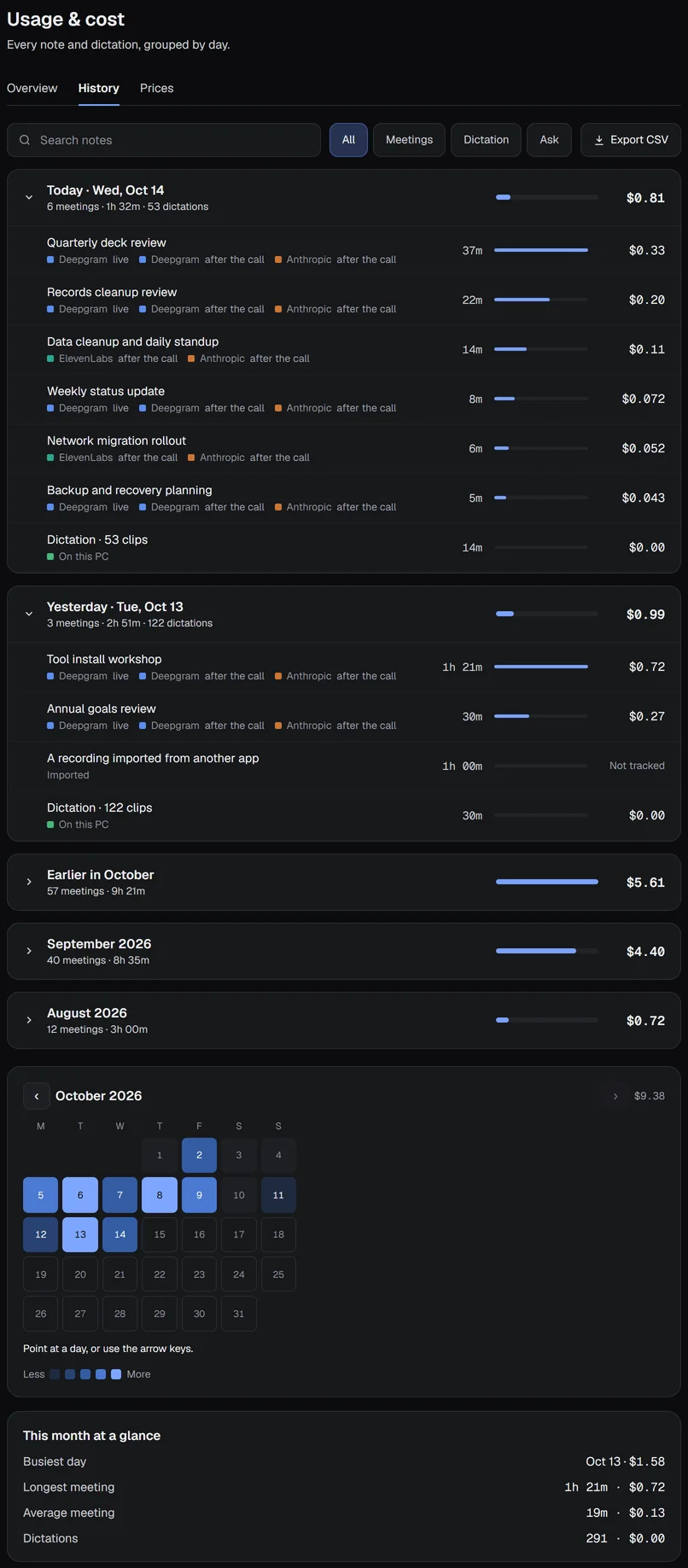
Every note and dictation, newest first. Today and Yesterday are open. The rest of the month is one group, Earlier in October, and every past month is one line with its total. Open one and it shows 25 rows at a time, with Newer and Older buttons.
- A day's dictations are one row, for example Dictation · 53 clips.
- A row shows the note's title, each provider it used and how (live, after the call, on this PC), its length and its cost. Click a note to open it.
- All, Meetings, Dictation and Ask filter the rows. The search box looks in titles.
- Export CSV saves every row that matches the filter and the search: date, kind, title, providers, mode, units and cost.
- The calendar colors each day by what it cost; darker is more. The box under it gives the busiest day, the longest meeting and the averages.
A row that says Not tracked is a note nothing was recorded for. That is every note imported from another app, and any note whose engine was never written down. It is not counted as $0.00. A stretch that mixes older notes with newer ones says so: older notes were written down before live and after-the-call audio were told apart, so they are priced at the after-the-call rate.
No usage is deleted. Clearing your dictation history or deleting a note does not take its spending out of these pages.
Prices#
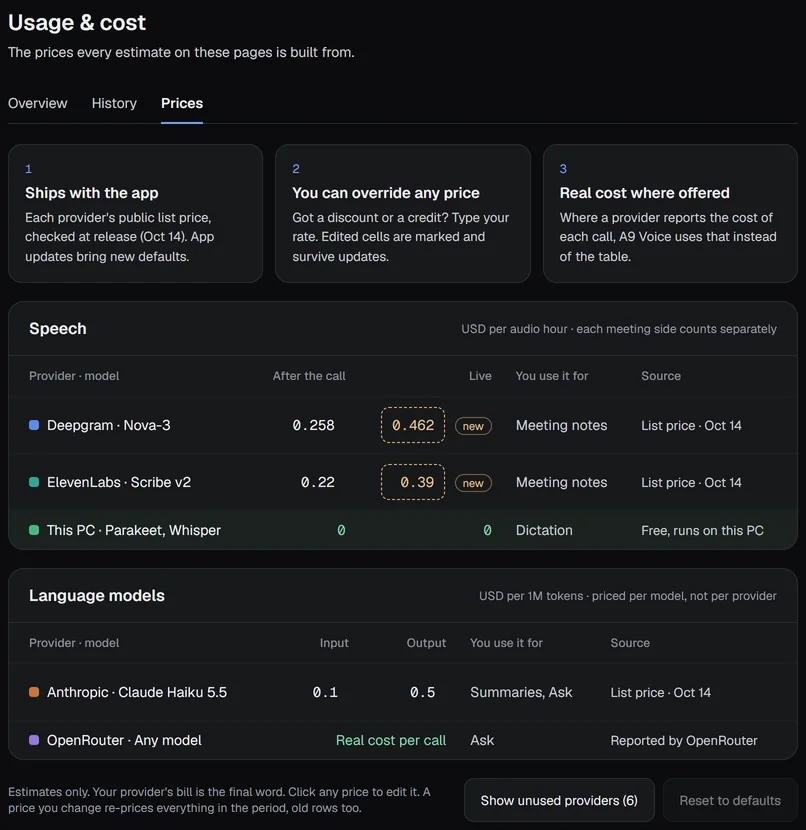
Every estimate is units times the price of that model, in that mode.
- Ships with the app. Each provider's public list price, checked on the date shown on the page. A new version of A9 Voice brings new defaults.
- You can override any price. Got a discount or a credit? Click a price and type yours. Press Enter to keep it, Esc to cancel; clear the box to go back to the shipped number. An edited price is marked Edited and stays through every update. A price you change re-prices everything in the period, old rows too.
- Real cost where offered. OpenRouter reports what each call cost. A9 Voice uses that number, and its row says Real cost per call.
Speech has two rates: After the call and Live, per audio hour. Language models have Input and Output, per 1 million tokens. A dash means that model has no rate for that mode, and anything billed that way shows no price and counts as $0.00 until you set one.
Only the providers you use show at first. Show unused providers lists the rest. A new live rate carries a new mark the first time you open the tab. Reset to defaults removes every price you typed, after a confirmation.
If something looks wrong#
- The total is lower than your provider's bill. Check Live in Prices: a rate that is blank is counted as $0.00. Check for a promotion or a discount your account has; type that rate and the page follows it.
- A note says Not tracked. It was imported, or it was recorded before A9 Voice kept usage. Nothing is hidden: it simply has no numbers.
- Costs went up after an update. Meetings recorded before this version were priced after the call only. The live stream is now counted too, which is what Deepgram bills.
Related#
Something missing or wrong? Report an issue, or use Copy diagnostics in Settings › General when asking for help.